
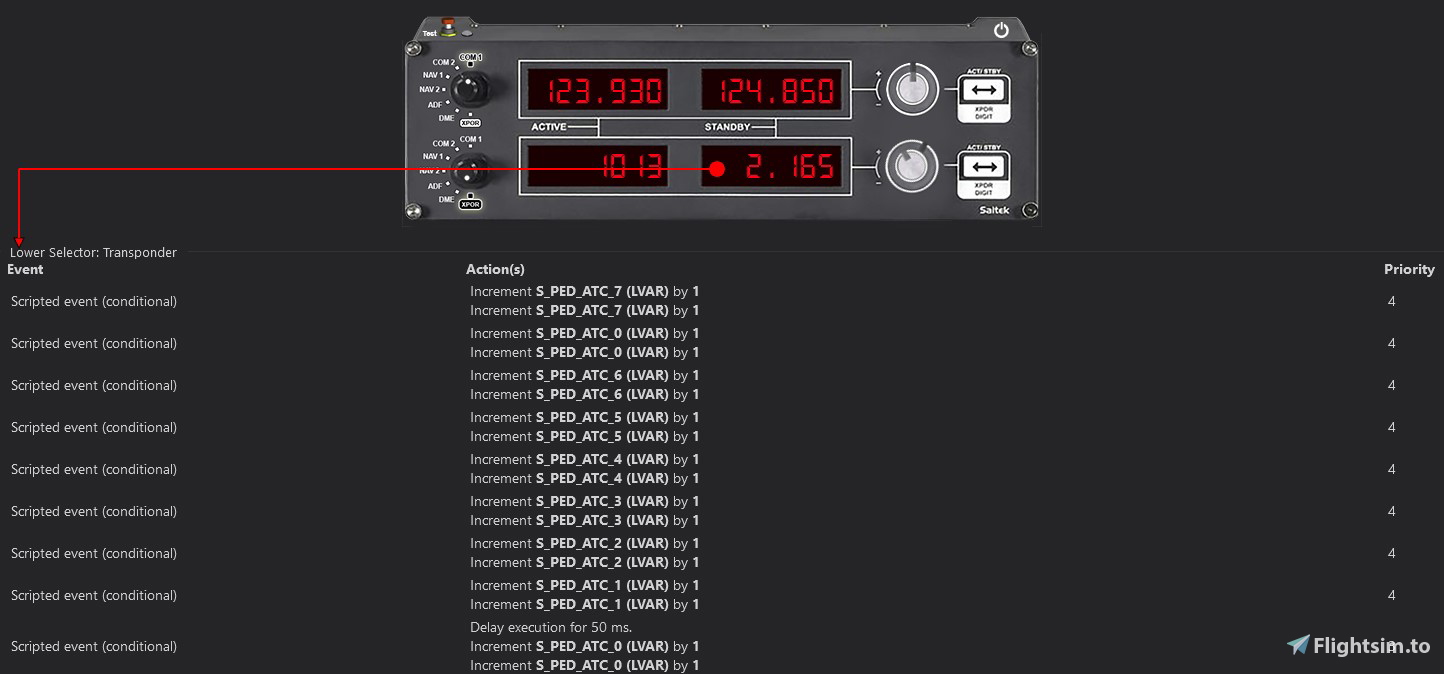
Description
This SPAD.neXt profile is designed for Logitech/Saitek panels, including multi, switch, and radio panels, to make them compatible with the Fenix A320. If you come across any bugs, mistakes, or have suggestions, please don't hesitate to reach out to me!
This profile requires a SimConnect connection and LVAR Bridge to be installed.
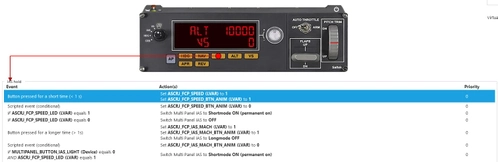
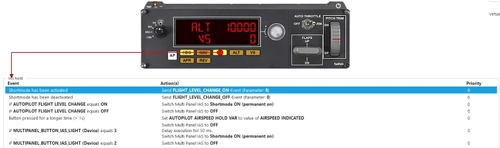
It is essential to set a multi panel pollrate to 0. You can change it in settings > devices > multipanel (image)
Installation:
Put "Fenix A320 Logitech Panels (current version) by Pollot.xml" into your SPAD.neXt profiles folder.
[Default location: C:\Users\[your name]\Documents\SPAD.neXt\profiles]
Limitations:
- Multi panel displays don't work
- Nav frequency doesn't change in MCDU (can still be used as a DME)
- ADF doesn't work
- Multi panel LEDs are sometimes sketchy
This is version 1.0, let me know if you find any issues.
Description of profile functions (also located in the .zip file):
Fenix A320 Logitech Panels SPAD.neXt Profile - version 1.0 / created by Pollot (don't copy my work without my permission)
Switch Panel:
Master Battery [BAT] - Turns both batteries ON/OFF
Master Alternator [ALT] - Turns APU master switch ON and after 3 seconds starts the APU / Turns APU master switch OFF
Avionics Master - Turns all ADIRUs to the NAV position / Turns all ADIRUs to the OFF position
Fuel Pump - Turns all fuel pumps ON/OFF
De-Ice - Turns both engines de-ice ON/OFF
Pitot Heat - Turns wing anti-ice ON/OFF
Close Cowl - Turns dome light BRIGHT/OFF
Panel Lights - Turns panel lights and floods 60-80%/OFF
Beacon Lights - Turn beacon lights ON/OFF
Navigation Lights [NAV] - Turns navigation lights 1/OFF
Strobe Lights - Turns strobe lights ON/AUTO (after spawning in, it's in OFF position - keep that in mind)
Taxi Lights - Turns runway turnoff and nose taxi Lights ON/OFF
Landing Lights - Turn landing lights ON/OFF
Magnetos - Increases/decreases ND range
Gear Lights:
Green - Fully extended
Yellow - Fully extended, but with airspeed equal to or greater than 200 knots
Red - Not fully extended
Off - Retracted
Landing Gear Lever - Controls landing gear lever position
/////////////////////////////////////////////////////////
Multi Panel: function after "/" is activated when you press and hold a button for longer than one second
Alt tab:
- No display functionality
- Knob changes selected altitude by 100ft / 1000ft
VS tab:
- No display functionality
- Knob changes selected vertical speed by 100ft / 500ft
IAS tab:
- No display functionality
- Knob changes selected speed by 1kt / 5kt
HDG tab:
- No display functionality
- Knob changes selected heading by 1° / 5°
COURSE tab:
- No display functionality
HDG and IAS:
LED ON - Manual selection mode
LED OFF - Managed mode
Autopilot [AP] - Turns left autopilot ON/OFF
Heading [HDG] - Turns heading mode ON/OFF (OFF - navigation mode [LNAV])
Navigation [NAV] - Turns managed altitude mode [VNAV] ON/OFF (OFF - open climb/descent)
Indicated Airspeed [IAS] - Turns selected speed mode ON/OFF (OFF - managed speed mode)
Altitude [ALT] - Turns OP CLB/DES [FLC] ON/OFF (OFF - VNAV)
Vertical Speed [VS] - Turns vertical speed mode (LED doesn't work)
Approach [APR] - Turns approach mode ON/OFF
Reverse Course [REV] - Changes altitude increment switch position to 1000ft / 100ft and enables faster frequency changes on the radio panel
Auto Throttle - Turns autothrottle ON/OFF
Flaps - Flaps up/down by a 1 notch
Pitch Trim - Changes selected vertical speed
/////////////////////////////////////////////////////////
Radio Panel:
The inner knob changes COM1/2 frequency by 0.005 MHz and the outer by 1 MHz
With REV ON inner knob changes COM1/2 frequency by 0.025 MHz and the outer still by 1 MHz
Navigation frequency doesn't change in the MCDU, you can use it as a DME tho
ADF tab shows ADF1 and ADF2 at the same time (ADF1 on the left and ADF2 on the right), but it doesn't work at the moment
DME shows a distance from NAV1 on the left side and the NAV2 on the right side
In the XPDR tab, you can change your QNH using the outer knob, and squawk using the inner (press the transfer button to change between squawk numbers)
Holding the transfer button in the XPDR tab for longer than one second will set QNH to a standard value
Transponder updates only after scrolling digital mark to the first digit (try it out to understand how it works)
/////////////////////////////////////////////////////////
That's all, fly safe!
Fenix A320 Logitech Panels SPAD.neXt profile
Enhance your Fenix A320 experience with this SPAD.neXt profile designed for Logitech/Saitek panels, including multi, switch, and radio panels. Ensure SimConnect connection and LVAR Bridge are installed for full compatibility. Install the profile, make adjustments, and fly safe while enjoying various panel functionalities.

User Reviews
5 reviews
Version History
No version history available.
Related
FBW A32NX Logitech Panels SPAD.neXt Profile
Enhance your FBW A32NX experience with this discontinued Logitech Panels SPAD.neXt profile. Designed for Logitech/Saitek panels, this profile offers compatibility with the Airbus A320neo. It requires a SimConnect connection and LVAR Bridge for optimal performance. Installation is simple – just place the file in your SPAD.neXt profiles folder. Fly safe with improved functionalities and added Honeycomb Alpha support.
by Pollot
PMDG B737 Logitech Panels SPAD.neXt Profile
This SPAD.neXt profile by Pollot is tailored for Logitech/Saitek panels, enhancing compatibility with the PMDG Boeing 737. The profile necessitates SimConnect connection, LVAR Bridge installation, and PMDG SDK activation. Included are detailed instructions for installation and profile functions such as multi, switch, and radio panel capabilities for an optimized flight simulation experience.
by Pollot
CRJ Logitech Panels SPAD.neXt Profile
Enhance your Logitech/Saitek panel experience with this SPAD.neXt profile designed for the Aerosoft CRJ. Install SimConnect connection and LVAR Bridge for full functionality. Enjoy smoother operation with lower multi panel tuner pollrate settings. Explore various panel functions and improvements in the detailed profile documentation.
by Pollot
TBM930 Logitech Panels SPAD.neXt Profile
Enhance your TBM930 cockpit experience with this SPAD.neXt profile designed for Logitech/Saitek panels, offering seamless compatibility and functionality adjustments. The profile includes detailed functions for Switch Panel, Multi Panel (with REV enabled), and Radio Panel, optimizing your flight controls for a smoother simulation. Installation is simple - just place the provided file in your SPAD.neXt profiles folder to unlock the full potential of your Logitech/Saitek panels with the TBM930 aircraft.
by Pollot
Log in to join the discussion
Log InComments(28)
about 1 year ago
about 1 year ago
about 2 years ago
about 2 years ago
over 2 years ago
over 2 years ago
Is it still possible to change QNH in the Fenix B2?
When on XPDR both rings tune the Transponder.
almost 3 years ago
almost 3 years ago
about 3 years ago
almost 4 years ago
Hello, i have a small problem with the radio panel , the radio frequencies work perfect but i can t change the qnh and tanspondeur code . any solution ?
thank you for great works.
almost 4 years ago
I haven't flown Fenix for at least two months. There were significant updates released in the meantime, so I would need to investigate these issues further.
almost 4 years ago
Great work, my issue is the transponder not working with Fenix A320 in sim when changing on the Logitech Radio Panel
almost 4 years ago
thank you so much
over 4 years ago
Good job. For now, when the profile I found was working - it's a pity that there is no value on the screen, at least for me (Multipanel)
over 4 years ago
Thanks for your work on this. I am just using the radio stack at the moment, but noticed a strange bug whereby when setting the SQUAWK code to 2200 (often used in VATSIM) it defaults to 2020 in the Fenix. Other code combinations seem to update correctly, although not tried every possible combination obviously.
over 4 years ago
Genius. Thank you.