
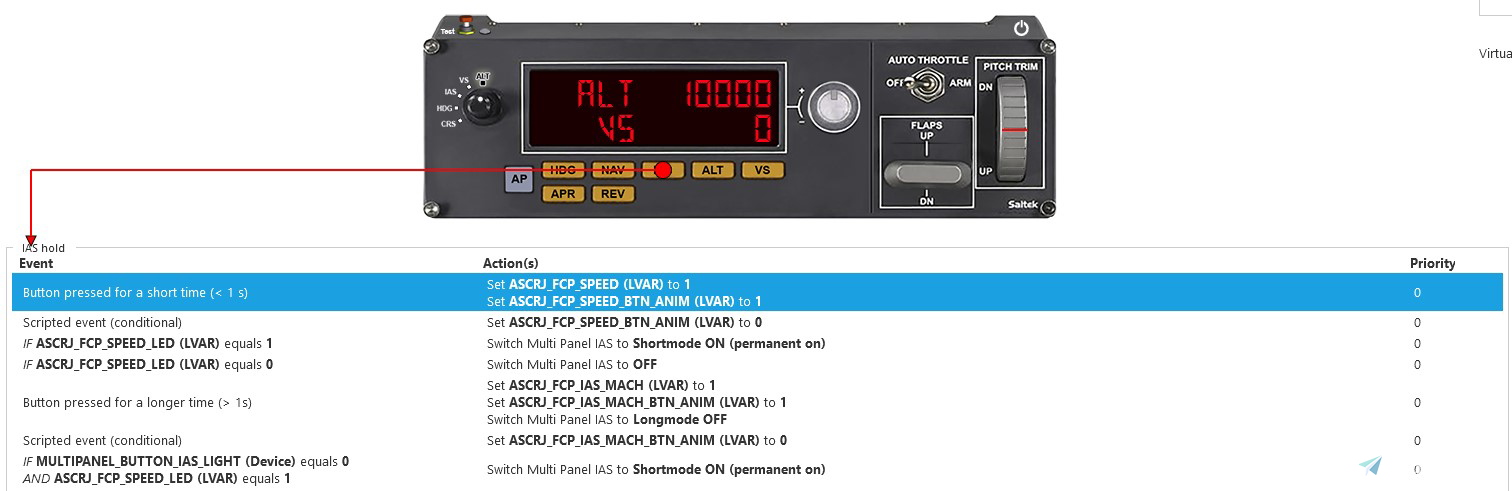
Description
This SPAD.neXt profile is designed for Logitech/Saitek panels, including multi, switch, and radio panels, to make them compatible with the Aerosoft CRJ. If you come across any bugs, mistakes, or have suggestions, please don't hesitate to reach out to me!
This profile requires a SimConnect connection and LVAR Bridge to be installed.
I recommend using a lower multi panel tuner pollrate. You can change it in settings > devices > multipanel (image)
Lower values will give you a smoother experience. If you experience problems with stuck knob animations, increase its value.
Installation:
Put "CRJ Logitech Panels (current version) by Pollot.xml" into your SPAD.neXt profiles folder.
[Default location: C:\Users\[your name]\Documents\SPAD.neXt\profiles]
Known issues:
- IAS not displaying after SU6 (I am currently unable to fix it)
Description of profile functions (also located in the .zip file):
CRJ Logitech Panels SPAD.neXt Profile - version 1.2 / created by Pollot (don't copy my work without my permission)
Changelog:
1.1:
- Added reverser to autothrottle switch instead of flaps
- Added magnetos to a description
- Added HGS function for flaps switch
- Added flaps function when holding flaps switch longer
- Fixed IAS light not illuminating after enabling second speed mode
1.2:
- Fixed HDG not displaying after SU6
/////////////////////////////////////////////////////////
Switch Panel:
Master Battery [BAT] - Turns master battery switch to ON/OFF position
Master Alternator [ALT] - Turns APU power fuel ON and after 5 seconds starts the APU / STOPs the APU and after 5 seconds turns APU power fuel OFF
Avionics Master - Turns both IRSes to the NAV position / Turns IRSes to the OFF position
Fuel Pump - Turns both fuel pumps ON/OFF
De-Ice - Turns both engines anti-ice cowls ON/OFF
Pitot Heat - Turns both probes heaters ON/OFF
Close Cowl - Turns dome light ON/OFF
Panel Lights - Sets cockpit lights
Beacon Lights - Turns beacon lights ON/OFF
Navigation Lights [NAV] - Turns navigation lights ON/OFF
Strobe Lights - Turns strobe lights ON/OFF
Taxi Lights - Turns taxi Lights ON/OFF
Landing Lights - Turns all Landing Lights ON/OFF
Magnetos - Turning right extends ND distance, turning left decreases
Gear Lights:
Green - Fully extended
Yellow - Fully extended, but with airspeed equal to, or greater than 180 knots
Red - Not fully extended
Off - Retracted
Landing Gear Lever - Controls landing gear lever position
/////////////////////////////////////////////////////////
Multi Panel: function after "/" is activated when you press a button for longer than one second
Alt tab:
- Displays selected altitude and selected vertical speed
- Knob changes selected altitude
VS tab:
- Displays selected altitude and selected vertical speed
- Knob changes selected vertical speed
IAS tab:
- Displays selected speed (used for Flight Level Change)
- Knob changes selected speed
HDG tab:
- Displays selected heading
- Knob changes selected heading
COURSE tab:
- Displays selected course (for NAV1)
- Knob changes selected course by 1° and with REV ON by 10°
Autopilot [AP] - Turns autopilot ON/OFF
Heading [HDG] - Turns heading mode ON/OFF / Synchronizes heading bug to your current heading
Navigation [NAV] - Turns navigation mode ON/OFF / Synchronizes course (for NAV1) to your current heading
Indicated Airspeed [IAS] - Turns speed mode ON/OFF / Changes units to MACH/Knots
Altitude [ALT] - Turns altitude mode ON/OFF / Clicks ALT cancel button
Vertical Speed [VS] - Turns vertical speed mode ON/OFF
Approach [APR] - Turns approach mode ON/OFF
Reverse Course [REV] - Enables special function to change values on radio quicker (also for the course) / Turns back course mode ON/OFF
Auto Throttle - ARMS thrust reversers, turns thrust reversers off
Flaps Down [DN] - Pulls HGS down (Heads-up Guidance Display) / Increases flaps
Flaps Up - Hides the HGS / Decreases flaps
Pitch Trim - Changes selected vertical speed
/////////////////////////////////////////////////////////
Radio Panel:
Holding the transfer button for longer than one second will change the radio into an audio panel. The left value is a volume and the right tells you if it's enabled or not (0 - enabled, 1 - disabled).
You can change the volume using knobs (inner by 1 unit and outer by 5) and enable/disable sounds clicking (for less than one second) transfer button
If you're in the audio panel mode in the XPDR tab, then the right value is a picked transponder unit (0 - first, 1 - standby, 2 - second) and the left one is barometric pressure unit (0 - hPa, 1 - InHg, 10 - std hPa, 11 - std InHg)
You can change the transponder unit using an inner knob, and set a standard QNH by pressing the transfer button (for less than one second)
In normal mode, the inner knob changes frequency by 0.005 MHz and outer by 1 MHz
With REV ON inner knob changes frequency by 0.025 MHz and outer still by 1 MHz
*Navigation frequency doesn't change in the cockpit radio page or standby radio unit, but it works!*
ADF tab shows ADF1 and ADF2 at the same time (ADF1 on the left and ADF2 on the right), there isn't any standby ADF frequency. You can change between both of them using the transfer button (a change which one you want to change)
DME shows a distance from NAV1 on the left side and the NAV2 on the right side
In the XPDR tab, you can change your QNH using the outer knob, and squawk using the inner (press transfer button to change between squawk numbers)
/////////////////////////////////////////////////////////
That's all, fly safe!
CRJ Logitech Panels SPAD.neXt Profile
Enhance your Logitech/Saitek panel experience with this SPAD.neXt profile designed for the Aerosoft CRJ. Install SimConnect connection and LVAR Bridge for full functionality. Enjoy smoother operation with lower multi panel tuner pollrate settings. Explore various panel functions and improvements in the detailed profile documentation.

User Reviews
4 reviews
Version History
- Fixed HDG not displaying
Related
FBW A32NX Logitech Panels SPAD.neXt Profile
Enhance your FBW A32NX experience with this discontinued Logitech Panels SPAD.neXt profile. Designed for Logitech/Saitek panels, this profile offers compatibility with the Airbus A320neo. It requires a SimConnect connection and LVAR Bridge for optimal performance. Installation is simple – just place the file in your SPAD.neXt profiles folder. Fly safe with improved functionalities and added Honeycomb Alpha support.
by Pollot
Fenix A320 Logitech Panels SPAD.neXt profile
Enhance your Fenix A320 experience with this SPAD.neXt profile designed for Logitech/Saitek panels, including multi, switch, and radio panels. Ensure SimConnect connection and LVAR Bridge are installed for full compatibility. Install the profile, make adjustments, and fly safe while enjoying various panel functionalities.
by Pollot
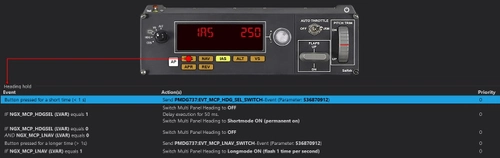
PMDG B737 Logitech Panels SPAD.neXt Profile
This SPAD.neXt profile by Pollot is tailored for Logitech/Saitek panels, enhancing compatibility with the PMDG Boeing 737. The profile necessitates SimConnect connection, LVAR Bridge installation, and PMDG SDK activation. Included are detailed instructions for installation and profile functions such as multi, switch, and radio panel capabilities for an optimized flight simulation experience.
by Pollot
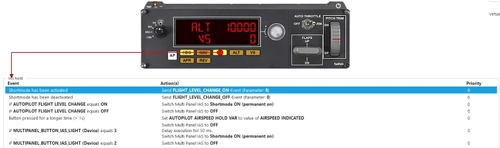
TBM930 Logitech Panels SPAD.neXt Profile
Enhance your TBM930 cockpit experience with this SPAD.neXt profile designed for Logitech/Saitek panels, offering seamless compatibility and functionality adjustments. The profile includes detailed functions for Switch Panel, Multi Panel (with REV enabled), and Radio Panel, optimizing your flight controls for a smoother simulation. Installation is simple - just place the provided file in your SPAD.neXt profiles folder to unlock the full potential of your Logitech/Saitek panels with the TBM930 aircraft.
by Pollot
Log in to join the discussion
Log InComments(15)
over 3 years ago
Thanks for the Profile. I like it. I just noticed that you cant change the frequency Decimals with this Profile. like you cant change from XX.XXX to XXX.XX. its a bit annoying when flying on VATSIM since it takes more time to turn in the frequencies. Can you change that? It works in the Fenix Profile :)
over 4 years ago
fantastic!!! never without ... just a note: everything works except nav1 and nav2. The frequencies change on the SAITEK display but clicking on ACT / STBY does not assign them to the on-board radio and they return to the initial state. Does it just happen to me?
over 4 years ago
CRJ got a few updates since the latest release of my profile, so It's probably a global issue. I remember that NAV freq didn't work while I was creating this profile and I needed to do a workaround. Maybe they fixed it in one of the updates. I will look into it soon.
almost 5 years ago
With CRJ's version 1.0.16, at least the Logitech multifunction panel stopped working. Please fix your profile asap as I really love it ;-)
almost 5 years ago
Where and when did you get 1.0.16? Aerosoft website still mentions 1.0.15 as the latest version and ASU Updater also does not indicate any updates ...
about 5 years ago
Dear friend - great work. But for what you use "Pitch Trim - Changes selected vertical speed" if it already use in the VS. Why don't make Pitch Trim to change Pitch Trim? Sorry for my english.
about 5 years ago
It's because in a real CRJ you change selected vertical speed using really close looking wheel as pitch trim wheel from multi panel. Also, pitch trim is changed using switches on the yoke (same goes for B737 as an example). This is why I think that this setup is more realistic and immersive.
about 5 years ago
Agree with @pollot on this - I have pitch on the hat for my joystick for all planes (native MSFS controls) and use the multi-panel wheel to control VS as defined here. It is so natural I have actually amended any other spad profiles such as WT CJ4 to work exactly the same.
Having said this it occurs to me whether if IAS mode were engaged then the wheel could have a condition check for that and if true, use the wheel to manage airspeed. Heck why not HDG as well :-)
about 5 years ago
Thanks for doing this - your profile is the best CRJ one I've found so far to enable my multi-panel.
I modded it to add flaps up/down and replaced the seatbelt light on the toggle with arm/disarm of the thrust reversers.
about 5 years ago
Thanks for your opinion! Of course everyone has a different preferences and I can also custom something for anyone (just contact me). It's a great idea to change reversers bind on A/T switch tho. In the next update I will include it by default.
about 5 years ago
Also, I will upload profile for A32NX and TBM930 in the next week. Stay tuned for it 🙂
about 5 years ago
Really need both of those as well although I'm pretty much living in the CRJ at the moment :-)
That is the FBW a23nx?
about 5 years ago
Yeah - A32NX is an A320neo from Fly-By-Wire team.
about 5 years ago
Have all the said panels but cant find the route to install ur file buddy
about 5 years ago
Maybe you have Documents folder in custom location. You can also launch SPAD.neXt and on the profiles menu click on the "open profiles folder" button. Hope it will help