
Description
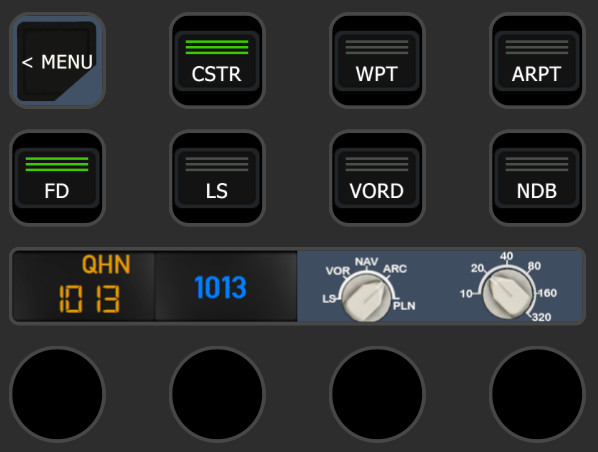
Here are the StreamDeck Profiles I created with my PilotsDeck Plugin for the Fenix A319/A320/A321.
It has all the usual Buttons/Switches/Korries from the Overhead, MIP/Glareshield, Pedestal, FCU (working Displays), MCDU (with Full Keyboard) and DCDU to support normal Flight Operations without touching the Mouse! (Including the GSX Menu on your StreamDeck)
They are designed for my SD/XL/Plus Setup:
- MSFS-Fenix320 => The SD Profile which only has supplementary Functions: Changing Views, Monitoring/Calling GSX, UTC Clock and the XPDR
- MSFS-Fenix320-Plus => SD+ Profile with mostly everything that makes Sense to control via the Encoders: FCU, EFIS, Radio, ACP, WXR, Display-/EFB-Brightness, Lights
- MSFS-Fenix320-XL => The XL Profile with all Functionalities. Besides specific Folders for the different Panels/Areas it has Folders for the different Flight-Phases with the most critical/common Controls needed for that Phase.
That means you need at least the StreamDeck XL (or SD+) to get any Use out of it. Please don't ask for SD-Only Profiles - it just got too much to maintain. But you can still use the Plugin and the other Files from this Package to build your own SD Profile customized for your Needs!
The Profiles are for your own and private Usage. You are not allowed to republish / reupload them or any other Package-Content anywhere.
Some of Icons are from Guenseli's Icon Pack - Credits & Thanks to him!
Requirements & Setup
Requirements:
- You need to have at least Version 0.9.1 of my PilotsDeck Plugin installed & running. If you upgrade from a Version earlier than 0.8.0, I recommend to do a clean Installation:
Make a Export of the Profiles you created with PilotsDeck
- Remove the Plugin via the Installer and then Install it again.
- The Profiles require the Fonts "Digital 7" and "Alte Din 1451 Mittelschrift" installed on your System - you can find them freely in the Internet
- Tested with / Designed for Fenix 2.4.0.x (Yes, works with all Variants on both Sim Versions)
Installation:
1) Open the Profile Manager App from the Plugin and drop the downloaded zip-File on the Arrow. Check the Readme for Details.
2) Hit Install and add the Profiles to the StreamDeck Software by the Link presented in the App (choose the correct Deck in the StreamDeck Software)
3) If you had the Profiles installed before (and did not rename them), the Profile Manager will automatically remove the old Profiles and rename the new Ones (removing the Copy from the Name)
4) For Upgraders: Remove the FNX320_* and GSX_AUTO Lua Scripts from your FSUIPC7 Directory & Configuration and remove FenixQuartz via its Installer.
Setting up the Views:
The Buttons to change Views are based on the vJoy Driver - you can only use these if you have installed that optional Plugin Dependency.
They are mapped to Custom Cameras in MSFS. Map the vJoy Buttons to the "Load Custom Camera" Bindings and Save/Create your Custom Cameras for the respective Button/View (CTRL + ALT + Number). If you already have Custom Cameras defined for the Fenix, map the vJoy Buttons accordingly and/or change the Mapping in the Profiles which Button is triggered.
The preconfigured Mappings are:
| vJoy Button# | Mapping in MSFS | Title in Profile |
| 1 | Load Custom Camera 1 | Captain |
| 2 | Load Custom Camera 2 | Overhead |
| 3 | Load Custom Camera 3 | Pedestal |
| 4 | Load Custom Camera 4 | ECAM / MIP |
| 5 | Load Custom Camera 5 | MCDU |
| 6 | Load Custom Camera 6 | EFB |
| 7 | Load Custom Camera 7 | Eng L (Passenger, front of Engine) |
| 8 | Load Custom Camera 8 | Eng R (Passenger, front of Engine) |
| 9 | Load Custom Camera 9 | Wing L (Passenger View, behind Wing) |
| 10 | Load Custom Camera 0 | Wing R (Passenger View, behind Wing) |
| 11 | Toggle External View | External |
| 12 | Toggle Cockpit View | Cockpit |
Usage
I hope/think most Buttons should be self-explanatory. They are generally configured in such a way to trigger the most common Action in the respective Phase. If applicable, they have a long Press for Off, Reset or a second Key. Some Notices:
- The (3-State) Light Switches behave differently depending on Folder
On "Gate" they are toggled between Low- and Mid-Position.
- On "Taxi" they toggle from Low > Mid <> Up (so they can quickly be triggered when entering/leaving the Runway). A long Press will set to Low.
- On "Flight" they toggle from Low <> Up (so full either full on or off). Except the Strobes ;)
- The Fire Test, CVR Test and TO Conf Buttons are "Hold Switches". So you need to press and hold them as you would do with the Mouse.
- The FCU-Displays are also Buttons. They either toggle between Managed/Selected (normal Press) or toggle things like SPD/MACH, HDG/TRK, Alt Scale (long Press). The VS Display/Button is Pull (normal) or Push (long). On the SD+ Managed/Selected is on pressing the Encoder and the other toggle Functions on the Touch-Display.
- The SD+ has different Pages. You can use the Buttons to navigate between them, or use the Swipe-Feature to go to the next / previous Page - for Example for a quick Switch from FCU to Radio or FCU to EFIS
- The Radios Dials on the SD+ control both Frequency Parts: Push the Dial to switch between Outer and Inner Knob (a ">" or "<" denotes the current Knob). Tap the Touch-Display to swap Frequencies. (Turn -> Press -> Turn -> Tap)
- The MDCU Menu Keys have long Presses: "INIT DATA" for Example will select the INIT-Page on a normal Press and the DATA-Page on a long Press. The "AOC" Button is a little Key-Sequence which directly takes you to the AOC Menu.
- Generally on other Multi-Position Switches the normal and long Press either are mapped to the different Directions (e.g. normal is UP/ON, long is DOWN/OFF) OR the Action automatically toggles between the usual States.
INIT Button
In the GSX Folder you will find a Button called "INIT" which will do some initial Steps in the Cockpit when pressed (turn on Power, setting Lights, Displays, ACP, hiding the EFBs, releasing Brake when Chocks placed). You can change that some of that on-demand via the Script Settings Folder. You can of course also make changed to the INIT_AC Function, but I'd recommend to place your Changes in a separate Lua File and just change the Address of the INIT-Button (makes your Life easier on Updates).
GSX Menu
The included GSX Script allows you to use the GSX Menu from your StreamDeck. So please disable the GSX In-Game Menu (=Icon not white in the Toolbar) when operating the Menu from the StreamDeck.
The Script is the same as in the GSX Package, so it is works for Any2GSX' PilotsDeck Integration. Any2GSX is NOT required to use the Script, it will work as simple Menu Frontend.
Dependencies
PilotsDeck/StreamDeck Profile for Fenix A320
Customize your Fenix A320 experience with PilotsDeck/StreamDeck Profile featuring comprehensive controls for Overhead, MIP/Glareshield, Pedestal, FCU, MCDU, and DCDU. Choose between SD, SD+, and XL profiles designed for specific StreamDeck setups, enhancing your flight operations. Requirements include FSUIPC7, a registered copy of FSUIPC7, and Font installation, ensuring optimal performance with Fenix 2.0.0.407. Explore the detailed installation instructions and set up automatic Lua-Files for seamless integration into your flight simulator setup.

User Reviews
24 reviews
Version History
- Fixed FCU Knobs - Changed IRS Actions to automatically switch between GNADIRS and ADIRS Variants - Removed global Sync Script (FD/LS Sync are now native) - Updated GSX Menu Script (removed Automation, compatible for Any2GSX' PilotsDeck Integration) - Some small Fixes/Changes here and there
Related
PilotsDeck - A StreamDeck Plugin
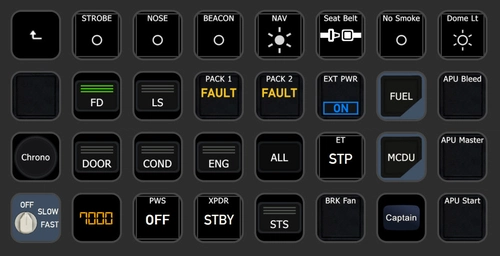
PilotsDeck is a StreamDeck plugin that offers the ability to trigger cockpit controls and display control states on your StreamDeck as text, images, or bars/arcs. It is open-source, free, and designed for advanced sim-users across major platforms like MS Flight Simulator, X-Plane, and Prepar3D. The plugin supports various StreamDeck models and simulates connections through FSUIPC or UDP sockets for seamless integration. With predefined profiles available for popular aircraft, PilotsDeck aims to streamline flight operations for a smoother and tailored flying experience.
by Fragtality
PilotsDeck/StreamDeck Profile for GSX Pro & Any2GSX
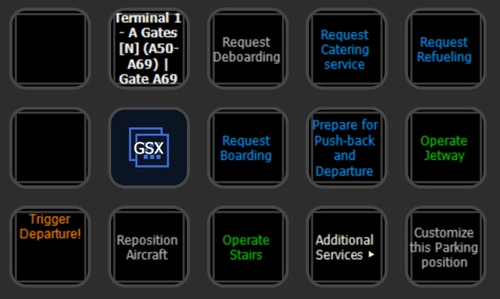
Full interactive GSX Menu on the StreamDeck! You can do everything now from your StreamDeck - the GSX In-Game Menu can be disabled in the Toolbar.
by Fragtality
PilotsDeck/StreamDeck Profile for FBW A32NX
Enhance your piloting experience with PilotsDeck/StreamDeck Profile for FBW A32NX, featuring dedicated buttons for Overhead, MIP/Glareshield, Pedestal, FCU, and MCDU controls. Three profile options cater to different StreamDeck sizes, providing a comprehensive setup for normal flight operations. Custom images, Lua files, and detailed installation instructions are included, ensuring seamless integration with the FBW A32NX. Explore additional functionalities, such as automatic Lua script setup, custom camera mappings, and GSX menu integration for enhanced simulation realism.
by Fragtality
PilotsDeck/StreamDeck Profile for iniBuilds A300
Enhance your iniBuilds A300 experience with the PilotsDeck/StreamDeck profile, featuring buttons and switches for various panels and areas like Overhead, MCU, Radio/ILS, and MCDU. Designed for StreamDeck XL/Plus setups, it includes different profiles for supplementary functions, additional controls, and critical flight phases. Customize your own StreamDeck profile using the provided plugins, lua scripts, and images for private use only. Requirements include PilotsDeck Plugin version 0.7.12, specific fonts, and a registered FSUIPC7 copy for full functionality.
by Fragtality
Log in to join the discussion
Log InComments(218)
2 months ago
2 months ago
Try to import them on a Virtual StreamDeck and copy the Actions over.
3 months ago
3 months ago
3 months ago
(When copying within the same Type, Keypad > Keypad or Encoder > Encoder. To copy an Action between these Types, use the Copy & Paste Function of the Plugin. See the Readme)
5 months ago
Altitude display is too big/off center.
Knob selection fixes:
Step 1: open Stream Deck app, select MSFS-Fenix320 profile
Step 2: Open MSFS and spawn in at an airport with the Fenix airbus (any)
Step 3: Click FCU button on stream deck (or page 3 in the profile on Stream Deck app)
Step 4: Click black circle at the bottom for the rotary knob
Step 5: Down at the bottom it will say Editor: Open in Designer
5 months ago
Delete :1 or :-1 in command address
Unclick Run as Command B-Var...
On Write/Value: $1 or $-1
Repeat for every knob.
6 months ago
But till now i tried but dont understand to make buttons for other vanilla aircrafts in msfs2020. Is there a manual or something?
6 months ago
Yes, on GitHub:
https://github.com/Fragtality/PilotsDeck/blob/master/README.md
7 months ago
7 months ago
7 months ago
Is there a way to have both Captain and First Officer QNH settings linked to a single action? Fenix doesn't like them being different. Not a big issue but thought I'd ask.
7 months ago
7 months ago
Last place I thought to look 🙄😎
Thanks
7 months ago
10 months ago
10 months ago