
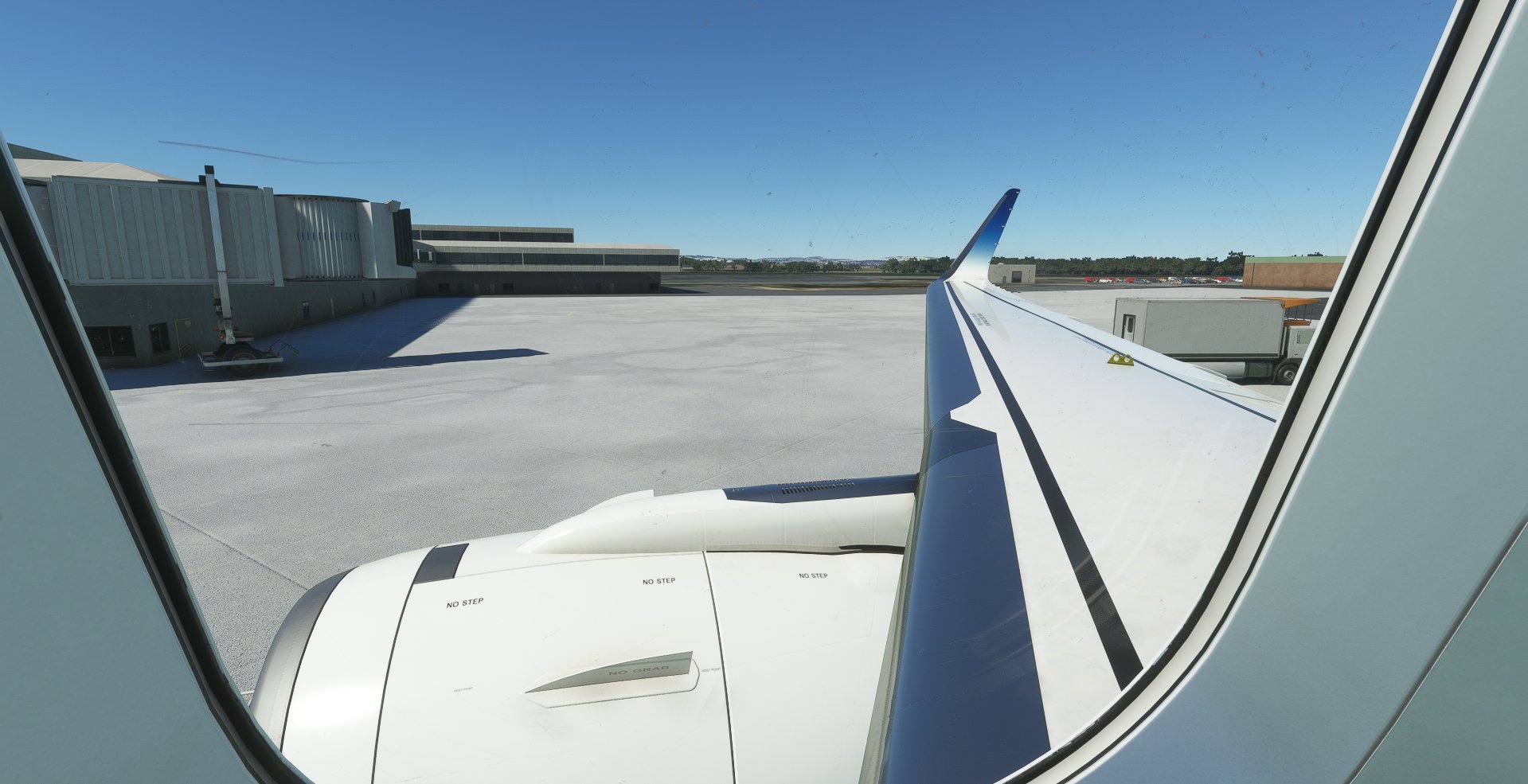
Description
FlyByWire Custom Cameras | A32NX
Custom Views For FlyByWire Is Now Released For Everyone
Views Buttons
- Num 1: Pilot View
- Num 2: EFB View
- Num 3: Back Seat View
- Num 4: Thrust Panel View
- Num 5: MCDU View
- Num 6: Panel View
- Num 7: Head Panel View
- Num 8: Left Wing View
- Num 9: Right Engine View
- Num 0: Left Engine Outside View
How I Can Download It And Use It???
- 1) Download The File
- 2) Unzip The Folder & Extract It
- 3) Copy The "cameras.CFG" File
- 4) STEAM PATH Go In This Directory "C:\Users\USER\AppData\Roaming\Microsoft Flight Simulator\SimObjects\Airplanes\FlyByWire_A320_NEO" | Note: Your Directory Can Be Different From This If You Installed The MFS2020 Somewhere Else!
- 5) Paste The File
- 6) Open The MFS2020 & Select The FBW A32NX Aircraft
- 7) Have A Nice Flight With Your New Custom Cameras
Support On This Project
This Add - On Always Will Be Up to Date With Our Installer Coming Soon
If You Have Any Question Don't Be Afraid To Write It Below
Thank You, AquazDev
FlyByWire Custom Cameras | A32NX
Enhance your A32NX experience with FlyByWire Custom Cameras, featuring 10 unique viewing options including Pilot View and Thrust Panel View. Easily download, unzip, and set up the custom cameras for a personalized flight experience. Stay tuned for regular updates and support from AquazDev.

Version History
- Updated all cockpit views - Updated all cabin views
Related
Custom camera views for every MSFS2024 airplane | MSFS24
This add-on provides custom camera views for all standard aircraft in Microsoft Flight Simulator 2024. Users can access cockpit and cabin views for a wide range of aircraft, including popular models such as the Airbus A320neo, Cessna 172, and Boeing 737 MAX 8, with Deluxe and Premium Deluxe aircraft support planned for the future. Installation instructions are included for both Microsoft Store and Steam users. The add-on allows for easy access to views using number keys 0-9, enhancing the overall flying experience.
by LunakisLeaks
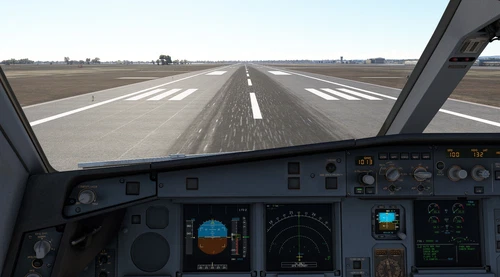
The Ultimate Custom Cameras For Fenix A320
These Custom Views Is One Of The Most Calculated Views For The Fenix A320 Aircraft. These Views Has Been Made To Make Both The Cockpit Crew And The Passengers To Feel Comfortable Inside The Cockpit Or The Cabin Also These Views Has Been Calculated Very Much To Have Good Eye Drop In The Specific Instrument The User Want To Find
by LunakisLeaks
The Ultimate Custom Cameras For INI A330-300 | MSFS24
This add-on offers ten custom camera views specifically designed for the INI A330-300, catering to the needs of both cockpit crew and passengers. Each view is meticulously calculated to provide optimal visibility of important instruments and surroundings. Accessible via keyboard shortcuts, these views include various perspectives such as the pilot view, Go-Pro view, and wing views. Installation instructions are provided for both Microsoft Store and Steam platforms.
by LunakisLeaks
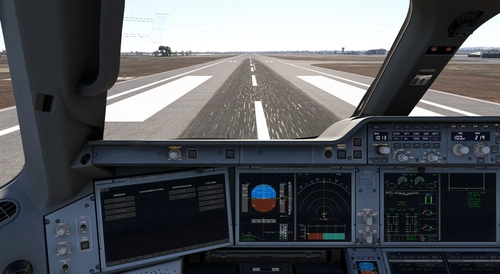
The Ultimate Custom Cameras For iniBuilds A350-1000 & -900
This add-on provides a set of 10 custom camera views tailored for the iniBuilds A350 in Microsoft Flight Simulator. Designed to enhance accessibility for both cockpit crew and passengers, these views focus on specific instruments and flight aspects. Users can quickly switch between views using dedicated keyboard numbers, facilitating a smoother flying experience. Installation is straightforward, with instructions provided for both Microsoft Store and Steam versions.
by LunakisLeaks
Log in to join the discussion
Log InComments(13)
about 2 years ago
over 3 years ago
Can I still use if I dont have a Numpad keyboard?
almost 4 years ago
Works so good on 26ab631 Experimental Version. Only a few annotations:
1-If you don't have install MSFS in the default location, you'll must paste camera.cfg in MSFS2020\Community\flybywire-aircraft-a320-neo\SimObjects\AirPlanes\FlyByWire_A320_NEO (previously take a backup of your default camera.cfg).
2-If Custom Views Cameras appear disoriented, you'll must edit camera.cfg and insert following, after [VERSION] major = 1 minor = 0 :
[VIEWS]
eyepoint = 43.72074, -1.723061, 4.355627 ; (feet) longitudinal, lateral, vertical distance from reference datum
That's it.!
over 4 years ago
In my case its dosnt work. The cameras are all dislocated in the fueselage etc...
over 4 years ago
are you sure you are using the FBW aircraft?
over 4 years ago
yes the stable. But today i switched to dev
over 4 years ago
so the files got re added try to download the files again and paste it in the folder
over 4 years ago
Make sure you put the file in FBW A320 neo file inside folder within the MSFS folder (as author states), NOT the community folder. I hear of a few people adding the camera.cfg to the FBW folder inside community folder and had same issue as you where the camera is in fuselage
over 4 years ago
Same here, its borked. @Downler82, I don't know what you mean within the MSFS folder, the only place the FBW aircraft is, is in the community folder. If you don't install in the default location, there is no MSFS folder in AppData as described in the instructions.
over 4 years ago
where did you install your mfs?
over 4 years ago
Where to find the CFG File?
over 4 years ago
Go In This Directory "C:\Users\USER\AppData\Roaming\Microsoft Flight Simulator\SimObjects\Airplanes\FlyByWire_A320_NEO" | Note: Your Directory Can Be Different From This If You Installed The MFS2020 Somewhere Else!