

Description
Updated for V0.73 - Bugfix and Feature Update
- RERUN the included FacilityDataLoader !!! as some issues have been fixed
- Install WASM module Vx.9 for 2020 and/or 2024 if not done so
Re MSFS2024:
The camera utility will not work prpoerly for 6DOF cam due to the 2024 new camera system.
If you get stuck in MSFS 2024 6DOF view - open the Sim Camera dialog go to the AddOns Tab and 'kick' the camera user which will then resolve the issue.
Please see the Quickguide for more installation and data capturing information.
You need to install the WASM module in the 2024 Community folder in order to access most interactions.
Some aircraft modules have been crafted others may or may not work - too many to test and review (sorry)
Please let me know if you encounter issues in order to improve the addon.
HudBar updates:
- Added Config Setting to hide the Bar when hovering MSFS label
- Added Config Setting for HotKey to move the bar to another screen
- Added Flaps state audible Item (Flaps with callout for degree or handle index)
- Updated FacilityDataLoader to be more robust for MS2024
- Updated WASM Modules with current MSFS SDK
- Fixed HudBar startup exception for some user fonts settings which turned negative
- Fixed METAR support new API
- Fixed Imported Config does not persist
- Fixed MSFS Hotkeys not working
Flightbag Update
- Update Map drawing algos
- Added TACAN stations in maps and reports
- The Flightbag, Camera Control and Checklist Box are available as part of HudBar as before, however those are also provided as independent Apps from this version onwards.
You may find the following 4 Apps in the App folder:
- · FS20_HudBar.exe The HudBar App (as we had it before)
- · FS20_FlightBag.exe The FlightBag can now be run on its own if this is helpful
- · FS20_CamControl.exe The CamControl can now be run on its own if this is helpful
- · FS20_ChecklistBox.exe The ChecklistBox can now be run on its own if this is helpful
The 3 additions are exactly the same as the ones you use from the HudBar and share the same settings – however they are, when run on their own, no longer controlled by the HudBar HotKeys but will also not close when the HudBar is closed.
Due to the split the Manuals are also split for the 4 different Apps – you will find them in the App folder as well.
- Due to license restrictions the Airports will no longer be provided as part of the HudBar App but there is a companion App which allows to collect the data needed for the Map and some other functionality from your Sim installation, see ‘DataLoader’ for more information.
You will get a PopUp Message when starting the HudBar if the database cannot be found.
Old News
The occasional stutter when saving FLT files for backup or Flightplan is still there
NOTE: New items are default OFF
- Updated the QuickGuides - it is included in the package, check it out and look for V0.73 tagged updates
Also - pls let me know (may be via Github) when something fails, pls. include as much information as possible.
Find all added items at the end of each panel in Configuration, adjust as needed.
Configurable display for more than 100 essential Information items as Bar, Tile or Window
- Supports 1 to 4 engine aircrafts (Prop/Engine RPM, FuelFlow for each)
- Provides 10 different content profiles which are fully configurable
- The pilot can directly activate Autopilot commands
- Auto Elevator Trim on a click
- Bottom Bars work best with wide screen monitors
- AutoSave of the Flight (FLT file) at 5 Min intervals
- Flight Recording to KML File
- Checklist Box (configurable)
Usage
- Deploy the release zip content in a folder (no installer provided or needed)
Start MSFS - wait until the main screen is shown
Then Start FS20_HudBar.exe it will connect once the Sim is up and running
Note: the shown values are a bit meaningless until the aircraft is live
Also note that the bar is shown on the ++PRIMARY monitor++ at the bottom of the screen
If you are using it the first time, all items except for the MSFS status are unchecked i.e. no further items are shown in the default bar at the bottom of the screen.
– just head straight to the Configuration and check the ones you like (right click the bar – Configure...)!
Right Click the Bar and choose from the pop up menu
- To select a Profile (1..10)
- To Configure.. to check or uncheck the items to be shown
- To Exit and stop the program
Please take a look into the include Quick Guide for more information
----
Full Credit goes to JayDeeGaming
where the idea of this HudBar is 'borrowed' from
https://www.youtube.com/c/JayDeeGaming/about
(mine does not have any further dependencies however)
Checklist Box Idea Credit:
Missionary Bush Pilot: https://www.missionarybushpilot.com/checklistbox
Maintained at GitHub
https://github.com/bm98/FS20_HudBar
MSFS HudBar
Configurable display for more than 100 essential Information items as Bar, Tile or Window. Supports 1 to 4 engine aircrafts (Prop/Engine RPM, FuelFlow for each); Provides 5 different content profiles which are fully configurable; The pilot can directly activate Autopilot commands Auto Elevator Trim on a click; Bottom Bars work best with wide screen monitors; AutoSave of the Flight (FLT file) at 5 Min intervals Flight; Recording to KML File


Supporters

User Reviews
56 reviews
Version History
V 0.73-B73 - RERUN FacilityDataLoader !!! - Please UPDATE V x.9 WASM Modules - Add Config Setting to hide the Bar when hovering MSFS label - Add Config Setting for HotKey to move the bar to another screen - Add Flaps state audible Item (Flaps with callout for deg or handle index) - Update FacilityDataLoader to be more robust for MS2024 - Update Map drawing algos - Update WASM Modules with current MSFS SDK - Fix HudBar startup exception for some user fonts settings which turned negative - Fix METAR support new API - Fix Imported Config does not persist - Fix MSFS Hotkeys not working - Update QuickGuides
Related
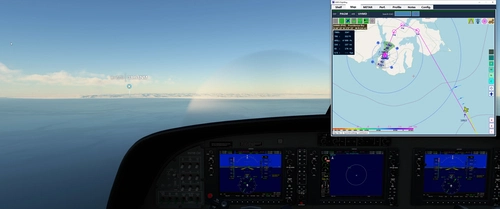
MSFS FlightBag
Flight bag providing Shelf, Map, METAR; Shelf for image documents either JPG, PNG or GIF images for reference, Mapping with OSM, Stamen and OpenTopo, METAR retrieval; Please visit the included Quickguide for installation and usage. Map includes route, navaids, airports, runways and airport comm frequencies
by bm98ch
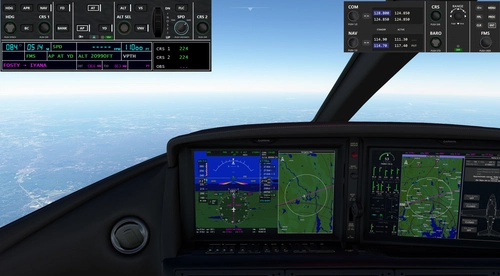
MSFS Panel Replicas
Windows App to be used with the MSFS 2020 Flight Simulator. Replicates some often used functionality into an easy accessible window. Current support for FlyByWire A320NX, Headwind A339X, AP for Garmin G1000Nxi equipped aircrafts. Also included a NAV, COM, ATC/XPDR, TCAS Panel as independent App. Please read the included Guides for an easy start to use them.
by bm98ch
Log in to join the discussion
Log InComments(374)
about 2 months ago
about 1 month ago
about 1 month ago
I will try to get it to pop-out the JIT debug on it. Something about the bm98.pinglib file is unable to be found. It may be blocked by SAC.
I think that ultimately it is Windows SAC auto-blocking the exe. Is the exe signed with a cert?
about 1 month ago
If you change the NLog.config.OFF in the app folder by removing .OFF it HudBar dumps log information into Nlog.log which may give more insights. It would be helpful to see where it breaks to workaround for such cases. Else it would be needed to clear HudBar from beeing handled with SAC
And no - I don't own a code certificate and the app is not signed.
about 1 month ago
LMK if you are curious about the log, sorry for the slow reply. I appreciate your engagement (and your add-on) enormously!!
EDIT: OK so now it actually is working with no SAC conflicts... Very strange. Sorry for wasting your time!
about 2 months ago
Loading resumes the moment I close Hudbar.
If I launch Hudbar after the activity has started, it functions normally.
Also, I have a request: it would be convenient to have a keyword search function for the list of displayed items.
Thank you very much.
about 2 months ago
For the find - I'll put it on the list...
about 2 months ago
about 2 months ago
I'll check if I find some information about.
4 months ago
4 months ago
4 months ago
If I use a Keyboard Hotkey it works alright!
What am I doing wrong? Is there some configuration I am missing?
4 months ago
It is separate from Keyboard Hotkeys
4 months ago
4 months ago
4 months ago
4 months ago
Have to fix it for the next one.
Thanks for calling it
4 months ago