
Description
Nov. 21, 2024: Now compatible with MSFS 2024!
Do you want to inspect your controls without looking at internal 3D models like throttle levers? Or, you want to brag about how good you are at controlling aircraft in your recording videos? Well, here is an easy solution!
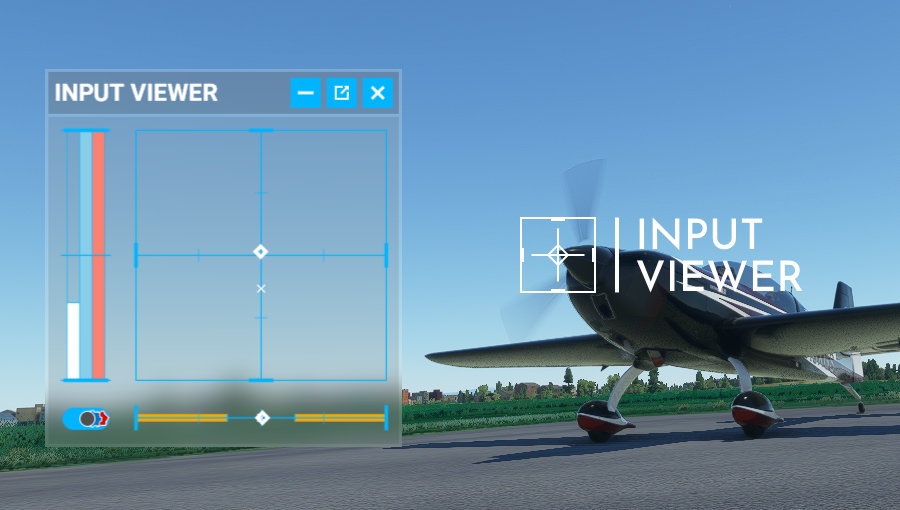
This tiny addon adds an in-game panel that shows several axis inputs for MSFS.
As some of you may know, this is a rip-off of Controls Indicator feature from DCS (Digital Combat Simulator). Perhaps, other flight sims might have a similar feature.
This input viewer covers the following input axes:
- Aileron input/trim position
- Elevator input/trim position
- Rudder input/trim position
- Wheel brakes
- Throttle #1/2/3/4
- Propeller RPM #1
- Mixture #1
- (Prop RPM #2-4 and Mixture #2-4 are not included)
for helicopters:
- Cyclic input/trim position
- Rudder (anti-torque pedals) position
- Collective position
- Throttle
- Mixture
- Rotor brake
Installation
Copy spitice-ingamepanels-inputviewer folder to community package folder.
If you wonder what the community package folder is, googling for "msfs community package directory" might help.
To uninstall, simply remove spitice-ingamepanels-inputviewer from your community package folder.
Usage
You should find a custom panel icon in your in-game toolbar. Click it to activate the panel.
If it doesn't appear, access the list of in-game panels by clicking the gear icon, then toggle "INPUT VIEWER" on. It should add the panel icon to your toolbar.
The initial position of the panel might be the top right of your screen. Drag the header and the border to move and resize the panel as you want.
ConfigurationClick the "gear" button located at the bottom left of the panel to open the configuration menu.
Auto-hide Title BarDefault value: Disabled
By enabling this feature, the title bar will automatically become invisible when your cursor goes outside of the panel.
Number DisplayDefault value: None
InputViewer contains two types of number display for each axis. Default is none, so you need to manually activate this feature via configuration.
Perhaps, you will notice that trim numbers in the simple number display sometimes showing two different types of zero: "0" and "0.0". When you tweak those values via keys or buttons, not via axis, sometimes it causes a rounding error, in which the fraction digits would not be completely zeroed out thus it becomes a very small number. As a result, the simple number display shows "0" for the perfect zero value and "0.0" for those "almost zero" values.
Show PanelsDefault value: All
This feature is added for users who don't need all types of inputs to be visible. For now, you can select "Throttle" to hide the stick and rudder (right side of the panel) so your input viewer will be smaller. Use this feature in conjunction with "Auto-hide Title Bar" for more effectiveness.
Quick HideDefault duration: 2 seconds
By double-clicking inside of the panel, you can temporarily hide it so it won't ruin your masterpiece when you take screenshots! The duration for quick hiding is two seconds by default. You can choose 1, 2, or 3 seconds as the duration or make the feature completely disabled in the configuration screen.
Propeller/Mixture BarDefault value: Automatic for Aircrafts in Standard edition
As of v1.1, you can tweak the visibility of the propeller/mixture bar in the configuration screen and the addon will remember which option is chosen for each aircraft model. By default, this option will be automatically set for those aircraft bundled with MSFS Standard edition.
Repository
Feel free to fork it and try to make your own input viewer. Any bug reports and suggestions are also welcome :)
https://github.com/spitice/msfs-input-viewer
Acknowledgements
Input Viewer
Enhance your flight simulation experience with Input Viewer, a handy addon for Microsoft Flight Simulator. This tool adds an in-game panel displaying various input axes, including aileron, elevator, rudder, wheel brakes, throttle, and more. Easily customize the panels settings and configuration to suit your preferences, offering a convenient way to monitor and showcase your aircraft control inputs. Dont miss out on this useful addition to your virtual cockpit!


User Reviews
26 reviews
Version History
- Now compatible with MSFS 2024 - Some performance optimizations
Featured in Collections(1)




Related
Color Panel for VR Passthrough
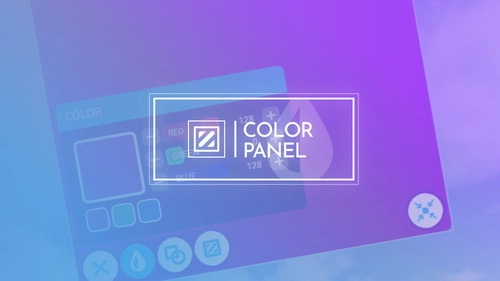
A handy color panel tool designed for VR simmers, allowing you to place a passthrough window within your virtual cockpit. Customize panel color and chromakey settings to seamlessly integrate with Virtual Desktop. Enhance your VR flight experience by easily viewing your flight controllers while immersed in virtual reality.
by Spitice

FBW Toggle
FBW Toggle adds a toolbar button that activates/deactivates the fly-by-wire system on the fly. Compatible with any airplanes that leverage MSFS's built-in FBW functionality. Press the button located in the in-game toolbar. It will disable all FBW computers (i.e., ELAC/FAC/SEC) when at least one of them is active.
by Spitice
Log in to join the discussion
Log InComments(69)
16 days ago
3 months ago
3 months ago
4 months ago
4 months ago
4 months ago
6 months ago
6 months ago
6 months ago
6 months ago
TLDR - \AppData\Local\, not \AppData\Roaming\.
Hope this helps :)
Edit - Disregard, you have the correct path for a Steam install. Looking at your screenshot though, you have just the .zip in your Community folder instead of the app's folder itself. Extract the .zip containing the "spitice-ingamepanels[...]" folder to the Community folder, then delete the .zip as you won't need it anymore. Restart the sim and you will have access to the tool :)
6 months ago
7 months ago
7 months ago
9 months ago
10 months ago
11 months ago
11 months ago
8 months ago
about 1 year ago
about 1 year ago
Every time you load a new flight on MSFS24 SU2, the window, opened from toolbar and not popped out, is in different location where you left it on last flight. Can you save the location, so IV will remember stay where it was?
Furthermore, can you add support for multiple engines? It seems only #1 is available now.
Edit: As far as I recall, window's position was saved in FS20 (MS Store). FS24 is from Steam. Tested IV version 1.4.0