
![Custom Camera Views [iniBuilds A350-900/ULR][MSFS 2024] - Image 1](https://cdn.flightsim.to/images/27/custom-camera-views-inibuilds-a350-900-465331-1740673023-50J7i.jpg)
Description
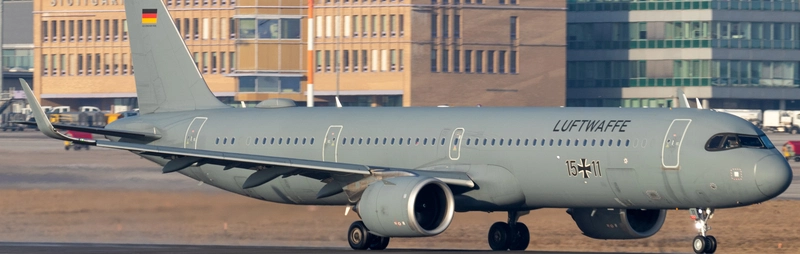
Custom camera views for iniBuilds A350-900/ULR [MSFS 2024]
The custom cameras have been defined as follows:
Custom camera 0 - pilot view
Custom camera 1 - left wing view
Custom camera 2 - GOPRO cockpit view
Custom camera 3 - right wing view
Custom camera 4 - left engine view
Custom camera 5 - overhead panel
Custom camera 6 - right engine view
Custom camera 7 - tail view
Custom camera 8 - FMS
Custom camera 9 - taxi view
Installation Instructions
The folder must be copied into the main directory of MSFS, not into the Community folder.
Proceed only if you feel confident about the next steps.
Step-by-Step Guide:
Locate the MSFS main directory where the "Airplanes" folder is located. This folder contains subfolders for each airplane that has custom camera views.
Note: If you haven't set up any custom cameras yet, the "Airplanes" folder might be empty or might not exist at all.
Path to the folder based on your version:
MSFS 2024:
MS Store: C:\Users\*UserName*\AppData\Local\Packages\Microsoft.Limitless_8wekyb3d8bbwe\LocalCache\SimObjects\Airplanes
Steam: C:\Users\*UserName*\AppData\Roaming\Microsoft Flight Simulator 2024\SimObjects\Airplanes
>>IMPORTANT<<
Make a backup of any old files that might already exist in the subfolders. This way, if there are any issues, you can easily revert to your old camera views.
Installation: Drag and Drop
1. Extract the downloaded file.
2. Copy the folder into the "Airplanes" folder.
Ensure that your custom camera views are assigned to keys in your simulator settings.
You can do this by navigating here Settings > Controls > Camera > Cockpit Camera > LOAD CUSTOM CAMERA
You will find the slots 0 to 9 there. Assign a key to each slot you want to use.
By default, custom camera views are assigned to ALT + 0–9. Since pressing two keys can be inconvenient, I recommend remapping them to the Numpad for quicker and easier access.
Questions or Requests:
Feel free to send me a private message or leave a comment if you have any questions or requests.
I would appreciate your feedback and rating!
Cheers!
Custom Camera Views [iniBuilds A350-900/ULR][MSFS 2024]
Custom camera views made by me, adapted to fit this aircraft. All my camera packs follow the same scheme, so you always know which key gives you which view: pilot, co-pilot, wings, engines and panels. Manual installation into the MSFS main directory, then assign the keybinds to your keys for quick access. Cheers!

User Reviews
2 reviews
Version History
- Adjusted "Custom Camera 0 – Pilot View" to align correctly with the HUD for improved visibility.
Related
![Custom Camera Views [FENIX A320 IAE & CFM | WTF + SL]](https://cdn.flightsim.to/images/27/custom-camera-views-fenix-a320-iae-cfm-465331-1737298543-BDXvy.jpg?width=500)
Custom Camera Views [FENIX A320 IAE & CFM | WTF + SL]
Custom camera views made by me, adapted to fit this aircraft. All my camera packs follow the same scheme, so you always know which key gives you which view: pilot, co-pilot, wings, engines and panels. Manual installation into the MSFS main directory, then assign the keybinds to your keys for quick access. Cheers!
by Jojodstep
![Custom Camera Views [iFly 737 Max 8]](https://cdn.flightsim.to/images/27/custom-camera-views-ifly-737-max-8-465331-1729522604-8AwV4.jpg?width=500)
Custom Camera Views [iFly 737 Max 8]
Custom camera views made by me, adapted to fit this aircraft. All my camera packs follow the same scheme, so you always know which key gives you which view: pilot, co-pilot, wings, engines and panels. Manual installation into the MSFS main directory, then assign the keybinds to your keys for quick access. Cheers!
by Jojodstep
![Custom Camera Views [FENIX A321 IAE & CFM | WTF + SL]](https://cdn.flightsim.to/images/27/custom-camera-views-fenix-a321-iae-cfm-465331-1730994999-Sl7UI.jpg?width=500)
Custom Camera Views [FENIX A321 IAE & CFM | WTF + SL]
Custom camera views made by me, adapted to fit this aircraft. All my camera packs follow the same scheme, so you always know which key gives you which view: pilot, co-pilot, wings, engines and panels. Manual installation into the MSFS main directory, then assign the keybinds to your keys for quick access. Cheers!
by Jojodstep
![Custom Camera Views [FENIX A319 IAE & CFM | WTF + SL]](https://cdn.flightsim.to/images/27/custom-camera-views-fenix-a319-iae-cfm-465331-1737331439-xNbPq.jpg?width=500)
Custom Camera Views [FENIX A319 IAE & CFM | WTF + SL]
Custom camera views made by me, adapted to fit this aircraft. All my camera packs follow the same scheme, so you always know which key gives you which view: pilot, co-pilot, wings, engines and panels. Manual installation into the MSFS main directory, then assign the keybinds to your keys for quick access. Cheers!
by Jojodstep
Log in to join the discussion
Log InComments(25)
8 months ago
7 months ago
Do you Install it correct? Send me a Private Message, if you need further assistance.
9 months ago
9 months ago
about 1 year ago
about 1 year ago
about 1 year ago
about 1 year ago
If there is anything broken please let me know and send me a Private Message.
cheers
about 1 year ago
about 1 year ago
about 1 year ago
A fix should be out in the next hour.
about 1 year ago
do we need to put them into each folder? I just did it with the standard copy paste into airplanes and it doesnt work!
about 1 year ago
Where do you put it in?
about 1 year ago
about 1 year ago
about 1 year ago
An Update will be out soon.
about 1 year ago
over 1 year ago
over 1 year ago