
![Custom Camera Views [FENIX A320 IAE & CFM | WTF + SL] - Image 1](https://cdn.flightsim.to/images/27/custom-camera-views-fenix-a320-iae-cfm-465331-1737298543-BDXvy.jpg)
Description
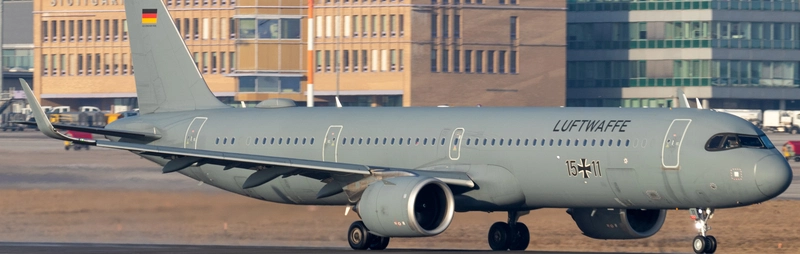
Custom camera views for FENIX A320 IAE & CFM | WTF + SL
The custom cameras have been defined as follows:
Custom camera 0 - pilot view
Custom camera 1 - left wing view
Custom camera 2 - GOPRO cockpit view
Custom camera 3 - right wing view
Custom camera 4 - left engine view
Custom camera 5 - overhead panel
Custom camera 6 - right engine view
Custom camera 7 - central panel
Custom camera 8 - FMC
Custom camera 9 - co-pilot view
The file (MSFS2024) now includes all three aircraft types from the Airbus A320 family to simplify the process.
Just copy and paste the folder "FNX_32X" into your airplanes folder in the main directory of MSFS 2024.
Installation Instructions
The folder must be copied into the main directory of MSFS, not into the Community folder.
Proceed only if you feel confident about the next steps.
Step-by-Step Guide:
Locate the MSFS main directory where the "Airplanes" folder is located. This folder contains subfolders for each airplane that has custom camera views.
Note: If you haven't set up any custom cameras yet, the "Airplanes" folder might be empty or might not exist at all.
Path to the folder based on your version:
MSFS 2020:
MS Store: C:\Users\*UserName*\AppData\Local\Packages\Microsoft.FlightSimulator_8wekyb3d8bbwe\LocalCache\SimObjects\Airplanes
Steam: C:\Users\*UserName*\AppData\Roaming\Microsoft Flight Simulator\SimObjects\Airplanes
MSFS 2024:
MS Store: C:\Users\*UserName*\AppData\Local\Packages\Microsoft.Limitless_8wekyb3d8bbwe\LocalCache\SimObjects\Airplanes
Steam: C:\Users\*UserName*\AppData\Roaming\Microsoft Flight Simulator 2024\SimObjects\Airplanes
>>IMPORTANT<<
Make a backup of any old files that might already exist in the subfolders. This way, if there are any issues, you can easily revert to your old camera views.
Installation: Drag and Drop
1. Extract the downloaded file.
2. Copy the folder into the "Airplanes" folder.
Ensure that your custom camera views are assigned to keys in your simulator settings.
You can do this by navigating here Settings > Controls > Camera > Cockpit Camera > LOAD CUSTOM CAMERA
You will find the slots 0 to 9 there. Assign a key to each slot you want to use.
By default, custom camera views are assigned to ALT + 0–9. Since pressing two keys can be inconvenient, I recommend remapping them to the Numpad for quicker and easier access.
Questions or Requests:
Feel free to send me a private message or leave a comment if you have any questions or requests.
I would appreciate your feedback and rating!
Cheers!
Custom Camera Views [FENIX A320 IAE & CFM | WTF + SL]
Custom camera views made by me, adapted to fit this aircraft. All my camera packs follow the same scheme, so you always know which key gives you which view: pilot, co-pilot, wings, engines and panels. Manual installation into the MSFS main directory, then assign the keybinds to your keys for quick access. Cheers!

User Reviews
6 reviews
Version History
Version 2.5 (All-in-One Package) - Reworked right wing views for the A319 (IAE & CFM) - No changes to the other aircraft in the All-in-One package
Related
![Custom Camera Views [iFly 737 Max 8]](https://cdn.flightsim.to/images/27/custom-camera-views-ifly-737-max-8-465331-1729522604-8AwV4.jpg?width=500)
Custom Camera Views [iFly 737 Max 8]
Custom camera views made by me, adapted to fit this aircraft. All my camera packs follow the same scheme, so you always know which key gives you which view: pilot, co-pilot, wings, engines and panels. Manual installation into the MSFS main directory, then assign the keybinds to your keys for quick access. Cheers!
by Jojodstep
![Custom Camera Views [FENIX A321 IAE & CFM | WTF + SL]](https://cdn.flightsim.to/images/27/custom-camera-views-fenix-a321-iae-cfm-465331-1730994999-Sl7UI.jpg?width=500)
Custom Camera Views [FENIX A321 IAE & CFM | WTF + SL]
Custom camera views made by me, adapted to fit this aircraft. All my camera packs follow the same scheme, so you always know which key gives you which view: pilot, co-pilot, wings, engines and panels. Manual installation into the MSFS main directory, then assign the keybinds to your keys for quick access. Cheers!
by Jojodstep
![Custom Camera Views [FENIX A319 IAE & CFM | WTF + SL]](https://cdn.flightsim.to/images/27/custom-camera-views-fenix-a319-iae-cfm-465331-1737331439-xNbPq.jpg?width=500)
Custom Camera Views [FENIX A319 IAE & CFM | WTF + SL]
Custom camera views made by me, adapted to fit this aircraft. All my camera packs follow the same scheme, so you always know which key gives you which view: pilot, co-pilot, wings, engines and panels. Manual installation into the MSFS main directory, then assign the keybinds to your keys for quick access. Cheers!
by Jojodstep
![Custom Camera Views [iniBuilds A350-900/ULR]](https://cdn.flightsim.to/images/27/custom-camera-views-inibuilds-a350-900-465331-1740582294-TMq03.jpg?width=500)
Custom Camera Views [iniBuilds A350-900/ULR]
Custom camera views made by me, adapted to fit this aircraft. All my camera packs follow the same scheme, so you always know which key gives you which view: pilot, co-pilot, wings, engines and panels. Manual installation into the MSFS main directory, then assign the keybinds to your keys for quick access. Cheers!
by Jojo1887
Log in to join the discussion
Log InComments(50)
about 2 months ago
about 2 months ago
This comment has been deleted
about 2 months ago
This comment has been deleted
3 months ago
3 months ago
It’s easier to look a bit to the right in the pilot view.
5 months ago
5 months ago
You can change it in your Control Settings - load custom camera view 0 - 9.
It’s perfect on the Num Keys.
Report back.
5 months ago
10 months ago
10 months ago
about 1 year ago
EDIT: For anyone wanting this, just bind a Button in your joystick to "Load Custom Camera XX" on release, and "Reset Cockpit View" on press. This will do the trick so you don go back and forward between cameras and can use this customs pilot and copilot views as default.
about 1 year ago
about 1 year ago
"FNX_320_*" - > .........\LocalCache\SimObjects\Airplanes
* various engine variants
--
for msfs2024, its more easier because i put all variants in one download.
so just copy and paste the folder "FNX_32X" into ...\SimObjects\Airplanes of msfs 2024
about 1 year ago
about 1 year ago
7 months ago
about 1 year ago
Your Organization does not allow you to place this file here.
Any ideas why?
about 1 year ago