
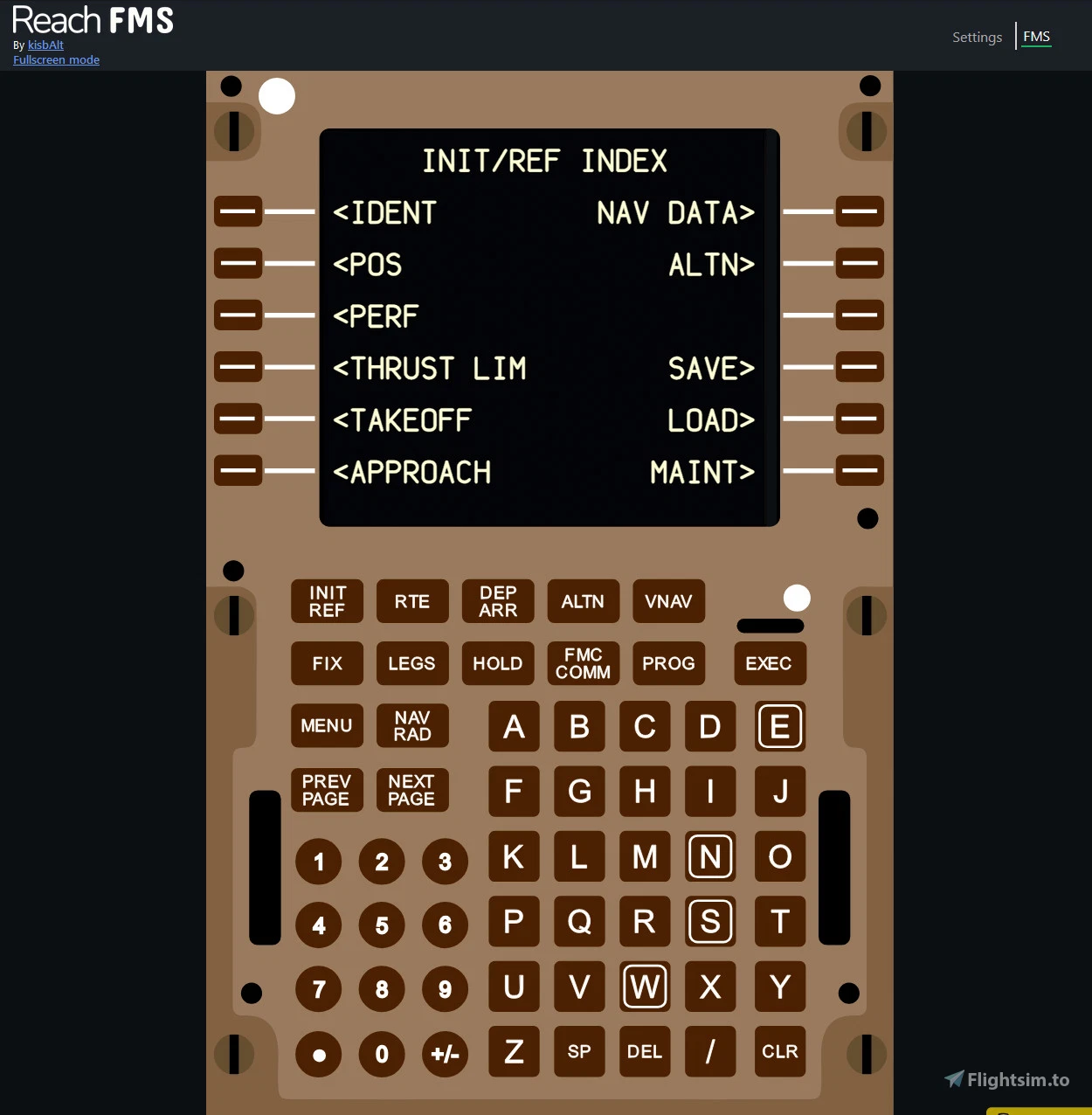
Description
A lightweight, easy to use universal FMS for Microsoft Flight Simulator. You can access a remote FMS for your favorite aircrafts with just a single app.
I always aimed for a very lightweight operation of the app throughout the development, the app should only use 0.1-1% of your CPU even on lower end systems, and if even this is still too much for you, you can always reduce the refresh rate of the FMS display stream.
Current issues:
- Pop-out windows become invisible after using the app: The app moves the pop-out windows out of the screen when using it, so it doesen't cover the view of the sim. Currently MSFS saves this location to the cloud without asking (it can't even be disabled) and instantly places the pop-outs to that location when popped out. It is recommended that you always close the remote mcdu app before closing MSFS, which restores the windows automatically and prevents this issue happening.
If the pop-outs are invisible follow this to restore: Load up an aircraft where the pop-outs are invisivle, and pop out the instrument. Open ReachFMS, and on the web-app click on the restore windows button which should make the pop-outs visible on your main screen where MSFS is running. Exit to the main menu but don't close the pop-out windows. When in the menu quit to the desktop. Now MSFS should remember the visible on-screen pop out window locations, but it is important to exit to the main menu while the pop out windows are still opened and visible on your main screen.
- Touch instruments like GTN750 are very experimental, currently only works if MSFS is focused and the pop-out is visible on one of your screens. I need to find some workarounds to make this work better.
Currently supported aircrafts/addons (config v14):
- iniBuilds A310
- iniBuilds A300
- PMDG 737 (all variants)
- PMDG 777 (all variants)
- iniBuilds A320 Neo
- Aerosoft CRJ (all variants)
- Microsoft ATR - FMC graphics by Simu863
- Just Flight 146
- PMS50 GTN750 (all supported aircrafts)
- Asobo GNS 530
- Citation CJ4
- Just Flight Avro RJ - FMC graphics by Simu863
- IniBuilds A321neo
I plan to add as much aircrafts/instruments to this list is I can, updating regularly.
Instructions:
1. Download the .rar file containing the app.
2. Extract the folders from the .rar file into a directory.
3. Start up the app by opening the executable reachfms.exe file.
4. At first start a windows security alert for the firewall could pop up, you should click the Allow access button. This ensures that other devices on the network can also access the webapp.
5. If you don't have the mobiflight wasm module installed, the app will prompt you to install automatically or manually
6. Launch Microsoft Flight Simulator and load in with a supported aircraft.
7. Pop out the supported FMS/instrument display in MSFS by clicking on the instrument's display in the cockpit while holding RIGHT ALT.
8. Click the start server button in the app.
9. Open the url in your browser, or scan the QR code on your devices.
10.The recognized instrument will appear on the menu bar, and on the settings page, select it by clicking on it.
That's it! Enjoy using ReachFMS in Microsoft Flight Simulator.
ReachFMS - Universal remote FMS for MSFS
ReachFMS is a universal flight management system (FMS) application designed for Microsoft Flight Simulator that allows users to access remote FMS functionality for a variety of supported aircraft with minimal resource usage. It operates efficiently on lower-end systems, consuming only 0.1-1% of CPU, while providing an option to reduce the refresh rate for further resource conservation. The add-on currently supports multiple aircraft models including those from PMDG, iniBuilds, and Aerosoft, with plans for future updates to increase compatibility with more aircraft and instruments.


User Reviews
19 reviews
Version History
- v0.1.19 hotfix - Fixed startup error for users that don't have both 2024 and 2020 installed
Related
Airport Finder
Have you ever spent too much time choosing Departure / Arrival airports for your flight? This application provides a solution for this problem by suggesting airports that you can fly from or fly to considering several factors. The application can scan your MSFS Community folder looking for airport addons. With this information the app can help you utilize your addons, and plan flights with these airports, which can be very helpful for players with a lot of addon.
by kisbAlt
Remote MCDU for the Fenix A320
The powerful, yet lightweight remote MCDU for the Fenix A320 in Microsoft Flight Simulator. With this app you can not only interact with the MCDU in a browser but also view many other displays (PFD, ND, UPPER_ECAM, LOWER_ECAM, SIS, Quartz displays) - all in real-time. You can easily control and view your aircraft's instruments from any of your devices on your home network, simply by scanning the QR code in the app.
by kisbAlt
Log in to join the discussion
Log InComments(127)
about 1 month ago
about 10 hours ago
3 months ago
Any ideas?
Edit 7/12/2026: I solved the problem. I didn't know that ReachFMS reads the title of the containing folder in all lowercase. I had made the line case match the containing folder. All is working now!
5 months ago
5 months ago
Best regards, and thank you again.
6 months ago
EDIT: I was able to fix the A300 for MSFS 2024. For anyone looking to do the same navigate: Static/addon_config.json, and change the "title" line to "a300-600"
6 months ago
8 months ago
8 months ago
EDIT: plane being used is PMDG 737-800 on MSFS 2024
10 months ago
I have tested it for a little now, mostly on the A300 and with the PMS50 GTN750 and I would like to report to you that when you click on the L4 LSK on the A300 FMS, the application does not send the input to MSFS, so effectively L4 doesn't work. This is the only minor bug I have found so far.
Again, outstanding job! Thank you for taking the time and effort to develope it!
11 months ago
is the P180 fms soon to come ?
thanks
12 months ago
12 months ago
I only have MSFS 2020 installed
Thanks
12 months ago
Which airplane are you trying to use it with?
about 1 year ago
about 1 year ago
However, when I use the iniBuilts A-320, the screen is still not working.
Could you try to fix this error?
about 1 year ago
about 1 year ago
about 1 year ago
Did you fully extract the archive with the folder simconnector next to the exe?
about 1 year ago