

Description
Hello,
Since version 0.22.x AL now supports both MSFS2020 and MSFS 2024
- to use it with MSFS2020 launch the MSFS_AddonsLinker.exe file
- to use it with MSFS2024 launch the MSFS_AddonsLinker_2024.exe file
Note : new versions may introduce new features or important changes, please always check the changelog entries when installing a new version.
The first thing you'll probably do when trying this tool for the first time is move your currently installed addons outside of your 'real community folder' to put them in your new 'custom addon folder'. To avoid problems, please try first with a single addon only to make sure everything works fine for you.It would be sad if you move 200GB and then you notice it does not work for you. Files placed directly in the new folder should always work but, for some users (not the majority) the files moved might get encrypted if you have the MS-Store version so it's worth checking before moving too many files. Thank you.
Another little addons manager. Made to match my own needs and just sharing with the community. The main features are :
- organize your addons freely in folders and subfolders with no limitations
- quick activation/deactivation of addons without moving the files on the disk
- presets management for global activations
- map screen for addons localisation and activation
- liveries browser
- documentation browser
- content.xml editor (msfs2024 only, will let you disable/enable base content 'streamedpackages' if needed)
- airport icao scanning and duplicates finder
- several other utilities to check addons (modellib / materiallib / ...)
- ability to connect to simulator and visit addons with aicraft teleporting (via the map screen)
- many more little options here and there ....
Installation :
- just extract all the files and drop them in a folder of your choice and run the EXE file
basic usage :
- create a folder where you will put your addons, add your addons in there instead of putting them in the community folder, you can create as many subfolder as you want to organize your files efficiently
- launch the application, in the options screen set your 'addon folder' and your 'community folder'
- just click on the checkbox to activate/deactivate addons
- rest should be fairly easy to understand. There are several Youtube videos available that can help, please check them out.
big thanks to everyone who helped me with feedback, tests and ideas !
Thank you
Frequently Asked Questions
MSFS Addons Linker 2020/2024
Manage your MSFS addons effortlessly with the MSFS Addons Linker tool. Organize addons in custom folders, create links in the community folder, and easily activate/deactivate groups of addons with a single click. Simplify your addon management with preset saving, addon renaming, and seamless addition/update/removal features. Just extract the files, set your addon and community folders, and enjoy a streamlined addon organization experience.
Starred
Hand-picked by our team — this addon significantly enhances the MSFS experience and is a must-have for your setup.



User Reviews
945 reviews
Version History
Hello, a very small update but still recommended to all users. [NEW] Optional GSX folder scanning. If enabled (options screen), the column 'Gsx Profile' will show 'Yes' for addons for which you have a GSX profile installed. For this to work you need to use the AL ICAO scanner so that it will then match the ICAO found by AL with the GSX .ini file. Due to the way GSX works, there are some limitations and, to my knowledge, it's not possible to identify exactly if an INI file matches with a specific addon because this is done by GSX only when inside the sim. So with AL, you will just get the information if a GSX profile matches a specific ICAO and, if you have 2 addons for the same ICAO, both will display the value 'Yes'. If you have any idea on how this can be improved let me know, i don't have GSX so my knowledge is limited. As a reminder, you can save the column size/position by using the right click menu 'save columns order/size'. [NEW] New column and filter available on the map screen to show only enabled addons. [FIX] Fixed an issue with the modellib checker if used with native 2024 addons. [FIX] Fixed an issue with the flightplan loading on the map [FIX] Several other minor fixes [REMOVED] Removed the Bing maps because they have been discontinued by Microsoft. Unfortunately, its successor 'Azure map', which technically could be implemented fairly easily inside AL, is now a lot harder to access (credit card and phone number required). It will also probably start charging you if you go over the monthly free limit because they are not rich enough. So well, not really suited for AL :(.. Investigating for possible alternatives, for now you'll have to use the OpenStreetMap provider (or the very 'simple' map if you just need basic localisation). Sorry for that but out of my control. Thank you.
Featured in Collections(6)

Essentials For Every Flight
Upgrade your flight experience with these must-have tools.
 Flightsim.to


Vintage Liveries, Mods
Liveries & Mods for Vintage Airplanes
 Deleted Account



MSFS24 Mods
Michi Mods for MSFS24
 Michi_HMTG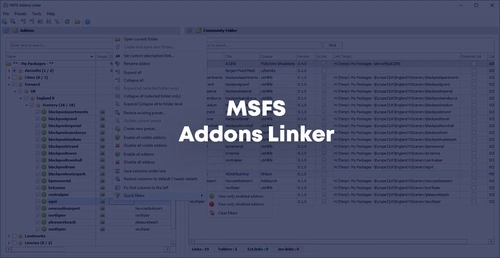
Tuatara Airlines Other
SOPs, checklists and other useful things
 TuataraAirlines


Favourite Tools
A list of the most useful tools for MSFS based of my preferences
 Apodae

My list
My list
gati263
Log in to join the discussion
Log InComments(6,287)
about 7 hours ago
2 days ago
E.g. I have Dark Streets 2020 in a folder, and 2024 in another. Despite having 2024 selected, when saving the preset, the preset saves the 2020 version as selected, probably because it is ahead in the list.
1 day ago
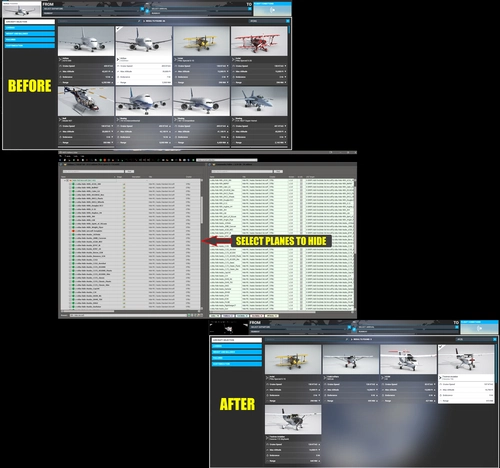
The solution is to hide in AL the addons that are not compatible with the sim you are managing. So in AL2020 you can hide the 2024 folder and in AL2024 you can hide the 2020 folder. By doing so, the hidden addon will be completely ignored and everything should work as intented (preset, dependencies, duplicates, ....). Here's a little screen explaining the 'hide' feature -> https://postimg.cc/1gRdFbnm . Hopefully that can do the job for you.
1 day ago
2 days ago
1 day ago
3 days ago
1 day ago
about 2 hours ago
10 days ago
any chance to get both MSFS2024 CommunityFolders managed... i stored most of them in the classic folder, but some addons updates theirself only when in community2024
9 days ago
8 days ago
8 days ago
14 days ago
14 days ago
16 days ago
16 days ago
14 days ago