
Description
My first InGame Toolbar Panel - be kind ;)
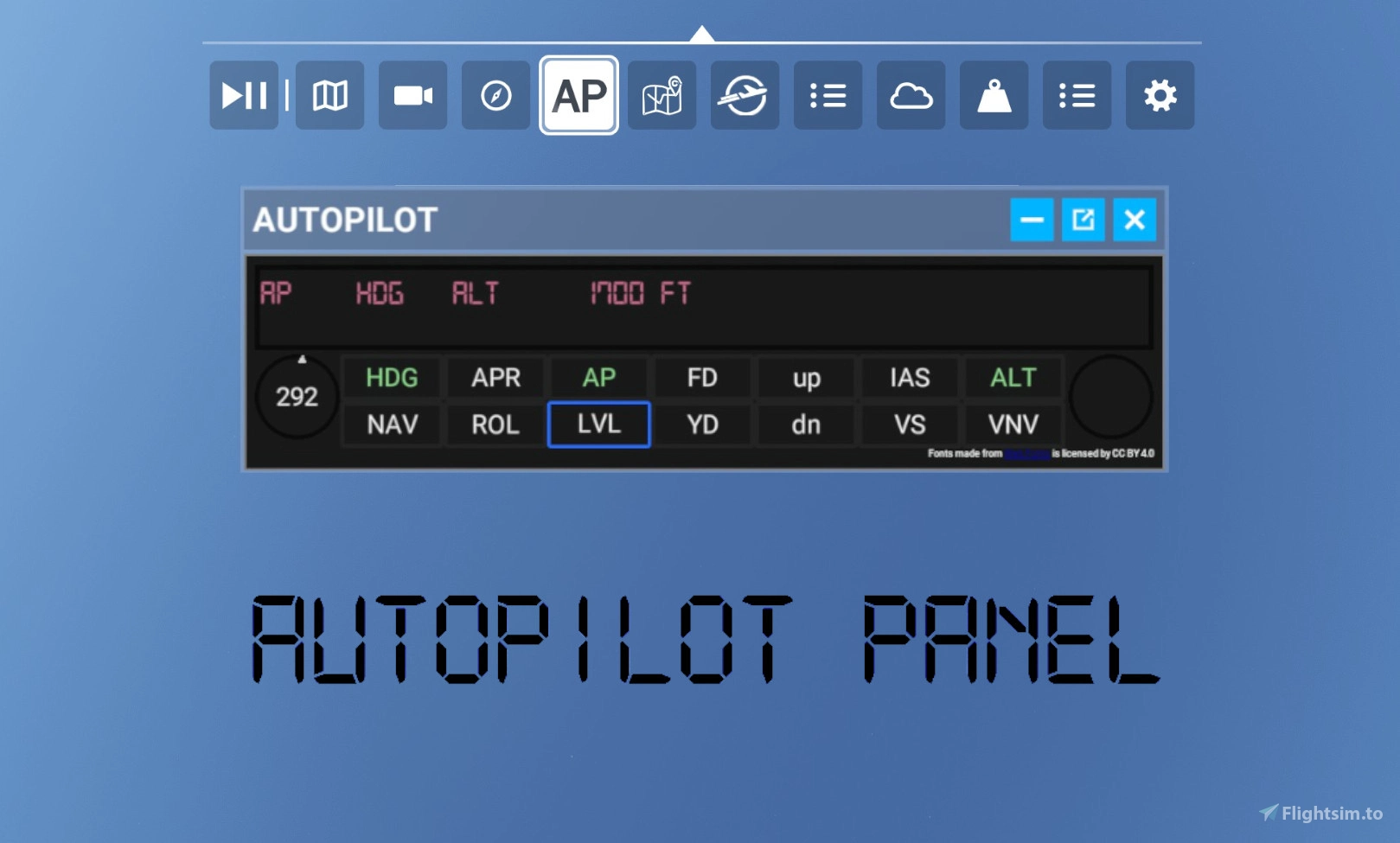
This Panel grants access to basic Autopilot controls from the Toolbar Panel.
Buttons trigger im Game Autopilot functions. Heading bug and selected Altitude can be controlled by knobs.
The full Autopilot features only work if any Autopilot Function is available in the plane's configuration
[Purpose] this Panel can help you if:
- Your plane has autopilot functions but no cockpit panel (C152, Rans, ...)
- The planes autopilot is hard to learn, you are unfamiliar or it is buggy.
- Autopilot controls are missing (no HDG bug, bad ALT / VS selector)
- you want to control the autopilot in third person
- you want to upgrade a legacy autopilot (Bank -> Heading Hold, VS -> FLC)
- you need a basic wings level mode to keep your plane steady.
Experimental custom Autopilot
If there is no Autopilot available in the plane, there is the option to use a custom experimental autopilot algorithm.
The experimental custom Autopilot is a very basic ROL / VS HOLD mode, that enables you to fly wings Level if you need a break or have to look at maps.
It is not built for navigation purposes, just to fly wings level or in a circle while having a break without crashing.
The Algorithm is a very basic control loop, so be careful. It is not very resilient against any wind, maneuvering, speed changes and so on.
There is no Heading Hold in experimental mode, so there will be a turn or drift over time, even in WINGS LEVEL mode.
The experimental Autopilot works with Helicopters and Gliders, if using only ROL mode. It's tricky, test it on your aircraft first and be careful on longer trips.
The Experimental Mode uses flight control surfaces to control the attitude of the plane. There are three control modes that may be use depending on use case and availability:
1. aileron trim, elevator trim:
- most stable
- most realistic
- trim need to be available
- works best on modern GA aircraft
2. aileron deflection, elevator deflection:
- works on aircraft that do not have trim (Helicopters, Ultralights, Gliders, ...)
- may be very rough and prone to flips
3. rudder trim, elevator trim:
- trim alternative for planes that have no aileron trim (early war birds)
- less stable
[Usage] Getting started:
- Open Panel from the Toolbar
- select Autopilot Mode with push buttons
- use Heading Bug (right) by scrolling
- use Altitude Selector (left) by scrolling
- toggle Alt 100 / 1000 ft steps with left click
- use VS and IAS selection buttons (scrolling possible)
- toggle experimental mode by clicking on the text below
- cycle control mode by clicking on the text below (click spot may be to the right)
This was a great practice for me.
Known issues:
- Some States do not display as expected (LOC / GS arm, ALT arm, ...)
- Heading bug sometimes skips ranges (-1 to 270)
- Alt selector 100/1000 ft step user feedback not working
- HDG button sometimes triggers HDG Hold, sometimes HDG Sel
- FLC auto selects current speed buggy
- Panel window cannot be minimized any further
Fonts made from Web Fonts is licensed by CC BY 4.0
Autopilot InGame Toolbar Panel
The Autopilot InGame Toolbar Panel provides users with easy access to basic autopilot controls directly from the Microsoft Flight Simulator toolbar. It is designed for aircraft that have autopilot capabilities but lack a physical cockpit panel, or for those struggling with complex autopilot systems. The panel allows pilots to manage autopilot modes, heading bugs, altitude settings, and various selectors, all from a user-friendly interface. Please note that the add-on requires compatible aircraft configurations and may have some known issues with state displays and functionality.

User Reviews
10 reviews
Version History
- fixed pitch mode - fixed VS / PITCH to OFF cycling - fixed experimental UI vert modes
Related
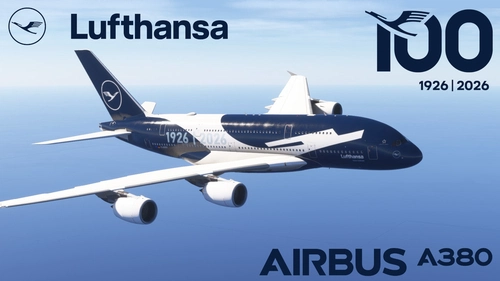
FlyByWire A380 - Lufthansa 100 Year Anniversary D-AIMH (4K)
This add-on features a 4K livery for the FlyByWire A380, inspired by the Lufthansa 100-Year Anniversary teasers. Some finer details have been left out due to limited available information, particularly regarding the B789. Users are encouraged to share any additional details they may have.
by steffieth
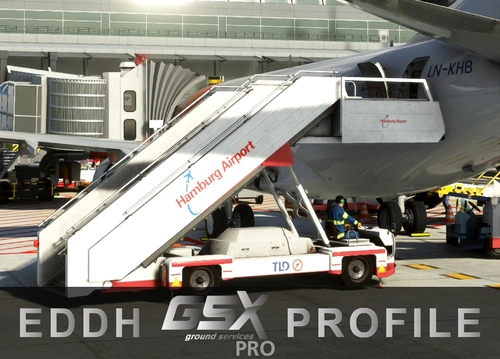
GSX Profile Simwings EDDH Hamburg
this is a GSX Profile for the payware Simwings EDDH Scenery airport. Profile includes walking paths, and adjusted vehicle positions, corrected Parking positions and sizes and GSX VDGS panels, that override the non functional ones from teh scenery. The Main Gates 1-8 use APIS Panels, the Gates 9-12 Use T1S-42 and T2S-42. I tried to match the present VDGSs as close as possible.
by steffieth
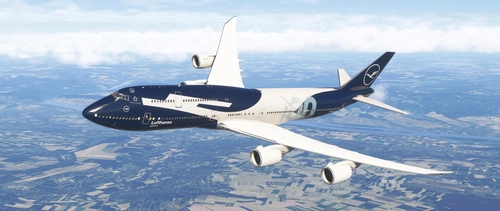
Asobo Boeing 747-8i Lufthansa 100 Year Anniversary D-ABYN
This add-on features a Boeing 747-8i livery designed to commemorate Lufthansas 100-Year Anniversary. Inspired by early teasers, the livery incorporates elements reflecting the milestone celebration. Some specific details have been omitted due to limited information available for the B748, but the design aims to capture the essence of this historic occasion. Users are encouraged to share additional information regarding the livery as it becomes available.
by steffieth
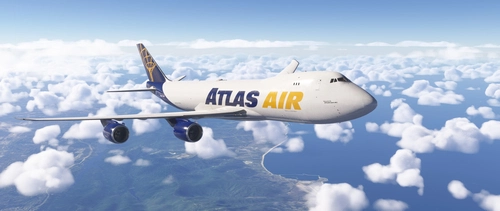
Livery Asoba B747 Freighter - Atlas Air
This add-on features the Atlas Air livery for the Boeing 747-8 Freighter, specifically representing the last aircraft of its kind built, registered as N863GT. The livery reflects the aircrafts delivery to Atlas Air in early 2023. Please note that this livery is a work in progress, with some texture mapping issues remaining, particularly on the underside of the aircraft.
by steffieth
Log in to join the discussion
Log InComments(48)
about 2 hours ago
about 1 month ago
BUT, when I move from 10 to 350 crossing the "360/0" radial it doesn't works as expected.
It works as follows: 2, 1, 0? (I expected 360 here), and then jumps to 256 instead of doing 359, 358...
Can you fix it, please?
Thank you, so much in advance.
about 1 month ago
Very weird behaviour, sice the action only triggers Simconect increase, decrease heading select.
That means the bug seams to be on sim side.
I am not sure how to fix this. Is surely is confusing but I am glad, it's not a breaking issue.
Thanks for reporting it anyway.
2 months ago
I tried it. The AP makes it stabile, height and sideways. Hdg worked fine too. That is ok for my purpose. But i could not make the function VS work. I have no clue why. It did not respond and start the way the other functions did. (And if i turned off LVL nothing happened.) This was the "normal" version.
Ill take a look at it and ill try the experimental too a bit later today. Now i will eat some sunday dinner with my daughter.
msfs2024, PC.
2 months ago
So it just can acces what not has been disable in the model.
LVL is like a panic button. you lost visibility and just want to get it level press once. to disable choos another mode or disable AP.
vor VS select any Alt first. then press VS. then scroll on the VS button to set VS value.
Experimental AP calculates a flightcontrol solution to hold a Attitude. A bit juggley but works when no AP is available.
3 months ago
3 months ago
The panel uses the default Simulation Events. If the plane has custom autopilot button events it is not campatible.
3 months ago
4 months ago
4 months ago
4 months ago
4 months ago
5 months ago
Thanks and keep improving this feature please, maybe make a slide for sensibility.
5 months ago
6 months ago
6 months ago