
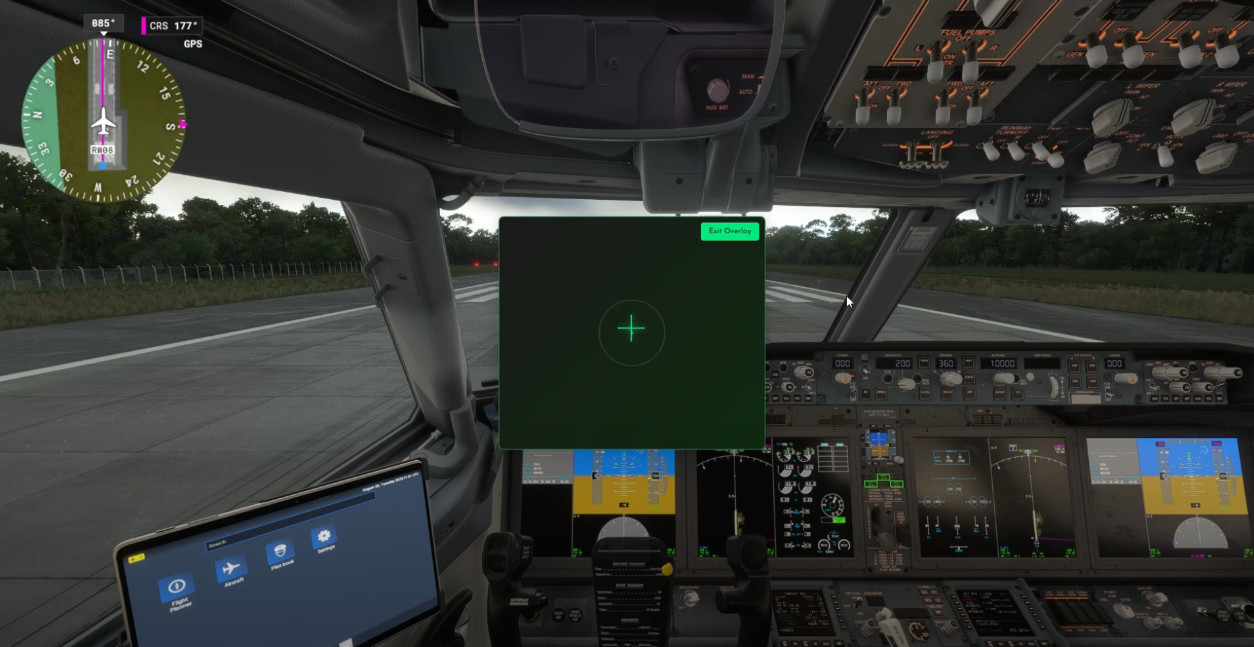
Description
NOTE: When AirJB is placed in Overlay Mode, it stays active in the background while sitting over MSFS, so you can still use your normal keyboard controls and yoke inputs at the same time, left-click to engage/disengage your yoke anytime!. Just make sure Ctrl + Alt + B is enabled or manually click the "ENABLE BACKGROUND MODE" button and that you see the green glow that means AirJB is fully active and ready for input.
buymeacoffee.com/airjb
If you enjoyed this too and want to support future updates for this, you can always buy me a coffee!
For ANY help you can contact through airjb.fly@gmail.com
Or throught in app support ticket
Things being worked on to be added:
-Transparent Overlay
-Rudder control
-Mouse wheel throttle
Key Features
✈️ Mouse-Controlled Flight
- Aileron, elevator, and rudder control with your mouse
- Smooth response curves for realistic flight feel
- Input smoothing prevents jitter and sudden movements
- 300 DPI mouse recommended for optimal precision
MSFS Integration
- Works with Microsoft Flight Simulator 2024/2020
----
- One-click virtual joystick connection
- Automatic driver installation
- Click-to-engage control system
- Overlay mode
How It Works
1. Install AirJB and launch the MSFS Controls
2. Click "Connect Virtual Joystick"
3. Enable "Yoke Control" and left-click in the control area
4. Move your mouse to control the aircraft - left-click again to disengage
System Requirements
- Windows 10/11
- Microsoft Flight Simulator 2024
- Mouse (300 DPI recommended)
Installation
1. Download and run AirJB installer
2. Launch AirJB MSFS Controls
3. Click "Connect Virtual Joystick" (vJoy driver installs automatically)
4. Start flying!
Perfect For
- New flight sim pilots learning the basics
- Pilots wanting to try MSFS before buying hardware
- Casual flying when you don't want to set up full controls
- Emergency backup when your joystick breaks
Comments(19)
Log in to join the discussion
Log In2 months ago
2 months ago
5 months ago
7 months ago
A few notes from my side
Discord link seems to be expired,
Keyboard input seems to be disabled for me when piloting with mouse with overlay mode,
App requires login at every access (?)
Very nice addon!
7 months ago
While in overlay mode you also need to have background mode enable you can do this by pressing "Ctrl + Alt + b" or you can manually click "enable background mode" on the panel and you'll see a green glow once its turned on.
I haven't really put any effort into the discord ill maybe put it up sometime in the feature.
App only requires login once as far as i know it there might be an issue on your side.
can you try going into this directory and see if the log files exist inside leveldb.
"C:\Users\"PUT UR USER HERE"\AppData\Roaming\AirJB\Local Storage\leveldb"
7 months ago
I casually run MSFS2024 on my notebook while travelling and I love being able to fly with the mouse.
I just have two suggestions to make it perfect for me:
- Allow it remembering size and position of the overlay window (it is painful to move and resize it every time I switch it off/on)
- Add a setting to customize the overlay transparency.
Thank you for the work. Good job!
S
7 months ago
6 months ago
I have also another comment. Sometimes inadvertently clicking the overlay window with the right mouse button causes it to resize weirdly while I am flying (last time this made me crashing with my poor Bonanza :D) . Is there a way to, once resized the window, disable it? It could be nice, ad example to setup the position and size of the overlay in some preference menu and not allow to do it in real-time while flying.
Apart from these very minor adjustment the software is a game changer for me! Thanks again.
8 months ago
8 months ago
8 months ago
8 months ago
9 months ago
9 months ago
AirJB - Mouse Control - Mouse yoke
AirJB is a mouse based virtual joystick made for Microsoft Flight Simulator 2024. It lets you control the ailerons, elevators, and rudder using just your mouse, so you can fly without needing extra hardware. The controls are smooth, with built in response curves and input filtering to make movements feel realistic in the air. Setup is simple just a quick driver install and a one click connection, and you’re ready to go.

User Reviews
4 reviews
More Information
Version History
Performance - GPU-accelerated crosshair rendering - 60Hz input rate Fixed pointer lock release on window blur Resolved edge case in input smoothing
about 2 hours ago