
Description
Introduction
SimFly Pad is a mobile app available on both Android and iOS platforms. It comes with features such as flight checklists, in-flight photography, flight recording, and flight control.
SimFly Linker, on the other hand, is a PC application that acts as a bridge connecting SimFly Pad and your simulator (currently only supports MSFS2020/MSFS2024 and XPlane12). To fully utilize the functions of SimFly Pad, SimFly Linker is an important component.
Regarding MSFS2024 Compatibility
Starting from version 4.1.2, SimFly Linker has added compatibility with MSFS2024. Please note that the Core plugin (WASM) of SimFly Linker still uses the same version as MSFS2020 and has not been recompiled using the MSFS2024 SDK. However, thanks to MSFS2024’s compatibility, the WASM plugin for MSFS2020 works normally.
Since MSFS2024 is still in its early release stages, future updates may introduce some instability for SimFlyLinker in certain features. If you encounter any issues during use, feel free to provide feedback.
Main Features
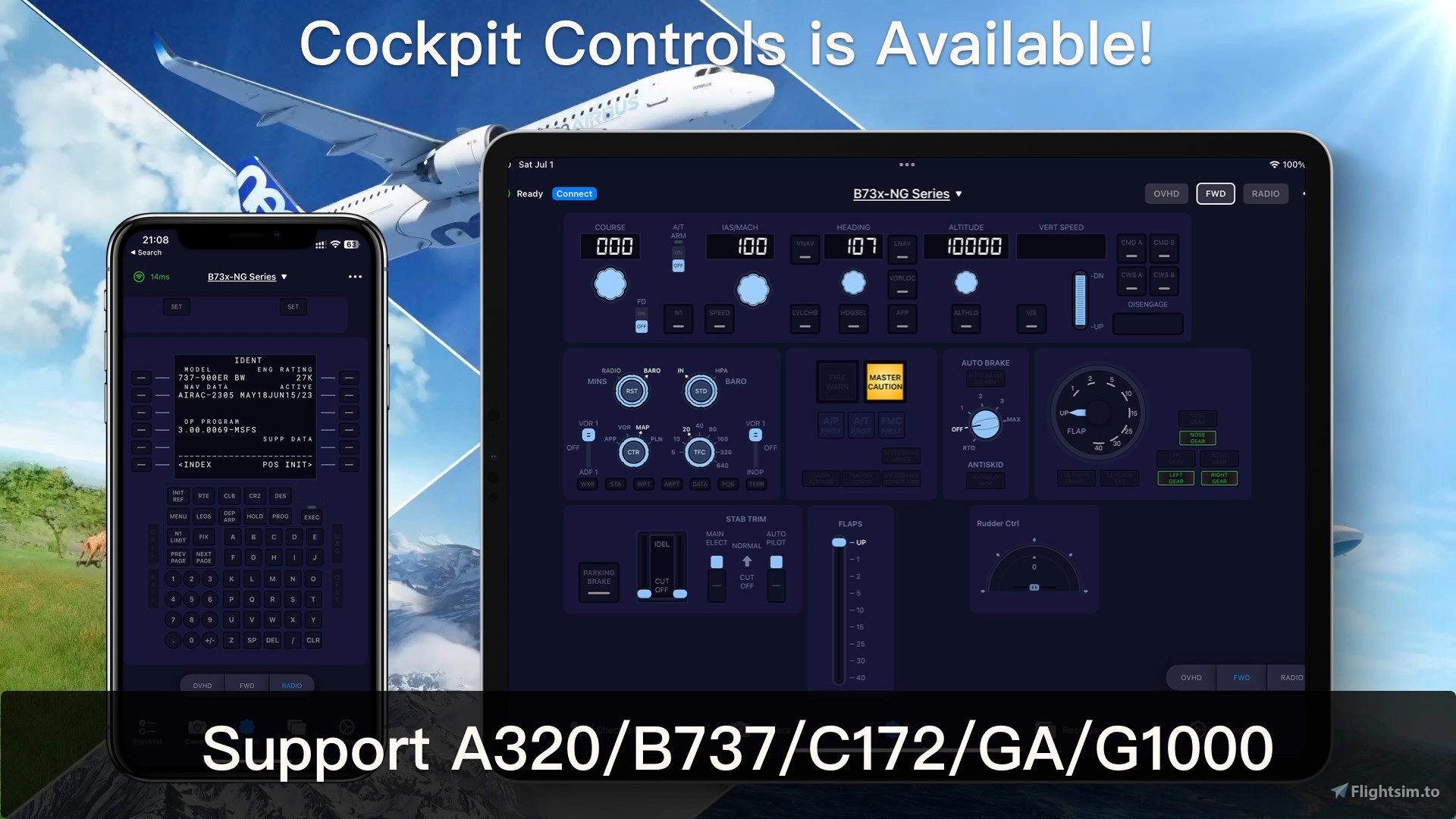
Cockpit Control
- Direct control of various panels during flight (autopilot, lighting, switches, flaps, etc.)
- The universal panel supports most GA aircraft types.
- Advanced panels currently support:
PMDG B737 Youtube Video
- iFly B737 max Youtube Video
- Asobo B787-10, Horizon B787-9, and Kuro B787-8.
- Fenix/FBW A320/ Toliss A321
- ToLiss A339
- iniBuilds A330(MSFS2024)
- ToLiss A346
- Aerosoft/ToLiss A346
- FBW A380 Lite(Free)
- FBW A380
- Aerosoft CRJ V2:
- FBW A380
- IniBuilds A350
- PMDG B777 CDU (Free)
- PMDG B777 / B77F/ B772
- CRJ Panel
- A2A Comanche 250
- TFDi MD11
- Synaptic A220
- C172 G1000 (Free)
- SR22 (Free)
- TBM930 (Free)
- CRJ CDU Panel (Free)
- G1000/G3000/G3X/GTN 750/GTN 750 (Free)
- Streaming Screen (Free)
- More advanced panels will be rolling out in the future.
- All components are implemented natively, offering higher performance and lower latency.
About the supported panels for the Android version
Due to my limited personal time (as I develop this app in my spare time), many panels cannot be released simultaneously for both Android and iOS. Generally, I prioritize releasing the iOS version first (as I’m more familiar with it). If it becomes popular on the iOS platform, I will release an Android version later. Thank you for your understanding.
In-flight Photography/Recording
- Allows direct screen capture and recording within the game
- All recordings come with your flight data (altitude, speed, location)
- Flight data supports cloud storage
- Supports the creation of videos with flight data charts
- Allows viewing of current flight environmental information (altitude, air pressure, wind force)
Interactive Checklists
- Supports voice interaction (iOS version only)
- It comes with over 10 popular model checklists
- Allows custom checklists
- Supports online checklist search
Flight Logs
- Manages and records all your flight logs
- Allows importing of FDR data for flight analysis after each flight (landing G-force, flight trajectory, cruising, etc.)
- Supports creating flight trajectory maps
- Supports cloud storage for flight logs
Instructions for Use
SimFly Linker is an essential part of SimFly Pad operation. For the FDR-related functions of SimFly Pad, the FDR plugin installation needs to be completed in SimFly Linker. For the cockpit control function of SimFly Pad, the installation of the Core plugin needs to be completed in SimFly Linker.
Launching SimFly Linker
- In the SimFly Linker installation directory, click "SimFlyLinker.exe" to launch the application.
- Note: On the first launch, Windows will ask for network permissions. As SimFly Linker communicates with SimFly Pad via
- the local network, you need to ensure that SimFly Linker is allowed to access the private network.
- After launching SimFly Linker, click the “Start” button, and wait until the interface shows "SimFly Linker startup successfully." This means you can now connect via SimFly Pad.
Note: If SimFly Pad still cannot connect after launching SimFly Linker, please refer to the relevant section in the FAQ for troubleshooting.
SimFly Pad User Guide
Connecting SimFly Pad with SimFly Linker
After the SimFly Linker service starts, start SimFly Pad. When the host running SimFly Linker and SimFly Pad are on the same network, SimFly Pad will automatically connect to SimFly Linker.
Troubleshooting
If your SimFly Pad cannot connect to SimFly Linker, please try the following:
- Use the Connection Diagnose feature from SimFly Pad and SimFly Linker to check if something goes wrong.
- Make sure that the device running SimFly Pad and the computer running SimFly Linker are connected to the same network. (Simply put, if you have multiple routers at home, you need to connect your PC and mobile device to the same router, or use Mesh and other methods to make them all in the same network segment)
- If your PC host is running VPN software, you can try to close it and restart SimFlyLinker.
- For the Android version of SimFlyPad, you can try to select manual mode on the settings page, enter the IP address of the PC host, and restart SimFly Pad.
User Manual
for further use or troubleshooting, please visit https://docs.simflypad.com
Have a question?
Please feel free to contact me via Discord or email at ethantoken@gmail.com. Any voices or feedback is extraordinarily welcome. 😉
SimFlyLinker - Remote Control, CDU, MCDU, Checklist and photo/video taking on your mobile device
SimFly Linker is a creative tool that allows you to take screenshots and record screens of your flight simulations directly on your phone. To use it, you need to work with SimFly Pad (an mobile app). SimFly Linker allows you to access the game's real-time data right on your phone, and each screenshot and recording is tied to your flight data to help you better review every moment of your flight.


User Reviews
31 reviews
Version History
* Add New aircraft support on MSFS 2024: Boeing 707-320C (with weather radar streaming) and iniBuilds A380 (with MFD / SD / EWD / RMP / EFB direct capture). * B737: Large panel coverage expansion for PMDG and iFly — FIRE, IRS DISPLAY (ISDU), ACP, COM radios, WX RDR, ADF, GROUND PROXIMITY and more, plus ISFD direct capture. * Fixed PMDG 737 light knobs on MSFS 2024, iFly 737 flap lever and trim switches, and ZIBO 737 IRS / MCP / EFIS controls on X-Plane (XP Connector 0.9.1).
Related
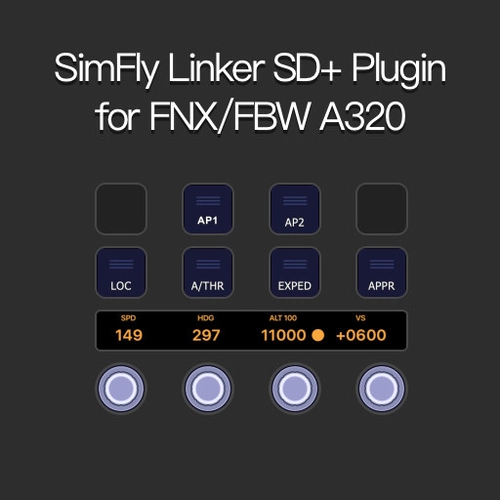
SimFlyLinker A320 StreamDeck SD+ Profile
Enhance your flight simulation experience with the SimFlyLinker A320 StreamDeck SD+ Profile. This plugin allows for seamless operation and display of key functions on the A320 FCU panel, including SPD, HDG, ALT, and VS. Easily adjust values, switch display units, and access various buttons with a simple tap or press. Connect your StreamDeck to the SimFlyLinker for a more immersive and interactive cockpit experience.
by ethantoken123
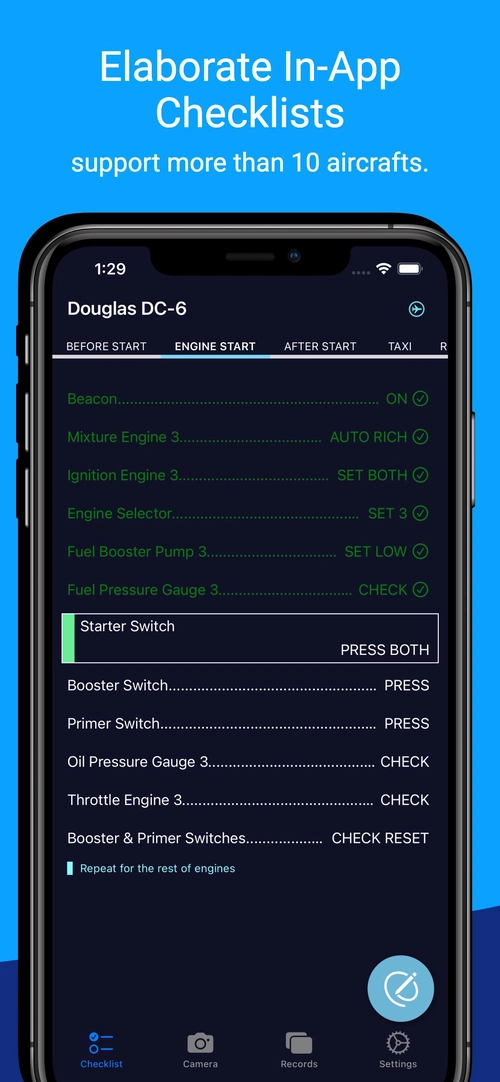
SimFlyPad default checklist template
Access a variety of aircraft checklists with the SimFlyPad default checklist template add-on. Featuring a range of in-app checklists for popular aircraft like PMDG DC-6, Citation CJ4, and Airbus A320-NX. Enhance your flight experience with this convenient tool for iOS users.
by ethantoken123
Log in to join the discussion
Log InComments(242)
20 days ago
Could you avoid to put the version on the name of the directory Simflylinker ? Perhaps in a Version.txt inside the directory. Then we do not need to change the name to keep our shortcuts available ...
17 days ago
about 1 month ago
about 1 month ago
about 2 months ago
about 1 month ago
about 2 months ago
2 months ago
2 months ago
2 months ago
1. iOS: Version 16 or higher
2. Android: Version 8 or higher
In addition to installing SimFly Pad on your tablet, you also need to install SimFlyLinker (this software) on your computer to get them to work.
3 months ago
3 months ago
3 months ago
Could you please confirm whether the FPS drop happens when the simulator instrument pop-out windows are created?
If the FPS drop is caused by the pop-out windows, you can try the new DX12 capture mode. It can be enabled in the SimFly Linker settings page. This mode may help avoid the performance impact caused by pop-out windows.
If the issue is related to the pop-out windows themselves, it may be caused by a known MSFS behavior, where pop-out panels can affect performance.
Regarding the fullscreen issue on your tablet, please try updating to the latest version, 4.7.3 or later. In the newer version, you can use two fingers to zoom the panel. There is also a “Fit Screen” button in the top-right corner of the Cockpit page.
3 months ago
3 months ago
4 months ago
Tool works on Windows, Android and IOS
I recommend everyone to give it a try
4 months ago
4 months ago
6 months ago