

Description
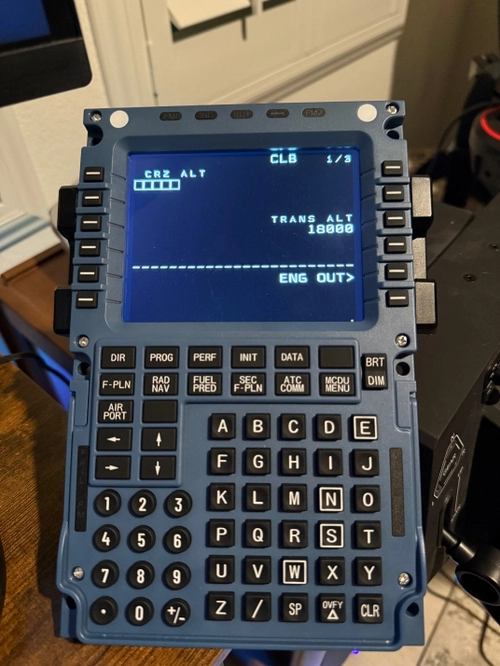
This is a MobiFlight profile that allows you to use the Airbus MCDU with the Boeing 737-700. To work, it requires Python, along with the Python packages websockets, gql, and simconnect. It also requires the beta version of MobiFlight, as the current stable release does not support the Winwing MCDU.
Instructions
To start, be sure to download and install MobiFlight, link found below:
https://www.mobiflight.com/en/index.html
Once installed, go to Extras, Settings, then checkmark under the 'Beta Versions' section, "Yes, I would like to receive beta version updates". Select 'OK' then close MobiFlight and reopen. Upon reopening, it will present you with the prompt that there is an update. Allow it to update, then reopen. After the install and reopen is complete, close the application.
Now you will need to install Python, if it is not installed on your machine already, and then install the packages. Instructions are on the link below:
https://github.com/MobiFlight/MobiFlight-Connector/wiki/Installing-Python
Once Python and packages are installed, you can reopen MobiFlight. Unzip my file and place the MobiFlight profile file '737-700.mfproj' where ever you would like to store it. In MobiFlight, you can go to File, Open, then select my profile "737-700.mfproj". You can boot up the sim, load into the plane, get power to the plane so the MCDU can be on in the sim, THEN open MobiFlight and press the play button in MobiFlight. MobiFlight should not be open or running until their is power to the plane. If it still continues to not show the screen, try closing and restarting MobiFlight and pressing play again. You may also need to get into the FMS screen to "jumpstart" the screen.
I have noticed if you have MobiFlight running before their is power to the plane, the screen will not turn on, but the buttons will work. I assume this is a bug with either the python packages or MobiFlight beta.
PLEASE NOTE:
As per the instructions on github site:
Do not run SimAppPro in parallel. After using SimAppPro unplug and replug device to USB port.
Button Details:
All the number, letter, BRT and DIM, and L1-12 keys are the same as the Airbus MCDU. I also made the '/' and the "SP" key the same. Below are the changes to the other keys:
WinWing Airbus MCDU -> PMDG 737-700 FMS
DIR -> INIT REF
PROG -> RTE
PERF -> CLB
INIT -> CRZ
DATA -> DES
F-PLN -> MENU
RAD NAV -> LEGS
FUEL PRED -> DEP ARR
SEC F-PLN -> HOLD
ATC COMM -> PROG
MCDU MENU -> EXEC
AIR PORT -> N1 LIMIT
Blank key next to AIRPORT -> FIX
Right Arrow -> PREV PAGE
Left Arrow -> NEXT PAGE
OVFY -> DEL
Hope this helps you a bit. Please note that I did not create the github package or MobiFlight beta, so I am unable to fix the bugs that they may present. Please be kind :)
Use Winwing MCDU with PMDG 737-700
This add-on provides a MobiFlight profile for integrating the Winwing MCDU with the PMDG 737-700 in Microsoft Flight Simulator. It requires Python and specific packages, as well as the beta version of MobiFlight, for proper functionality. The installation process includes steps for setting up MobiFlight and configuring the MCDU buttons to correspond with 737-700 controls. Users should follow detailed instructions to ensure a successful setup and troubleshooting tips are provided for common issues.

User Reviews
4 reviews
Version History
No version history available.
Related
Use Winwing MCDU with PMDG 777-300ER
This add-on provides a MobiFlight profile to enable the use of the Airbus MCDU with the Boeing 777-300ER in Microsoft Flight Simulator. It requires the beta version of MobiFlight, as well as specific Python packages including websockets, gql, and simconnect. The profile facilitates various key functions associated with the Boeings FMS by mapping them to the corresponding Airbus MCDU buttons. Detailed installation instructions and important usage notes are included for users to ensure proper setup and operation.
by anchorboiii
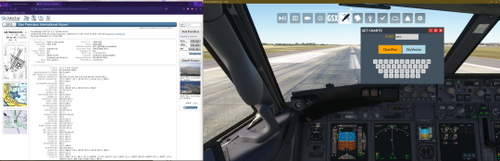
Get Charts - In-Game Panel
This add-on introduces an in-game panel for Microsoft Flight Simulator that allows users to access chart pages from ChartFox or SkyVector directly within the simulator. By entering an ICAO code, users can quickly view relevant charts in their default web browser. The package requires installation in the Community folder and includes instructions for setup. Note that a Vatsim account is necessary for using ChartFox efficiently.
by anchorboiii
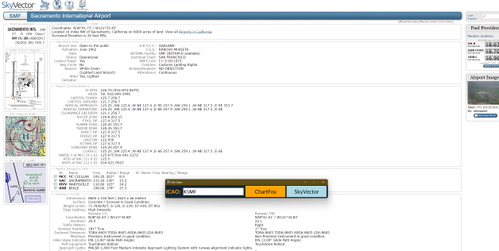
Get Charts
Get Charts is a utility application designed to quickly access aviation charts from ChartFox and SkyVector by entering an ICAO code. The application offers a straightforward interface and allows users to open the corresponding chart pages with ease. Note that using ChartFox requires a Vatsim account for direct access. Future updates may include the development of an in-game interface for enhanced functionality.
by anchorboiii

Beechcraft D17 Staggerwing in Blue and Gold
Experience a stunning new look for the Beechcraft D17 Staggerwing with this blue and gold repaint. Add a touch of elegance and shine to your virtual flights with this easy-to-install mod. Enjoy a refreshed visual experience in the skies with this eye-catching livery.
by anchorboiii
Log in to join the discussion
Log InComments(23)
6 months ago
8 months ago
10 months ago
10 months ago
over 1 year ago
Is there any chance to setup the brithenes? The screen is bright and lights on all buttons dont work. Thanks
over 1 year ago
about 1 year ago
over 1 year ago
3 months ago
over 1 year ago
over 1 year ago
https://docs.mobiflight.com/guides/installing-python/
over 1 year ago
3 months ago
over 1 year ago
over 1 year ago