
![[DISCONTINUED] Touch Portal page for MSFS Camera, Flyby, Pushback and Sim Rate Controls - Image 1](https://cdn.flightsim.to/images/24/touch-portal-page-for-msfs-camera-controls-wP5Z6.jpg)
Description
---
Requirements1️⃣ Licensed Touch Portal app on your mobile device (Touch Portal Pro)
2️⃣ The Touch Portal software on your PC. Visit: https://www.touch-portal.com/
3️⃣ Install the latest version of the MSFS Touch Portal plug-in
4️⃣ Install the latest version of the WASM module also from the MSFS Touch Portal plug-in page)
- Launch Touch Portal Pro and ensure the MSFS Touch Portal plug-in is loaded.
- Unzip the zip archive you downloaded from this flightsim.to page
- For each of the three .tpz files :
- In the Pages tab, click the gear symbol at the top left, then Import Page...
- Browse to the.tpz file and click Open to import the page
- From your (main) Touch Portal page, add a button that will link you to the "MSFS Touch Controls Camera" page
- For more information on how to check out the Touch Portal Guides page
- Recommended grid settings:
- Maximize button space: off
- Group buttons: on
- With MSFS running, tap the sim CONNECTION button to connect Touch Portal to the sim. The text should turn green.
- (Usally automatic on page load) Tap the STATES FILE button to load the variables needed for this page. The text should turn green.
- Please DM if you encounter any problems.
- Quick access to the following camera views
- Cockpit views: Close, Pilot, Landing, Copilot
- Instrument views 1-15
- Cockpit Quick Views 1-8
- External views "Default" and Quick Views 1-8
- Showcase views: Drone and External Views 1-12
- Also includes toggles for Drone follow, lock and focus
- NEW! "experimental" Flyby mode!
- For this to work, it is mandatory to map your drone keyboard controls as follows:
- W: Translate Drone Forwards
- A: Translate Drone Left
- D: Translate Drone Right
- Flyby instructions
- Step 1: from the CAMERA Touch Portal page, enable DRONE camera mode
- Step 2: press the PREPARE FLYBY button, it should change to FLYBY READY
- Step 3: press either FLYBY MY LEFT, FLYBY STRAIGHT or FLYBY MY RIGHT buttons. It should take approximately 6 seconds for the aircraft to reach the camera, regardless of whether you are flying fast or slow!
- Further plans for Flyby mode:
- Investigate auto adjusting flyby camera position for crosswinds, so the aircraft doesn't drift to the "wrong" side of the camera
- Investigate auto adjusting flyby camera position for changes in altitude
- For this to work, it is mandatory to map your drone keyboard controls as follows:
- Known issue (UI): minor unreliability changing views - sometimes needs a second tap to get it working. Not sure if it's a bug with MSFS, Touch Portal or something I can work around - still under investigation...
- Known issue (UI): button status does not update if you change a view using in-game controls. This should be solvable in Touch Portal, but during testing it seemed to cause some issues so I removed that for now.
- Known issue (Flyby): Some head tracking applications may prevent the drone camera from aligning correctly behind the aircraft. I get this when using SmoothTrack + OpenTrack, but I expect the same could occur with TrackIR and others.
- Limitation (Flyby): strong sidewinds will influence the aircraft's trajectory during the flyby, so it may not pass the camera on the expected side!
- Sim options page which may grow over time. Currently contains controls for:
- Simulation rate
- Taxi ribbon visibility toggle
- Pushback controls
- These controls do NOT use the in-game pushback sytstem - instead the buttons directly control the aircraft movement on ground. The movement is not yet as smooth or realistic as I'd like - so I'll try to refine this in the future.
- Planned: refine pushback speed controls (including rotation speed)
- Under investigation: currently if the sim variable PUSHBACK AVAILABLE = 0, my Touch Portal page will respect this and not let you use pushback buttons. However this may be too restrictive - I'll look into it.
Dependencies
Frequently Asked Questions
[DISCONTINUED] Touch Portal page for MSFS Camera, Flyby, Pushback and Sim Rate Controls
Touch Portal page for the standard MSFS camera views experimental Flyby camera, pushback controls and sim rate. Includes cockpit views, instrument views 1-15, cockpit quick views 1-8, default external view, external quick views 1-8, drone view and external views 1-12. This page requires a license of Touch Portal Pro.

User Reviews
8 reviews
Version History
Scaled flyby camera behaviour with aircraft speed. It should take approximately 6 seconds for the aircraft to reach the flyby camera, regardless of how fast you are flying! Renamed flyby left and right buttons.
Related
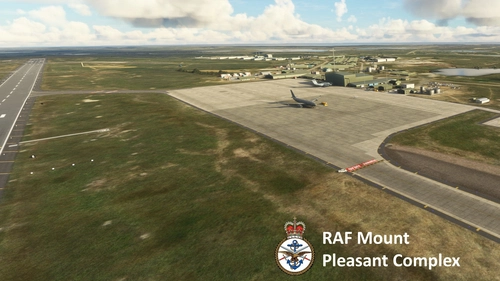
EGYP - RAF Mount Pleasant
Explore the detailed RAF Mount Pleasant (EGYP) scenery in Microsoft Flight Simulator, featuring custom models, textures, and runway markings. Enhancements include static aircraft, improved apron and taxiway textures, and added clutter for realism. Stay tuned for ongoing refinements and additional details.
by Flak
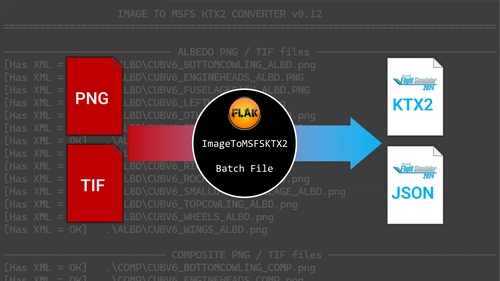
Image to KTX2 texture script for MSFS 2024 livery creation - ImageToMSFSKTX2
This batch script converts PNG and TIF images into KTX2 texture files and generates accompanying JSONs for Microsoft Flight Simulator 2024 livery creation. It allows direct integration of textures into existing liveries and can update the layout.json if MSFSLayoutGenerator is used. The script is compatible with both Microsoft and Steam versions of MSFS 2024 and includes options for compression quality and alpha channel handling. Users must have the MSFS 2024 SDK installed and organize artwork according to the included folder structure.
by Flak
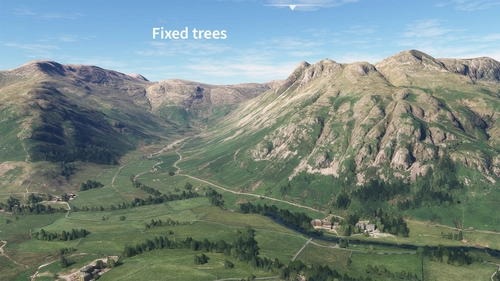
Lake District National Park scenery corrections (tree fix & more)
Enhance the realism of the Lake District National Park in Microsoft Flight Simulator with this add-on focusing on correcting autogen trees and other scenery inaccuracies. From removing excessive trees on high ground to fixing misplaced buildings and adding detailed elements like boats and piers around Windermere, this mod aims to provide a more accurate representation of the iconic park. Explore the beautiful British landscape with improved visuals and minor scenery fixes.
by Flak
EGDM MOD Boscombe Down
Explore MoD Boscombe Down, the renowned military aircraft testing site in Wiltshire, England. This scenery add-on enhances the default Asobo assets with improved textures, custom models for major buildings, static aircraft, realistic markings, signage, and more. While not hyper-realistic, this mod aims to provide a better representation of the site for a more immersive flying experience.
by Flak
Log in to join the discussion
Log InComments(27)
almost 2 years ago
almost 2 years ago
almost 2 years ago
I know that was broken for a while with early v4 and I'm not sure which version fixed it, but I think it was a while ago.
Plus the Flow exports/imports are fixed and you can pack multiple pages together into one archive now. And global Events can be exported/imported.
almost 2 years ago
about 2 years ago
almost 3 years ago
I needed a view configuration (and also Pushback) to "jump" from one position to another in the plane during Twitch live broadcasts/recordings.
I tested with Fenix A320 and it works perfectly.
Thank you
over 3 years ago
Excellent
Simply essential for managing and customizing camera views.
I look forward to the evolution of the SIM OPTIONS page
Thanks Flak
over 3 years ago
Thanks for the review!
I've been struggling to find things that I can add to that sim options page. There are hardly any more variables / events available really. Things I'd like to add but so far cannot are: cockpit tooltips, aircraft names, headphone simulation, various ground services and ATC. Some of these appear to have variables in the SDK documentation, but they do absolutely nothing!
over 3 years ago
I'm sorry.
In the new Update.file (v0.5.1 - zip) there are only 3 tpz.files but no ini.file
over 3 years ago
The .ini file is embedded in one of the TPZ files, there is no separate file. Touch Portal handles it during the import. In v0.5 I forgot to embed the .ini file inside the tpz file.
EDIT: after importing the pages you should see MSFSTouchCameras.ini in %appdata%\TouchPortal\Misc
over 3 years ago
Thank you very much. Now it is clear and it works!
over 3 years ago
In the "Camera Page" there is a Button "INI States File". This button doesn't work for me.
I believe that the reason for this is the missing "MSFSTouchCameras.ini" configuration file from which the "variable state definitions" has to be loaded.
So my question is: Where and how can I get this "MSFSTouchCameras.ini"?
over 3 years ago
Oh I think I missed it from the recently updated package. I'll push an update today.
Edit: done in v0.5.1 - please let me know if that fixes it.
over 3 years ago
Great, i use only the camera panel, but this is best i have found. Is it possible to fill the empty places with controls like pan, tilt, up/down, left/right.... to control the drone cam ?
over 3 years ago
It's something I'd like to do, but unfortunately there aren't any sim variables / events exposed for those camera controls. I did experiment with a hacky workaround but it wasn't any good. Hopefully Asobo will expose more camera control events and variables one day, which would open up some cool new stuff to do with this TP page.
over 3 years ago
Thank you for your response, then this is sadly one of the problems why we don't get chaseplane for MSFS
over 3 years ago
Yes I was hoping to write code that would provide a button for a fly-past view, but it's just impossible to reliably move the camera at the moment :-(
over 3 years ago
The new version now has a basic flyby camera implementation. Let me know what you think!