
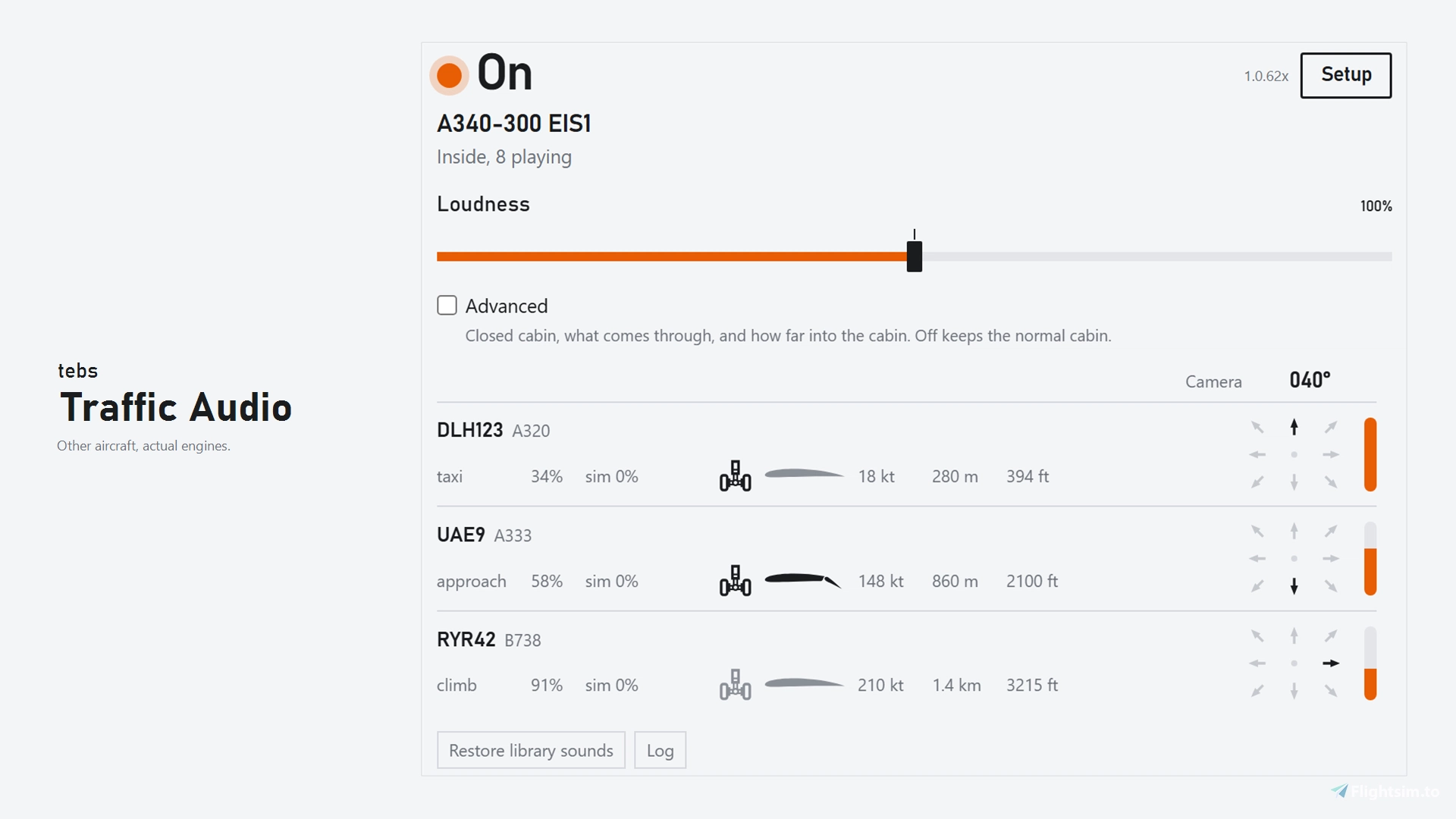
Description
Are you fed up with Asobo turning every other airplane into a polite cough from three hangars away? Do you hate it when a 777 on the taxiway is quieter than your wife snoring through a closed door? Then download this.
TRAFFIC AUDIO - Real engine recordings. Real physics. Every aircraft in the sky, placed in 3D and mixed live, 20 times a second.
Not a synth. Not a beep. Not a slider pretending to be distance. Traffic Audio silences the leftover MSFS AI engine noise and replaces it with the real thing: multi-layer recordings of the intake, fan, sideline, exhaust and rumble of each engine, played back the way the sound designers authored them. Then it puts every jet in a physical model of the air between it and you. Tested with Rokit KRK Studio speakers. Turn up your bass and you will be blown off your chair, captain. Works with any traffic library like FSLTL or AIG.
GET STARTED IN MINUTES
- Start the little always-on-top panel
- Follow the two-step setup: pick your Community folder, hit Silence MSFS traffic (once, and before you start the simulator), then switch it on
- Leave it running
Default MSFS traffic: also set Options → Sound → Other Aircraft to 0. Silence covers leftover add-on traffic. Default Asobo traffic still uses that slider. Leave it at 0 or you hear both. One stream. Speakers or headphones. Master / exterior / interior volume. The settings sit in tabs, so the panel stays small.
THE SOUND Engine sound banks (AITRSP, with FTSiM and SkyHigh as fallbacks) hold several recordings per engine. Each file carries its own authored curves:
- volume against engine power (N1): a file only opens at the thrust it was recorded for
- pitch against engine power: the whine climbs like the real engine
- the direction and the distance it was recorded from
Traffic Audio reads and uses them as written. Nothing is boosted. A soft limiter catches the peaks when a whole ramp of aircraft spools up at once.
TWO ANGLES, NOT ONE SLIDER Asobo mashed these together. I did not.
- Nose toward you → inlet / fan / whine
- About 90° → sideline mix
- Tail toward you → exhaust in a rear cone (~120–150° from the nose), not a hose out the tailpipe
The mix uses the true angle between the plane's nose and you, including climb and descent, and blends the recordings smoothly as that angle changes. A jet coming at you is loud. A flypast never sounds like it comes from behind. Turning the camera only pans the image and dulls what's behind you, exactly like your head does: a low-pass filter shaped like real head shadow takes the treble off sources behind you. Pointing the view at a tail-on jet does not turn it into an inlet. The "Rear cue" slider sets the strength.
PHYSICS, NOT GUESSWORK
- 20 km horizon, with taxi rumble still there at ~5 km
- Level follows ISO 9613 outdoor sound: spherical spreading (about 6 dB quieter for every doubling of distance), air absorption (ISO 9613-1) and ground effect (ISO 9613-2)
- Air eats the top end first, using the sim's own temperature, pressure and humidity. Far away you keep the rumble and the whine dies. Every recording has its own low-pass filter that closes with distance
- Loudness follows thrust with a 40·log10 law of engine power. Idle to takeoff is the same jump at 50 m or at 5 km
- Sound travels at about 340 m/s, so a jet 12 km out is the sound from ~35 seconds ago. Each aircraft is heard from where it was when the sound left it, not where it is now
- Doppler shift on the pitch, kept in a sane range. A flypast slides down like a real one. No cartoon rumble
- Big aircraft spread across your speakers up close and shrink to a point with distance
- 64 simultaneous voices, and stereo stays stereo
ENGINES THAT ACT LIKE ENGINES
- Start-up, running and shutdown are read from the sim and debounced, so nothing flickers on and off
- Shutdown winds down over seconds, not instantly
- Start-up and shutdown sounds play for their whole length
INSIDE THE AIRPLANE You are not wearing the engines as a hat.
- The hull is a low-pass filter at about 220 Hz
- Rumble leaks in, fan / whine does not (about −18 dB residual)
- No cockpit files played as traffic
- ChasePlane cabin views are followed
SUPPORT https://discord.gg/dMQqsFdZnf MSFS 2024 only. This application is not compatible with MSFS 2020.
tebs traffic-audio
IMPORTANT INFORMATION: the latest version still uses an old AI generated UI. The next release version will have a new UI This add-on replaces default Microsoft Flight Simulator traffic sounds by silencing the built-in AI engine audio and playing real exterior aircraft sound recordings. It provides directional audio based on aircraft orientation, with sound propagation modeled for distance and environmental effects. Compatible with MSFS 2020 and 2024, as well as VATSIM, and IVAO traffic. Cockpit sound experience is separated from external traffic noise, ensuring realistic sound immersion.
Starred
Hand-picked by our team — this addon significantly enhances the MSFS experience and is a must-have for your setup.


User Reviews
60 reviews
Version History
Cabin -Doorway is the loud spot. -Step in and it drops. Step out and you are outside. -Cabin muffling only starts once you are inside. -Stock planes and streamed packages included. Doors and windows -Open passenger door: loud on that side, a bit duller on the other. -Fades as you walk through the cabin. -Cockpit gets about half of a front-door opening. -Belly cargo door stays quiet. Main-deck cargo door does not. -Open cockpit window leaves an open cabin door alone. -Closing a door or window fades. -Open side window fades as the plane crosses your nose (for example from left to right if left window is open) Levels -Closed cabin is quieter. -Light airplanes are less muffled than an airliner. -Airliner and General aviation profiles. -One volume slider. Sealed cabin uses interior. Open door uses outside. Traffic -Installed models use their own engine bank. -A 737 that reports four engines plays two. -Shallow go-around uses the climb sounds. -Climb holds once you are actually climbing. -Flickering N1 at a stop stays taxi. -A plane crossing your nose fades. App -Dark mode. -Output device stays the one you picked. -Mutes when MSFS is in the background. -Keeps running at the main menu. -Ground vehicles stay off the aircraft list. -Setup drops the Default row and the live-traffic step. -Nearby list is three rows. -Power numbers sit clear of gear and flaps. -Old settings start fresh once. -Restart note after Silence stays on screen.
Related
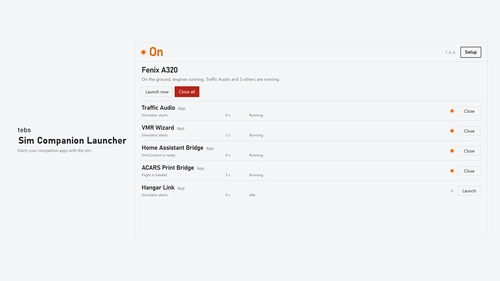
tebs sim-companion-launcher
Sim Companion Launcher automatically starts selected flight simulation tools alongside Microsoft Flight Simulator, including Navigraph, SimBrief, and other user-added applications. It ensures that apps are only launched if not already running and can close them upon sim exit or crash, if desired. The launcher integrates with MSFS startup via exe.xml without affecting existing entries. No account, cloud service, or installer is required, with support for both MSFS 2020 and 2024.
by tebs
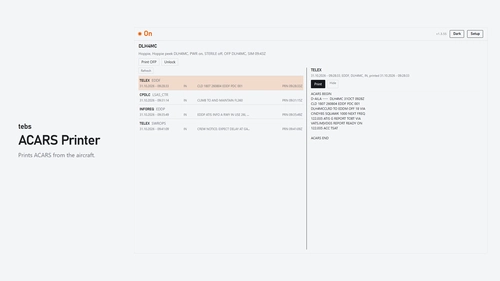
tebs acars-printer
This add-on bridges your aircraft’s Hoppie, SayIntentions.AI, or PMDG GFO ACARS traffic to a physical or Windows printer, automatically printing received messages such as CPDLC, telex, and weather/ATIS. Optional SimBrief OFP and loadsheet printing is also supported. Compatible with aircraft using those ACARS networks (including PMDG via GFO); Requires a Windows-installed printer and Administrator rights when connected.
by tebs
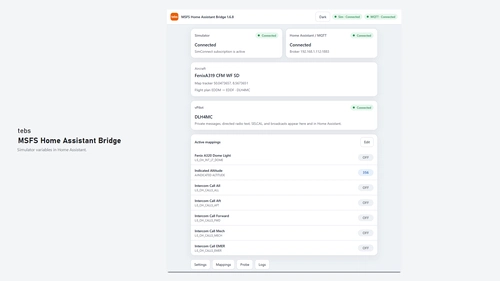
tebs msfs-home-assistant-bridge
Want your cockpit to talk to your house? Lights, flight data, VATSIM messages, even a map pin — this app publishes MSFS to Home Assistant. MSFS Home Assistant Bridge is a Windows app that reads Microsoft Flight Simulator variables and publishes them to Home Assistant over MQTT. It supports MSFS 2020 and 2024. Map aircraft lights, A-Vars, L-Vars, indexed iFly variables, optional vPilot VATSIM messages, and a Home Assistant map pin. Entities appear automatically via MQTT discovery. Unzip, run, and automate in Home Assistant.
by tebs
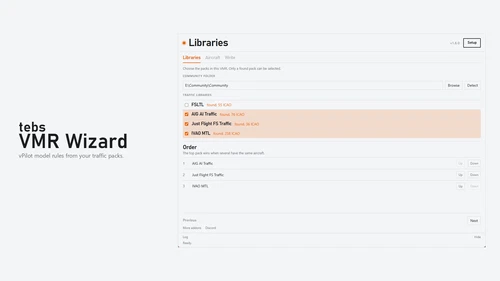
tebs vmr-wizard
VMR Wizard helps manage multiple AI traffic packs in Microsoft Flight Simulator by creating a prioritized model-matching file for vPilot. Users can organize packs, assign aircraft to specific packs, and preview livery models. The utility also offers livery browsing, file comparison, and error checks for issues like bad titles and missing textures. Compatible with major AI traffic packs and requires Python 3.10 or newer.
by tebs
Log in to join the discussion
Log InComments(294)
36 minutes ago
2 days ago
thx! Such a great app. Just would like to hear more APU and ramp like sounds if possible!
3 days ago
5 days ago
But that then also Turns down the inside.
Even though the Inside Level says its at 100% ?
Is this a bug ?
5 days ago
4 days ago
I would much prefer to be able to set the inside and outside volume individually.
Because at the moment the outside is way to loud and inside way to quite if i turn it down.
I was much happier with the older version being able to control that.
Maybe you can unmerge them ?
4 days ago
5 days ago
5 days ago
5 days ago
5 days ago
5 days ago
5 days ago
6 days ago
6 days ago
6 days ago
6 days ago
4 days ago
4 days ago