
Description
Taxi Cam - MSFS 2024 PFD Taxi Cameras
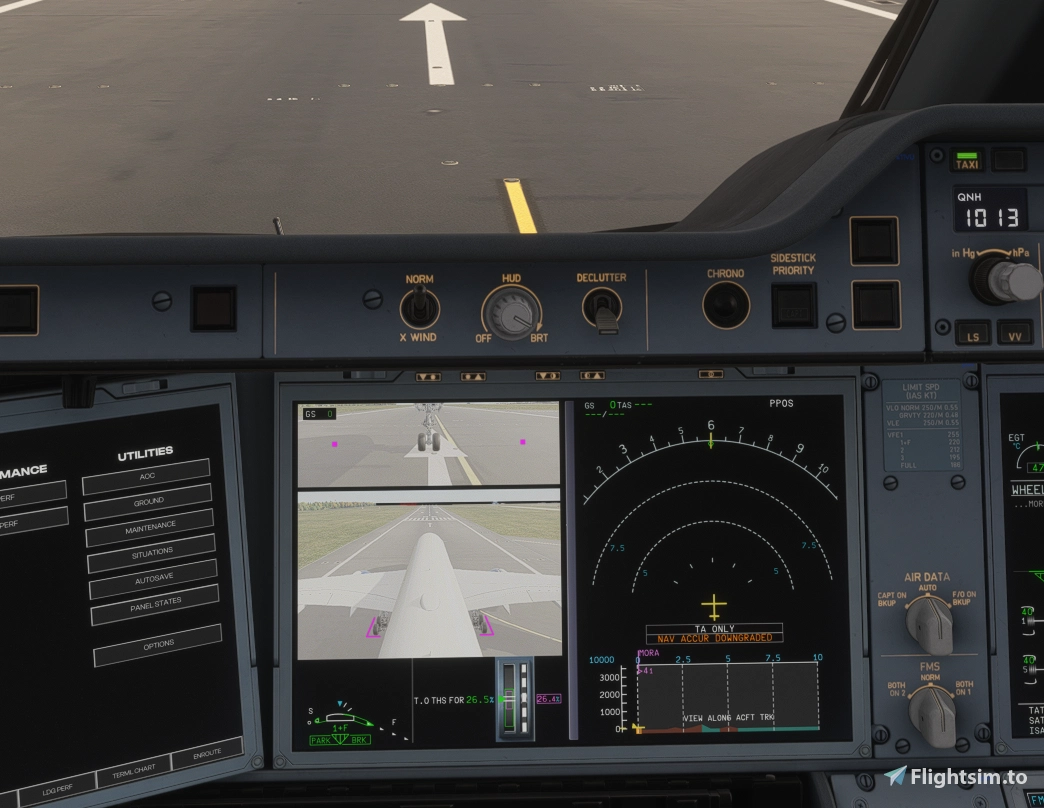
See your nose wheel and tail camera views directly on the cockpit displays while taxiing. Taxi Cam adds two live camera views to the upper part of the Primary Flight Display (PFD), with reference guides and ground speed, controlled from the flight deck or configurable keyboard shortcuts.
This was built out of curiosity - what would it take to actually get this to work..
Looking at what the community was doing with reshade and DLSSG, it got me wondering if I could use the same patterns here to transform the output with some MSFS camera views.
Turns out it was and ran reasonably well on my setup (9800x3d and 5070Ti).
Its not universally compatible with every setup out there so be very aware that it might not work for you.
If you are up for reporting issues then I can try and help out.
Issue Reporting / Feature Requests
Please raise any issues you find using the in app bug report button while sim is running - its the best and only chance I have of helping with any issues and comments here is not the best place to offer any support.
Any feature requests can also be raised here https://github.com/rthoms334/taxi-cam/issues
Supported aircraft
- FlyByWire A380X
- iniBuilds A350-900, including ULR, and A350-1000
- iniBuilds A380 - Keybind only since the taxi button was not implemented
- PMDG 777 - All variants - 300ER uses INOP CAM button for activation
- Aerosoft A340-600
- iniBuilds A340-300 - Keybind only
Requires Windows 10/11 (64-bit), Microsoft Flight Simulator 2024 and a supported aircraft. Aircraft are separate products and are not included. Keep Windows and graphics drivers current.
Features
- Live nose-wheel and tail views on the left, right or both cockpit PFDs.
- Working EFIS TAXI-button integration for the FlyByWire A380X and iniBuilds A350.
- Configurable shortcuts for separate left/right control or both displays together.
- Automatic aircraft-profile selection, with saved camera and display settings for each profile.
- Adjustable camera positions, angles, zoom, reference markers, exposure and ground-speed colour.
- Camera refresh rate from 15 to 60 fps and automatic display cutoff above 60 knots.
- Windows tray companion with PFD calibration/routing, diagnostics and update checks.
Installation
- Download and extract the ZIP from this page.
- Close MSFS and exit Taxi Cam if it is already running.
- Run the included Windows setup EXE and follow the prompts.
- Launch MSFS and load a supported aircraft. Taxi Cam starts with the simulator; Settings opens on first launch. Leave Auto aircraft enabled and allow a few seconds for the cameras to become ready.
Close Settings or choose Hide to tray to keep Taxi Cam running. Later automatic starts stay in the tray. Open Settings from the tray icon or Windows Start menu whenever you need it.
Flight-deck controls
Use the left or right EFIS TAXI button on aircraft with working buttons, or these default shortcuts:
- Ctrl + Shift + L: toggle the left display.
- Ctrl + Shift + R: toggle the right display.
- Ctrl + Shift + B: toggle both displays.
- Ctrl + Shift + D: toggle lower displays if applicable.
iniBuilds A380: its cockpit TAXI buttons are marked INOP, so use the shortcuts or manual preview controls. Shortcuts can be changed under Overview > Flight-deck control > Keyboard shortcuts.
If automatic display detection selects the wrong screens, use PFD routing and the calibration patterns to identify the left and right displays. Turn calibration off before activating the cameras. Save camera, guide and display adjustments with Save changes.
Known limitations
- Taxi Cam uses an experimental, unsupported simulator integration. Simulator or aircraft updates may cause problems, including crashes. Use at your own risk.
- Runway and taxiway lights can appear faint in the camera views.
- A350 testing showed stable views with TAA; slight movement can remain in the lower view while taxiing with DLSS.
- Additional camera views cost performance. Lower the camera frame rate if needed.
- Manual PFD selection may be needed, particularly on the iniBuilds A380. If a graphics-settings change prevents recovery and Taxi Cam requests a restart, restart MSFS.
Updates, support and source
Close MSFS and Taxi Cam before installing an update. Saved settings are preserved. Uninstall through Windows Installed apps.
Use the app's Report a bug button for problems; Diagnostics > Open log folder provides the relevant logs. Documentation, issue tracking and source are available in the Taxi Cam GitHub repository. The download also includes the matching source archive and licence notices.
Taxi Cam is free and open source under GPLv3 only. Donations are optional and all features are available without payment. This is an independent community project and is not endorsed by Microsoft or Asobo.
Taxi Cam - MSFS 2024 PFD Taxi Cameras
Taxi Cam enables live nose wheel and tail camera views to be displayed on the Primary Flight Displays of supported aircraft in Microsoft Flight Simulator 2024. The addon integrates with the EFIS TAXI button where available and can be controlled with customizable keyboard shortcuts. Features include adjustable camera angles, zoom, reference markers, and ground speed display, with automatic and manual aircraft profile selection. Compatible aircraft include the FlyByWire A380X and iniBuilds A350 series, with configuration options available through a Windows companion app.
Starred
Hand-picked by our team — this addon significantly enhances the MSFS experience and is a must-have for your setup.

User Reviews
26 reviews
Version History
- Add PMDG 777 CAM button support in the 300ER
Log in to join the discussion
Log InComments(214)
3 days ago
Any feature requests can also be raised here https://github.com/rthoms334/taxi-cam/issues
about 20 hours ago
I assume that is because the F doesn't have a camera in real life?
about 18 hours ago
about 22 hours ago
However, I'm sad as I wanted to test it on the FBW A380 without success (works perfectly on the iniBuilds A350!).
Maybe I did something wrong? Do you "support" both the stable and dev versions?
Thank you!
1 day ago
about 15 hours ago
1 day ago
2 days ago
And thank you to those who liked my 777 suggestion in the comments.
1 day ago
2 days ago
2 days ago
2 days ago
2 days ago
I have one wish, it would be very nice if it supports controllers like a Joystick for shortcuts.
2 days ago
2 days ago
2 days ago
1 day ago