
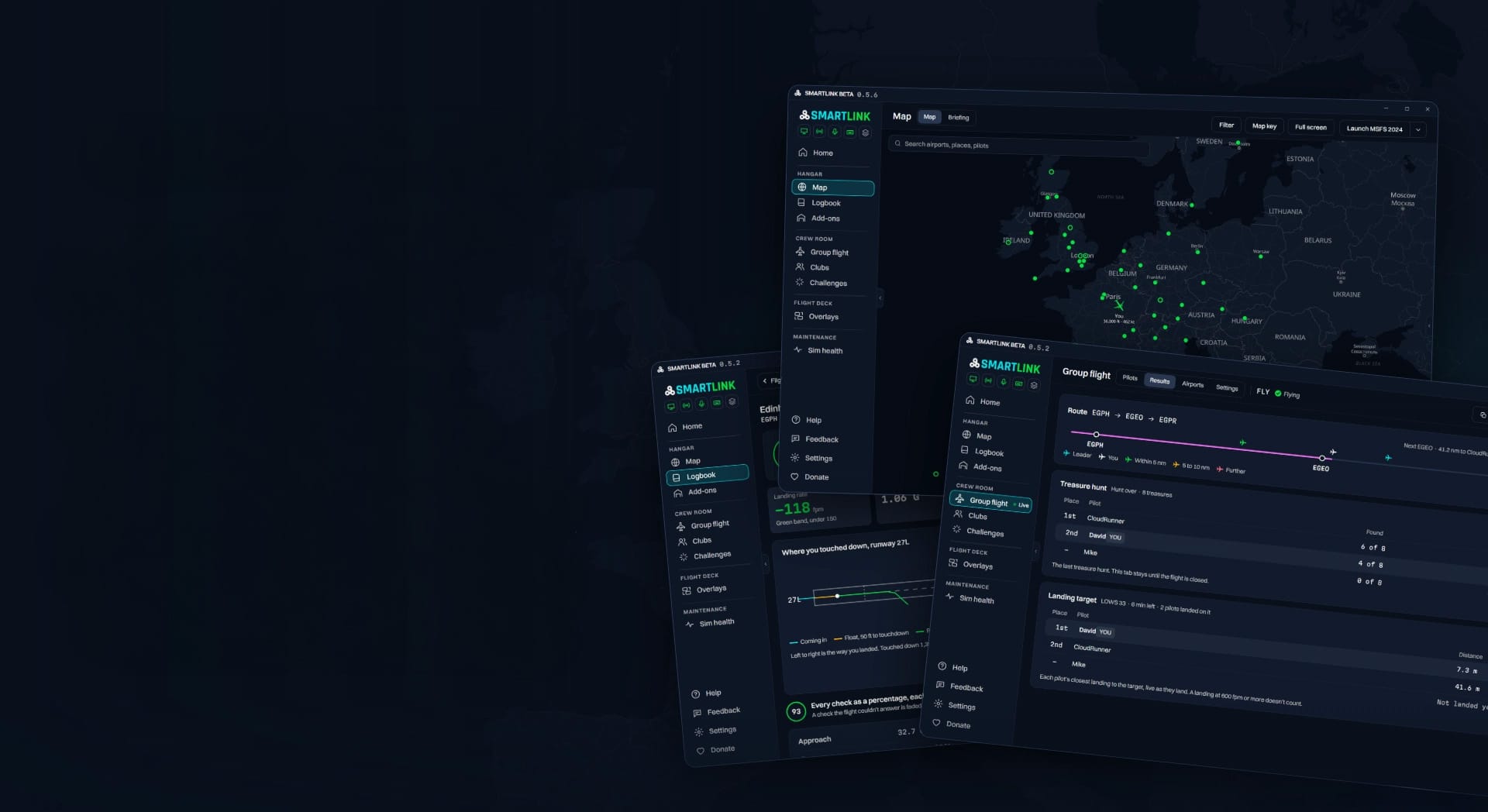

Most experienced Microsoft Flight Simulator users have a set of small utilities running next to the sim. An add-on linker keeps the Community folder under control, a tracker records flights, a separate tool reads crash logs, and maybe a voice or overlay app sits on top. They all work, but none of them talk to each other. 🔆 SMARTLINK, a free companion app by Kanzooie for MSFS 2020 and 2024, puts all of these jobs in a single program and connects them. It’s now available on Flightsim.to at version 0.5.6, and it’s still in beta.
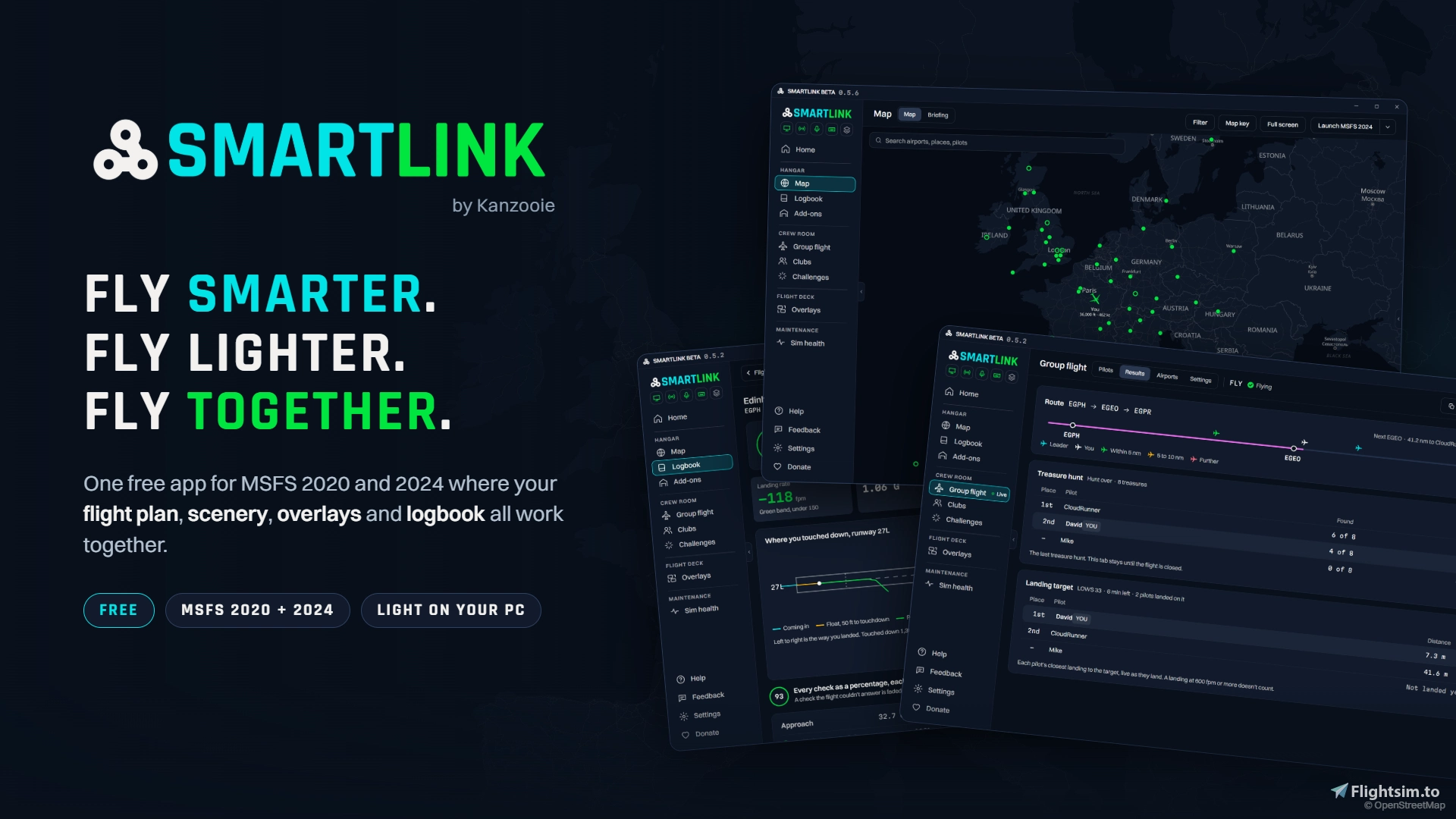
The main idea is that the flight you plan drives the rest of the app. Once you’ve set a route, whether you import it from SimBrief, load a .pln file, build it by right-clicking waypoints, or press Random to get a suggestion (real airline routes included), SMARTLINK asks which scenery you want loaded. You can keep only the airports on your route or everything within a set radius of it, and the app switches your add-ons to match before you launch. Loading fewer packages means a quicker start and lower memory use, which helps anyone with a large scenery library. The same plan also feeds your overlays, gives a group its shared route, and serves as the reference your logbook compares the finished flight against.
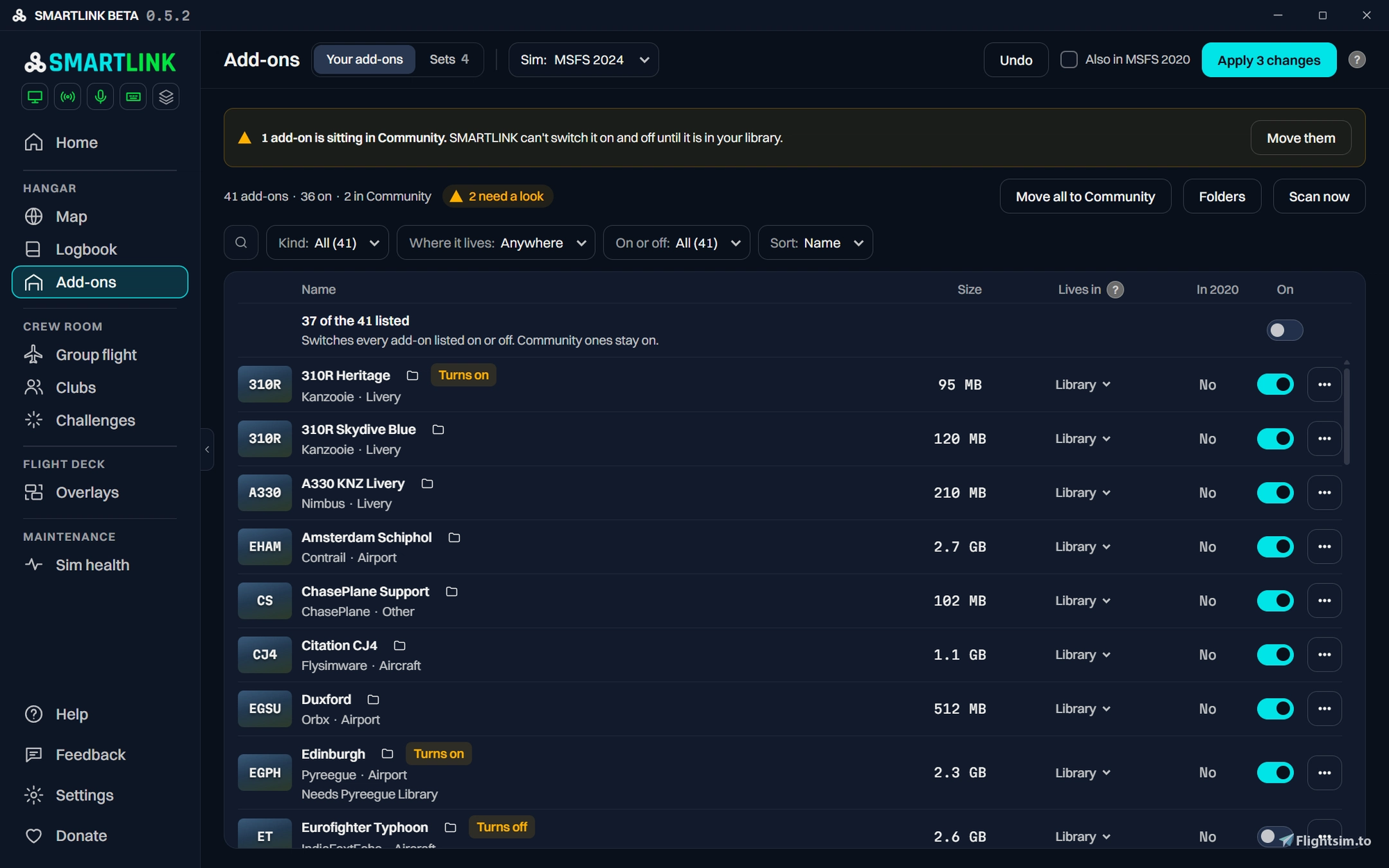
Add-on management works through a library folder. Your packages are stored there, and SMARTLINK places a link in the Community folder for each one you’ve enabled. Turning an add-on off removes the link and leaves the files alone. You can sort the library by size to find the biggest items, build sets for different kinds of flying and run several at once, and add rules so a scenery package and the library it depends on are always enabled together. Liveries are grouped under the aircraft they belong to. If you own both 2020 and 2024, the two sims can share a single copy of everything. A map shows every airport you have scenery for, active or not, and you can toggle each one from its airport card. Filters cover handcrafted airports, World Update points of interest (which get ticked off as you visit them), the current weather and the countries you’ve already landed in.
Sim health is likely to be the feature many simmers notice first. When the sim stutters, freezes or crashes to desktop, it explains what happened in plain language: how long the image froze, what was going on in the flight at that moment, and which programs were running. Its Crash finder uses a binary search on your add-ons. It disables half of them, has you launch again, and keeps narrowing things down until it finds the package responsible, then re-enables everything. You can answer each round yourself or let SMARTLINK start the sim and read the crash reports for you. You can also compare a crash with reports from other pilots who had the same one and see which add-ons they had in common. On days when many users are crashing at once, the Home screen says the cause is most likely the sim rather than your setup, which can save you hours of troubleshooting something you can’t fix.
Voice commands are processed locally on your PC, so they need no internet connection, and the app only listens while you hold a push-to-talk key or a button on your stick. Commands go to the sim through SimConnect, so you don’t have to set up key bindings and nothing can be typed into the wrong window. You can set a heading, altitude, speed or squawk code by reading out the digits, or ask for fuel remaining or destination weather and hear the answer. You can also map phrases to keyboard shortcuts already bound in the sim, as a single key or a sequence. In MSFS 2024, an option called Update from this aircraft matches your phrases to the controls of the aircraft you’re flying.
Routines handle the repetitive parts of a flight. Each routine is a trigger plus a list of actions. Passing 10,000 feet on the climb could set standard pressure and turn off the landing lights, then reverse both on the way down. Taking your seat in the cockpit could start your other programs, load SimBrief fuel and payload, and bring up an overlay set. Other examples include raising the gear once you’re climbing, showing a warning when you taxi too fast, or pausing the sim at top of descent so a long flight doesn’t overshoot it while you’re away. In MSFS 2024, a routine step can learn any cockpit switch directly, or record an entire flow and replay it from one key. You can export routines as files to share with friends.
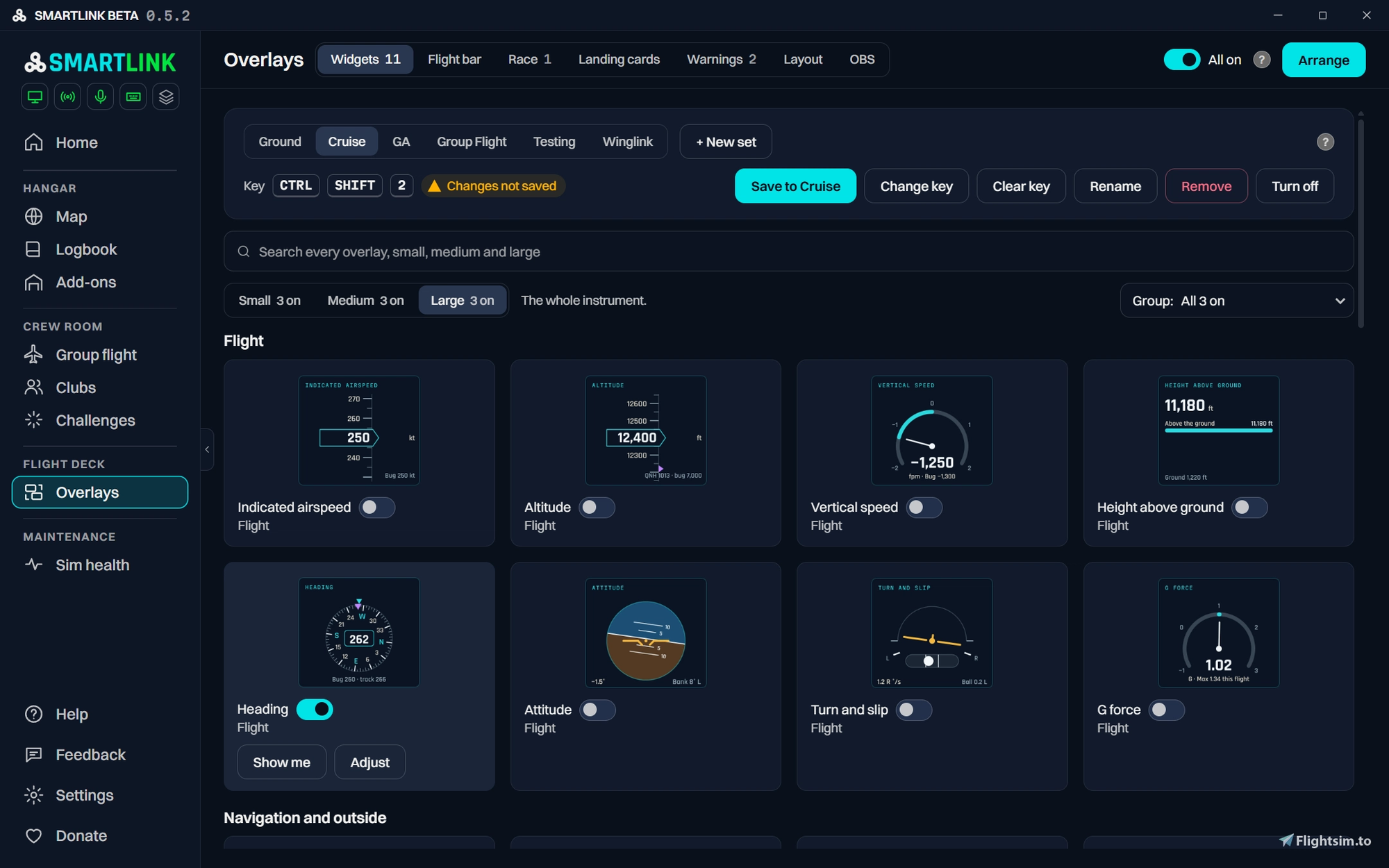
The overlay system includes dozens of instruments, from airspeed and wind to fuel at destination and the next waypoint. Each comes in three sizes and stays where you put it, and you can save sets for different phases of flight and switch between them with one key. Landing cards show your touchdown rate and score, alongside approach warnings and spoken callouts. Each landing is scored once, and that score shows up everywhere it applies: the on-screen card, group results, club leaderboards and your logbook. The logbook fills itself in, with a replay and a passport stamp for each country you visit. A Fleet page lists every aircraft you’ve flown with its hours, its softest landing, when you last flew it, and a photo you can choose.
The multiplayer features are what set SMARTLINK apart from typical utilities. To join a group flight, you enter a three-letter code. You then receive the leader’s route and can match the leader’s time of day. A Flight bar shows where each pilot is along the route, cards pop up as each person lands, and a results card wraps up the session. The app can also space out departures and arrivals, telling each pilot by voice, on screen, or both when it’s their turn to take off and keeping gaps on the approach. The leader can start a race, rally, relay, treasure hunt or landing contest on the spot, or drop a ping on the map. In MSFS 2024, race gates, start and finish arches and custom group markers are placed directly in the sim.
To install, unzip the download and run SmartLink-Setup-0.5.6.exe. The app isn’t yet signed with a paid certificate, so Windows SmartScreen may show a warning, and you’ll need to click More info and then Run anyway. It installs for your user account only, never asks for administrator rights, and needs the .NET 8 Desktop Runtime, which Windows will offer to install if it’s missing. SMARTLINK finds Steam and Microsoft Store installs of both sims automatically, and later updates keep your settings, flights and layouts. If you decide to uninstall, open the Add-ons page first and choose Move all to Community. That returns your packages to the Community folder as normal folders before you remove the app through Windows Settings.
SMARTLINK is completely free, with no account, no ads and no premium tier. The group features rely on a server that Kanzooie pays for, so if the app becomes part of your routine, consider using the Donate button inside SMARTLINK to help cover those costs and support further development. You can download it now from 🔆 Flightsim.to.