


For many Microsoft Flight Simulator pilots, SimBrief has become a standard part of flight planning, providing detailed routes, fuel calculations and weather briefings before every departure. Keeping that information visible during the flight itself, however, often means alt-tabbing between windows or juggling browser tabs, which can break immersion and pull your attention away from the sim. Flight Panels addresses this with the 🔆 SimBrief Stream Deck Profile, a dedicated Stream Deck + layout designed to put your flight plan data directly at your fingertips.
Built specifically for the Stream Deck + and its LCD touch strip, the profile pulls information straight from your SimBrief account and organizes it across several dedicated screens, each covering a different aspect of your flight.
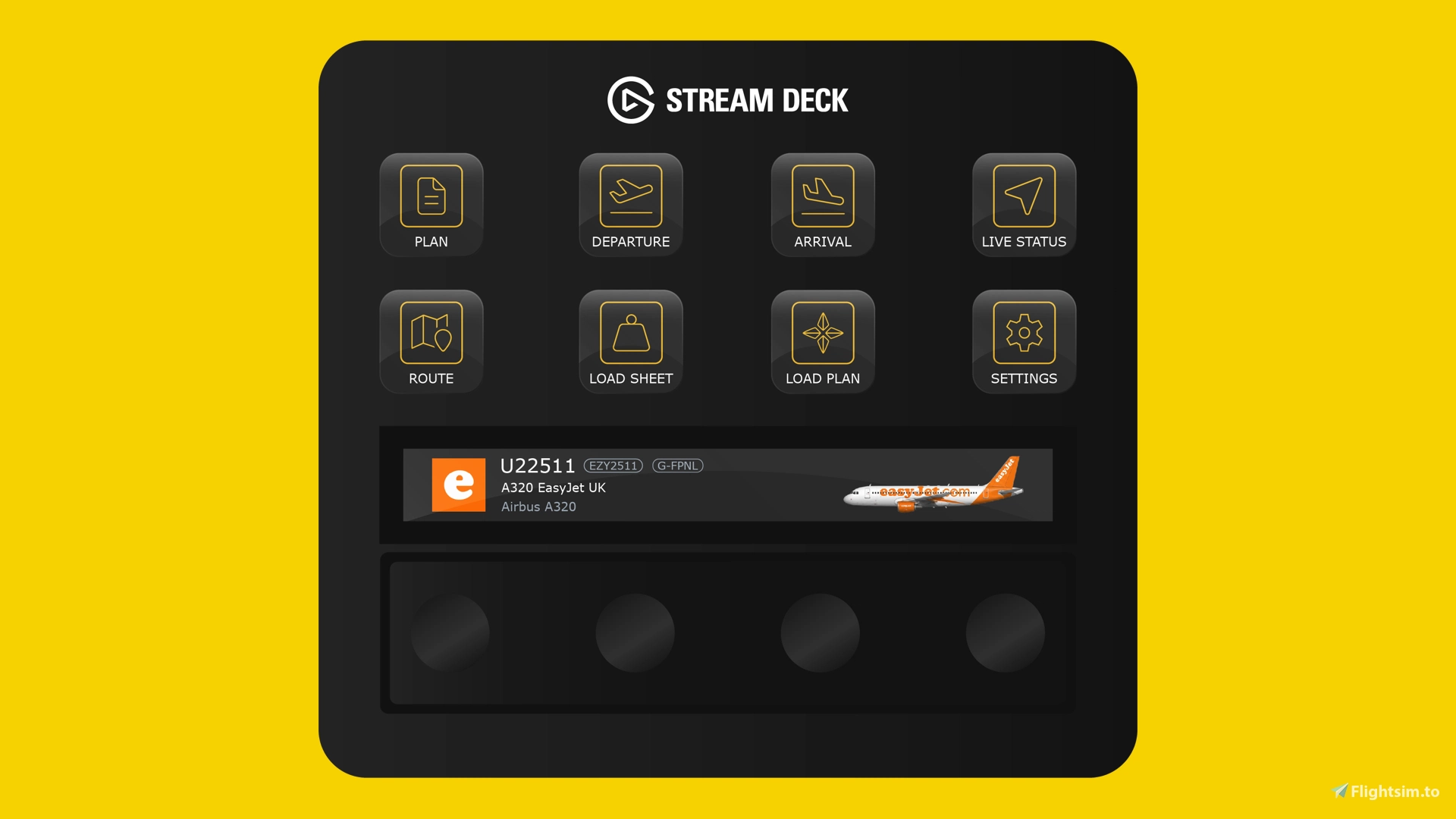
Home Screen
The profile opens on a central hub from which you can navigate to every other section and access settings. The LCD strip displays your flight number, tail number, aircraft type and airline, along with the airline logo and aircraft livery. It then automatically transitions into a virtual departure board, cycling through your scheduled departure time, flight number, destination and current status, from Scheduled through Check In Open, Proceed to Gate, Boarding and Departed.
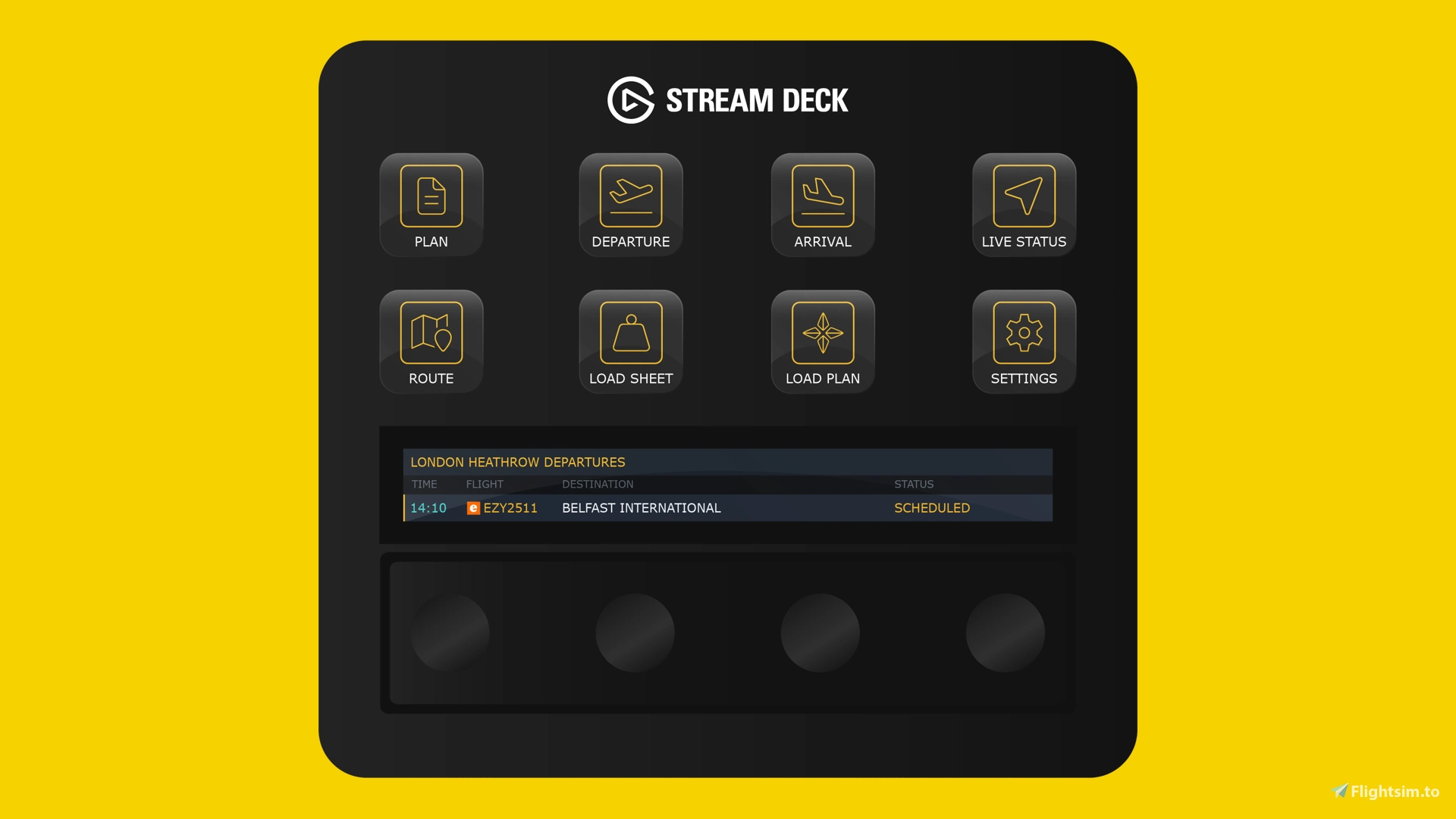
Plan Screen
This screen summarizes the key details of your flight plan, including departure and arrival airport codes, the planned arrival runway, total flight distance and estimated time of arrival. The LCD strip tracks your progress live, presenting the information in a style reminiscent of popular flight tracking apps.
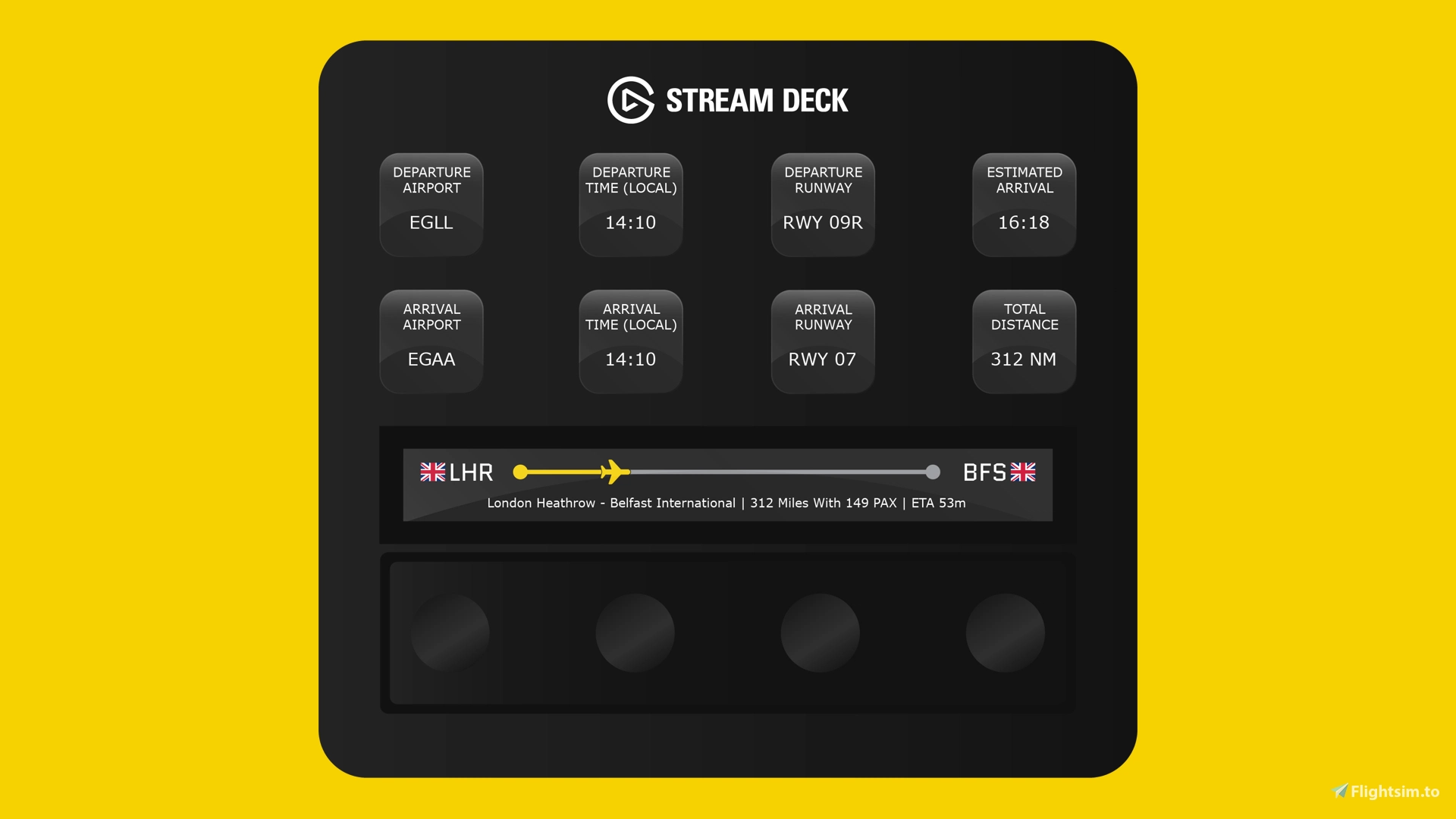
Live Status
For those who want real-time flight data without opening additional overlays, the Live Status screen monitors altitude, ground speed, true airspeed and heading, complete with live graphs for altitude and speed trends.
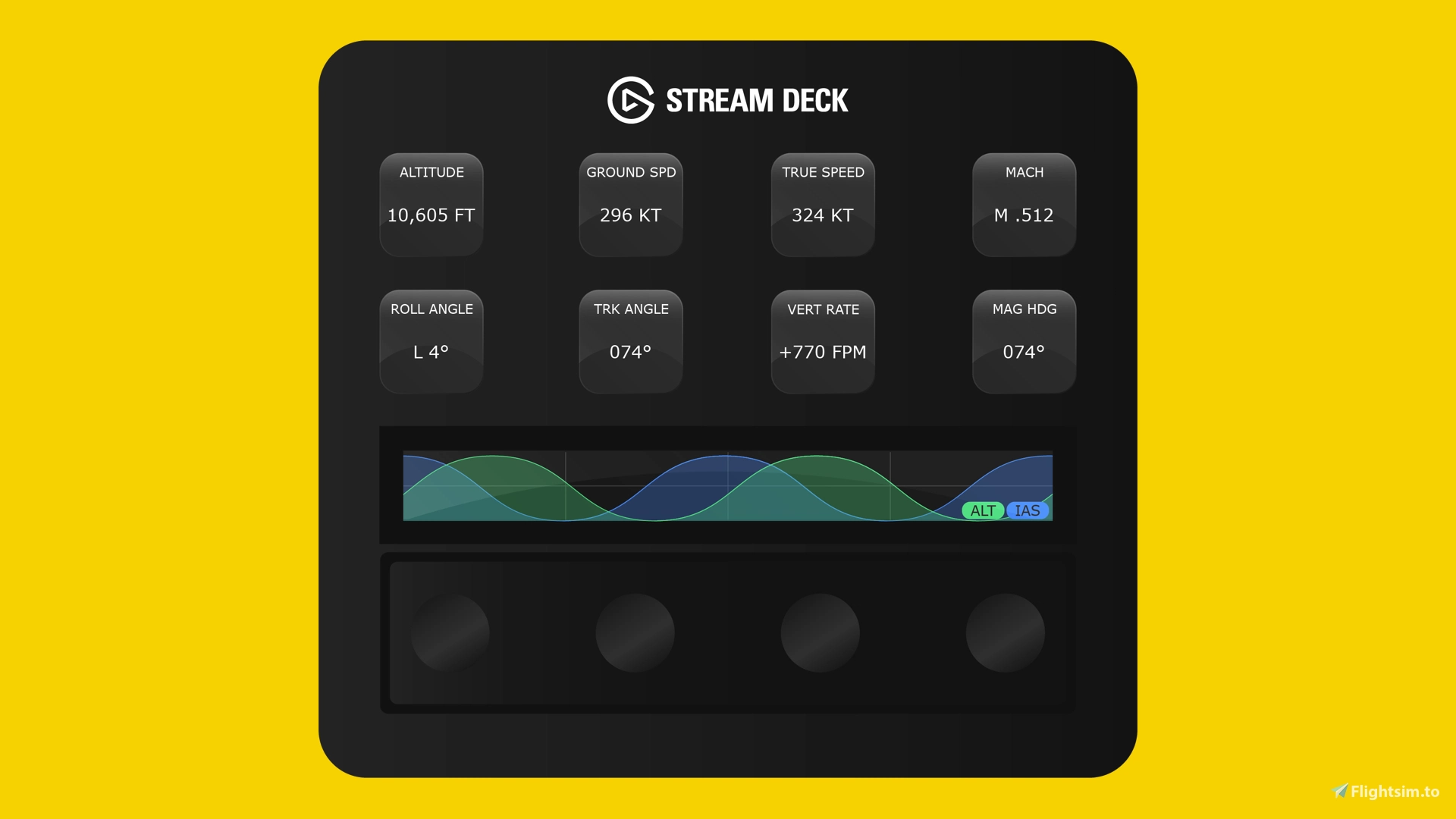
Departure and Arrival Airports
Each airport in your flight plan gets its own dedicated screen, displaying the airport logo, current real-world weather, runway information and local time, giving you a quick reference without needing to check external weather sources.
Waypoints
The Waypoints screen provides real-world weather for every point along your route, including wind speed and direction, pressure, temperature and visibility. The LCD strip shows your progress in real time, listing upcoming waypoints along with the distance remaining to each.
Setting Up SimBrief Integration
To use the profile, you'll need a SimBrief account and your SimBrief ID. Before your first flight, link the profile to your account by launching the Stream Deck application, double-clicking the 'Settings' button on the profile, then selecting the 'SimBrief Username' button. This opens a button configuration section where you can enter your SimBrief ID to complete the setup.
If you are interested in streamlining your SimBrief workflow on the Stream Deck + , you can find more details and purchase the profile on the 🔆 Flightsim.to Store page. The profile is compatible with both MSFS 2020 and MSFS 2024.