
Description
This app has been superseded by MSFS Livery Toolkit. While the ImageToMSFSKTX2 script still works, the newer application is more modern, easier to use and far more capable, so why not check it out!
ImageToMSFSKTX2 script
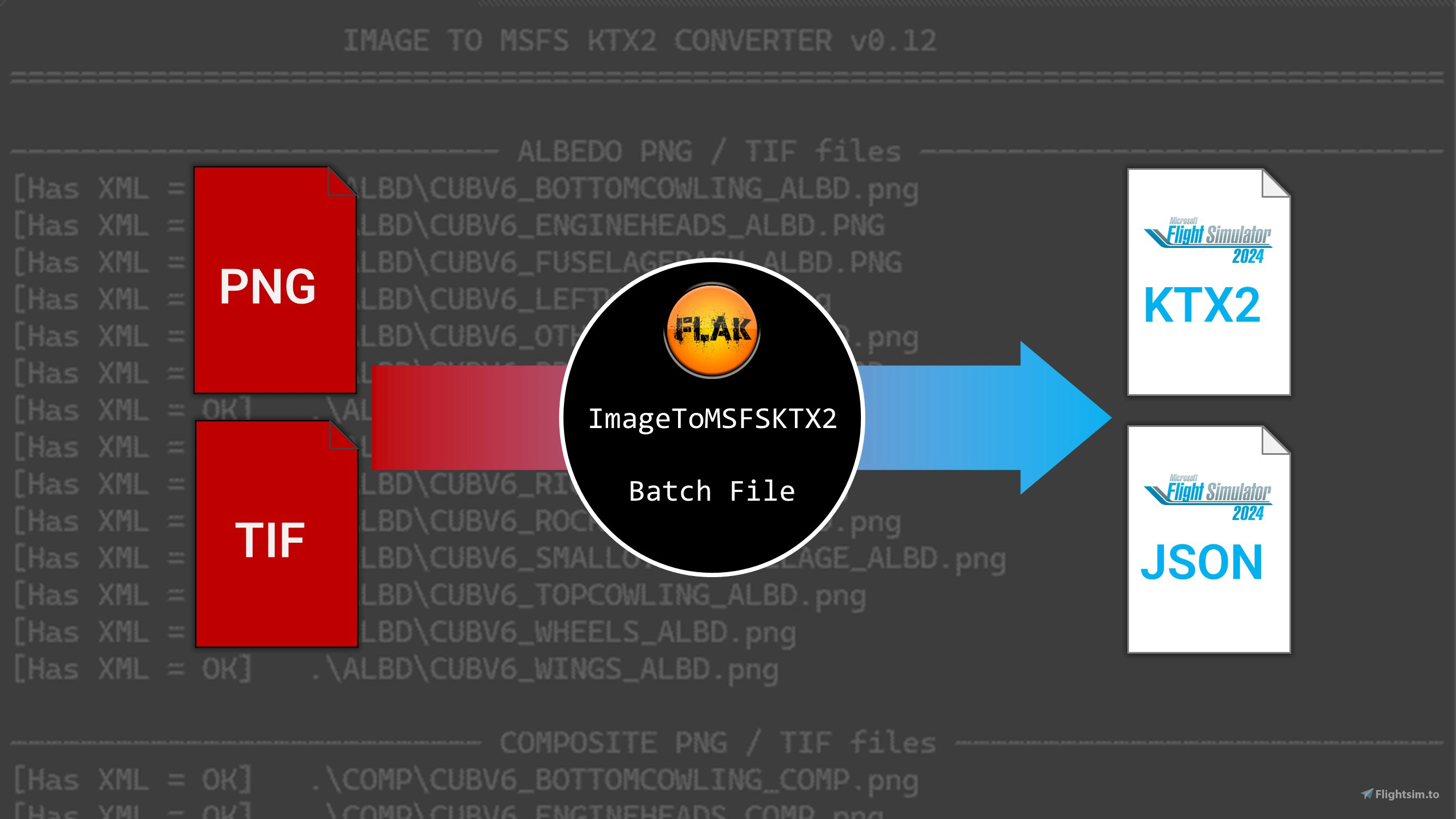
A batch file to convert PNG and TIF image files to Microsoft Flight Simulator 2024 KTX2 files, with accompanying JSONs. The script can also populate these files directly into an existing aircraft livery, and update the layout.json file if you have the MSFSLayoutGenerator utility.
This is a script I’ve started out for my own use, but spent time adding new features, error handling and improving usability, to help out other livery creators converting images to the new KTX2 format.
While you can use this script to convert liveries from 2020 to 2024 format, you will need to first manually convert the DDS files to PNG images using a 3rd party image converter tool. However there is an alternative utility which can handle all this for you automatically (and with a nicer UI than my batch file!) check out 2020 to 2024 Livery Converter by Budzique, which will convert DDS all the way to KTX2.
Instructions - setup
- Extract the zip file you downloaded from this page.
- Copy the batch file to a folder of your choice. It doesn’t matter where this batch file is located, it’ll create the necessary folders relative to itself. You may want to add a copy to each livery project artwork folder.
- You must have the Microsoft Flight Simulator 2024 SDK installed.
- When you first run the batch file it will prompt you for several settings:
the path to the MSFS 2024 SDK, for example, C:\MSFS 2024 SDK. It expects a path without a trailing backslash and will trim it off if you do add it
- which version of MSFS 2024 are you running: either MICROSOFT or STEAM
IMPORTANT NOTE FOR STEAM USERS: I had anecdotal feedback that the SDK was failing to compile the KTX2 for Steam users. Version 0.15 has a fix for this, which I cannot verify myself since I don't have that version of the sim, but early feedback sounds good. Please let me know if it helps.
- the path to MSFSLayoutGenerator. This is optional but will allow you to automatically update the layout.json file of your livery after creating the KTX2 files; this functionality also requires you to set the TEXTURES folder as described below. Download MSFSLayoutGenerator here.
- the path to the TEXTURES folder of your current livery project. This is optional but will allow you to generate the KTX2 files in the correct place, without needing to move or copy them afterwards. Ensure you include the full path to the folder where the texture files should end up.
the script contains logic to identify whether your livery project is for a MODULAR or NON-MODULAR MSFS 2024 aircraft, and will locate the layout.json file accordingly.
- the QUALITYHIGH flag. If enabled (ON) this will instruct the MSFS 2024 SDK to use a higher quality compression; the tradeoff here is larger files which use more memory. Default state is ON. This is currently applicable to ALBEDO and DECAL textures only.
- the ForceNoAlpha flag. If enabled (ON) this will remove the alpha channel from the resulting KTX2 file. Default state is OFF. This is currently applicable to ALBEDO and DECAL textures only.
- The batch file will also create four folders ALBD, COMP, NORM and DECAL.
Instructions - converting livery artwork to KTX2
- Copy your PNG / TIF files in one of the folders ALBD (for albedo images), COMP (for composite images), DECAL (for decal images), NORM (for normal images). Note these folders will be auto-created by the batch file if it cannot find them.
IMPORTANT: Ensure the image file names are correct so they will be converted to correctly named KTX2 and JSON files. For example, CUBV6_PRIMARYFUSELAGE_ALBD.PNG will generate CUBV6_PRIMARYFUSELAGE_ALBD.PNG.KTX2 and CUBV6_PRIMARYFUSELAGE_ALBD.PNG.KTX2.JSON.
- From the command list, choose to generate the XML files for each image file. These XML files will be pre-populated with the right flags for each image type although you can edit them manually afterwards, before proceeding with the next step.
- From the command list you have two methods of generating KTX2 files
Choose OPTION 4 to generate the KTX2 files in an OUTPUT sub-folder. This command is only available once each of your image files has a corresponding XML file.
- Choose OPTION 5 to generate the KTX2 files in a designated aircraft livery texture folder. This command is only available once each of your iamge files has a corresponding XML file, AND you have specified valid locations for MSFSLayoutgenertor.exe and an aircraft livery texture folder.
- The script will launch the SDK and generate the KTX2 files. You should see a separate splash screen and console window. When these have disappeared press any key to finish. The location of your files will depend whether you chose OPTION 4 or OPTION 5, but the folder will be opened automatically in Windows Explorer.
- Batch file activity is comprehensively logged in logfile.txt
What does the script do?
For each of your PNG / TIF files, the script:
- Generates a texture XML file with suitable flags for Albedo, Composite, Normal or Decal image types (see below).
- Sends the PNG / TIF and accompanying XML file to the Microsoft Flight Simulator 2024 SDK package builder, which compiles a KTX2 file and accompanying JSON file.
- Copies the KTX2 and JSON file to the script’s “OUTPUT” folder (when using OPTION 4) or a designated aircraft livery texture folder (when using OPTION 5).
- Cleans up any temporary files
Albedo textures
Defines the base colour of your texture. If you are new to livery painting and aren’t sure what type of texture you’ve created, it’s most likely an albedo texture.
- BitmapSlot String: MTL_BITMAP_DECAL0
- UserFlags: QUALITYHIGH (this flag can be modified in the settings page)
- ForceNoAlpha: FALSE (this flag can be modified in the settings page)
Composite textures
A composite image where the red channel defines ambient occlusion, green channel defines roughness, blue defines metallicness.
- BitmapSlot String: MTL_BITMAP_METAL_ROUGH_AO
- UserFlags: QUALITYHIGH
- ForceNoAlpha: TRUE
Normal textures
Encodes surface normal directions using colour values, to simulate detailed textures without increasing the polygon count of the 3D model.
- BitmapSlot String: MTL_BITMAP_NORMAL
- UserFlags: QUALITYHIGH
- ForceNoAlpha: FALSE
Decal textures
Used to apply details like labels and insignia on top of the base (albedo) texture. Currently, this uses the same flags as Albedo.
- BitmapSlot String: MTL_BITMAP_DECAL0
- UserFlags: QUALITYHIGH (this flag can be modified in the settings page)
- ForceNoAlpha: FALSE (this flag can be modified in the settings page)
PLEASE READ: Why do KTX2 files look washed out (lighter than expected) when I open them?
This is caused by the method used to openthe KTX2 file, where sRGB/Linear color space is not interpreted correctly; the issue is not caused by ImageToMSFSKTX2 or the MSFS 2024 SDK. The default settings in the most widely used tool (NVIDIA Texture Tools) result in a washed out appearance when a KTX2 file is opened and/or converted to a PNG for subsequent editing. Two solutions are:
1. Use the "Effects" panel in NVIDIA Texture Tools to add the "sRGB to Linear" effect
2. Use an alternative image editor which support KTX2 files, for example Tacent View. Ensure gamma correction is set to "None".
Note the ImageToMSFSKTX2 script simply calls the SDK to compile your PNG/TIF files into a KTX2, the actual work is done by the MSFS 2024 SDK.
Donations
This script is of course free, and there’s no expectation for any donations whatsoever. However I have spent countless hours making this script as user-friendly as I can, so it can be shared with the community; so if you do want to offer a “thank you” via a small contribution to my Buy Me A Coffee page then I’d be incredibly grateful!
Image to KTX2 texture script for MSFS 2024 livery creation - ImageToMSFSKTX2
This batch script converts PNG and TIF images into KTX2 texture files and generates accompanying JSONs for Microsoft Flight Simulator 2024 livery creation. It allows direct integration of textures into existing liveries and can update the layout.json if MSFSLayoutGenerator is used. The script is compatible with both Microsoft and Steam versions of MSFS 2024 and includes options for compression quality and alpha channel handling. Users must have the MSFS 2024 SDK installed and organize artwork according to the included folder structure.
User Reviews
19 reviews
Version History
Add PackageOrderHint to package definition XML, to prevent errors in the SDK compile process.
Related
EGYP - RAF Mount Pleasant
Explore the detailed RAF Mount Pleasant (EGYP) scenery in Microsoft Flight Simulator, featuring custom models, textures, and runway markings. Enhancements include static aircraft, improved apron and taxiway textures, and added clutter for realism. Stay tuned for ongoing refinements and additional details.
by Flak
Lake District National Park scenery corrections (tree fix & more)
Enhance the realism of the Lake District National Park in Microsoft Flight Simulator with this add-on focusing on correcting autogen trees and other scenery inaccuracies. From removing excessive trees on high ground to fixing misplaced buildings and adding detailed elements like boats and piers around Windermere, this mod aims to provide a more accurate representation of the iconic park. Explore the beautiful British landscape with improved visuals and minor scenery fixes.
by Flak
EGDM MOD Boscombe Down
Explore MoD Boscombe Down, the renowned military aircraft testing site in Wiltshire, England. This scenery add-on enhances the default Asobo assets with improved textures, custom models for major buildings, static aircraft, realistic markings, signage, and more. While not hyper-realistic, this mod aims to provide a better representation of the site for a more immersive flying experience.
by Flak
MSFS Livery Toolkit
MSFS Livery Toolkit is a standalone Windows application for creating Microsoft Flight Simulator liveries without editing config files or using command lines. The tool guides users through selecting an aircraft, repainting textures, and compiling a sim-ready package for both MSFS 2020 and 2024. Features include automated livery setup, texture extraction to editable formats, UV map generation, and seamless packaging. The toolkit is currently in beta and supports monolithic and modular aircraft.
by Flak
Log in to join the discussion
Log InComments(101)
about 6 hours ago
about 1 month ago
3 months ago
3 months ago
3 months ago
BTW I have just launched a successor to ImageToMSFSKTX2: https://flightsim.to/addon/112147/msfs-livery-toolkit
6 months ago
(SDK version 1.6.9) Thanks.
5 months ago
4 months ago
3 months ago
6 months ago
It's not working! I had no problems this morning! I even reinstalled the software, but nothing has helped.
For your information, ALBD texture files work fine; the conversion is perfect.
6 months ago
6 months ago
7 months ago
6 months ago
7 months ago
7 months ago
6 months ago
8 months ago
9 months ago
9 months ago