
Description
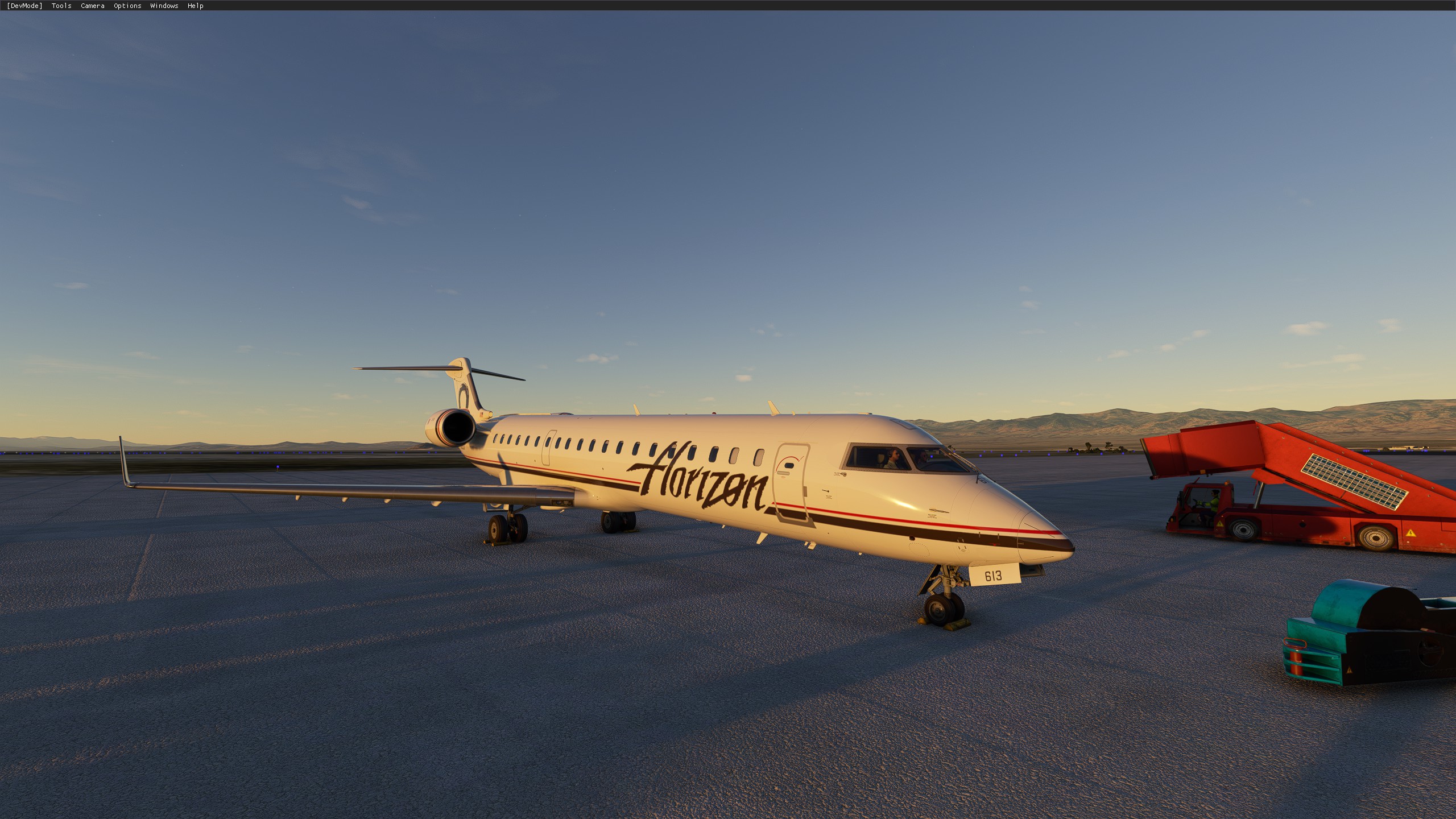
This is a custom camera views set for the newly released Aerosoft CRJ-550 and CRJ-700. It features 10 cameras for instruments and wing views.
Note that the layout is setup to be used with the Numpad keys. If you use the top number keys on the keyboard the order is not exactly obvious.
The layout is as follows :
7 EFB 8 Overhead 9 FMS
4 Left Forward Wing 5 Center Pedestal 6 Right Forward Wing
1 Left Engine 2 Refueling Panel 3 Right Engine
0 Cockpit
If you wish to change anything, simply move around with the arrows, zoom level and panning as usual and overwrite using the keybind you have assigned and the correct number. Panning the camera in some directions can be awkward when dealing with some of the cameras particularly the wings.
Installation
Camera sets are all located in the userdata director of MSFS and not in the community folder or root directory of the game. Download the rar and take the cameras.cfg file out and drop it in the appropriate folder depending on where you bought the sim.
Microsoft Store
C:\Users\YourName\AppData\Local\Packages\Microsoft.FlightSimulator_8wekyb3d8bbwe\LocalCache\SimObjects\Airplanes\Aerosoft_CRJ_550 ( or \Aerosoft_CRJ_700 )
Steam
C:\Users\YourName\AppData\Roaming\Microsoft Flight Simulator\SimObjects\Airplanes\Aerosoft_CRJ_550 ( or \Aerosoft_CRJ_700 )
If you have not already saved any custom cameras the Airplanes folder will not exist and you must create it in the SimObjects directory. If you have not saved any custom cameras in the CRJ, the Aerosoft_CRJ_550 (700) folder will not exist and you must create it in side the Airplanes folder, or simply load the plane in the sim ( remember it takes a while to initialize the first time after installing the product ). Save a custom camera on any slot and exit the sim. The folders and CAMERAS.cfg file will be created. Once that is done, you can paste the downloaded file in there and replace the original.
The same file can be used with both 550 and 700. Create folders for both and copy the file in the two folders to use the cameras on both planes.
If the cameras are not in the correct position after install i cannot tell you why this happens. The cameras work for me without problems and plenty of people and i have had this problem before once or twice at most with other files. The sim breaks them somehow and you will have to place the cameras yourself.
Remember you cannot exit the cockpit from the default camera, If a camera is bugged and outside the cockpit, you can then move it around to where you want it and overwrite the camera with the assigned keybind to save custom cameras. You can go back in the cockpit to save instrument cameras as you wish. Additionally, if you have this problem, you could paste the contents of the camera file in the comments or on pastebin and post it here and i could look at it and see if the sim changed any values that it shouldn't have.
Comments(23)
Log in to join the discussion
Log Inabout 5 years ago
https://www.youtube.com/watch?v=OAscNE8LBRU
about 5 years ago
https://www.youtube.com/watch?v=iJvsHt3nwWU
about 5 years ago
Forgive me for my not understanding ,.
Regards
Save a custom camera on any slot and exit the sim. The folders and CAMERAS.cfg file will be created. Once that is done, you can paste the downloaded file in there and replace the original.
The same file can be used for both the 550 and 700. Simply copy and paste it to both folders create
about 5 years ago
When i say create the file, i mean the sim will create the camera file as soon as you save a custom camera. When that is done you can replace that file with the one you downloaded. But you can also create the folders yourself.
You need to check your options in the sim to know what keys are used to save or use custom cameras.
about 5 years ago
https://www.youtube.com/watch?v=iJvsHt3nwWU
about 5 years ago
about 5 years ago
about 5 years ago
about 5 years ago
I hit the num lock and hit the number keys to the right nd nothing happens.
about 5 years ago
about 5 years ago
about 5 years ago
about 5 years ago
about 5 years ago
Cameras that are outside the plane can be moved anywhere so use them if possible to place the wing views. Then set the cockpit cameras from inside by just going to default one with the menu.
Aerosoft CRJ-550/700 Custom Camera Set
Custom Camera Views Set for the Aerosoft CRJ-550 and CRJ-700 with 10 cameras for instruments and wing views. Navigate with Numpad keys for an enhanced cockpit perspective. Installation guide provided for Microsoft Store and Steam versions of MSFS. Choose cameras for both aircraft models by simply copying the file to the respective folders.
User Reviews
6 reviews
More Information
Version History
Changed description and title to include both 550 and 700 versions. File is unchanged except readme file.
over 2 years ago