
Description
MSFS 2024 is now supported as of MobiFlight BETA 10.4.0.1, no other updates are needed.
The profile will work out of the box.
NOTE: If you are having issues with using this profile, please do not report it here in the comments, It has been tested heavily and works exactly as expected when appropriately used. Make sure to read the instructions and then troubleshoot MobiFlight basics first. Try another profile to make sure you are well setup.
IMPORTANT: This profiles will use 2 controllers in MobiFlight, the FCU and the MCDU. Make sure you assign both correctly.
Note: Firmware updates could break compatibility any time, so before updating make sure the new firmware is already supported.
As of MobiFlight 10.4 the following firmware versions are tested/supported:
FCU 1.09, 1.13 and 1.16
EFIS L 0.97
EFIS R 0.99
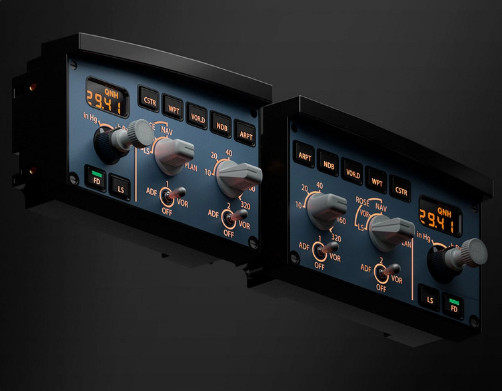
This is a MobiFlight profile for the WINWING FCU / EFIS LEFT + the MCDU made to be working with the Fenix A319/A320/A321 aircraft.
Usage:
Download this profile and unzip the contained .mcc file somewhere permanent (choose the correct one based on the units you own)
Download the latest version of MobiFlight from the official https://www.mobiflight.com website
Install the software and run it
Then go to File -> Open and select the .mcc file you unzipped earlier. This will import the profile.
IMPORTANT:
A dialog will show up to assign "orphaned serial". Select at the top the "orphaned serial" for the EFIS+FCU
Select in the dropdown below your WinWing EFIS/FCU Hardware
Click "Assign", then "OK"
Now select at the top the "orphaned serial" for the MCDU
Select in the dropdown below your WinWing MCDU Hardware
Click "Assign", then "OK"
That's effectively assigning 2 orphaned serials to 2 hardware controllers!
Press "Save" in the toolbar to avoid having to do the serial assignment again
OPTIONAL:
Enable "Auto Run" in the toolbar at the top (turns on the light bulb) to make sure MobiFlight starts working as soon as MSFS is runningAlternatively manually press "Run" as soon as MSFS is running to start operation
Add MobiFlight to Windows Autostart or run it manually (can be started after MSFS is loaded too)
In the statusbar of MobiFlight click on the aircraft type/livery shown and select "Link current config"
Whenever you load into this livery/aircraft, the profile will be loaded automatically
Repeat this process for every aircraft AND livery since the link is set for each livery
IMPORTANT:
If you received your FCU/EFIS (or the MCDU) and did not YET check for Firmware updates, do so by installing the SimApp Pro and check the firmware there. Afterwards you can uninstall SimApp Pro or turn off AutoStart in it's settings to avoid conflicts.
Some knobs in the virtual cockpit are not moving because triggering the animation would cause a very laggy and unresponsive behavior, so for the time being there is no solution to visually turn the knobs in the cockpit. Button presses and Knob push/pull are animated though.
Fenix A3XX | WINWING CAPT SIDE FCU / EFIS / CDU | MobiFlight Profile
This add-on provides a MobiFlight profile designed for the WINWING FCU and MCDU, specifically compatible with the Fenix A319/A320/A321 in Microsoft Flight Simulator 2024. It includes instructions for setup and usage, emphasizing the need for correct assignment of controllers. The profile is set to work seamlessly out of the box, requiring MobiFlight BETA 10.4.0.1 or higher, and is tested with specific firmware versions. Users are advised to check compatibility with firmware updates to ensure uninterrupted functionality.


User Reviews
1 reviews
Version History
No version history available.
Log in to join the discussion
Log InComments(5)
over 1 year ago
over 1 year ago
over 1 year ago
over 1 year ago
over 1 year ago