
Description
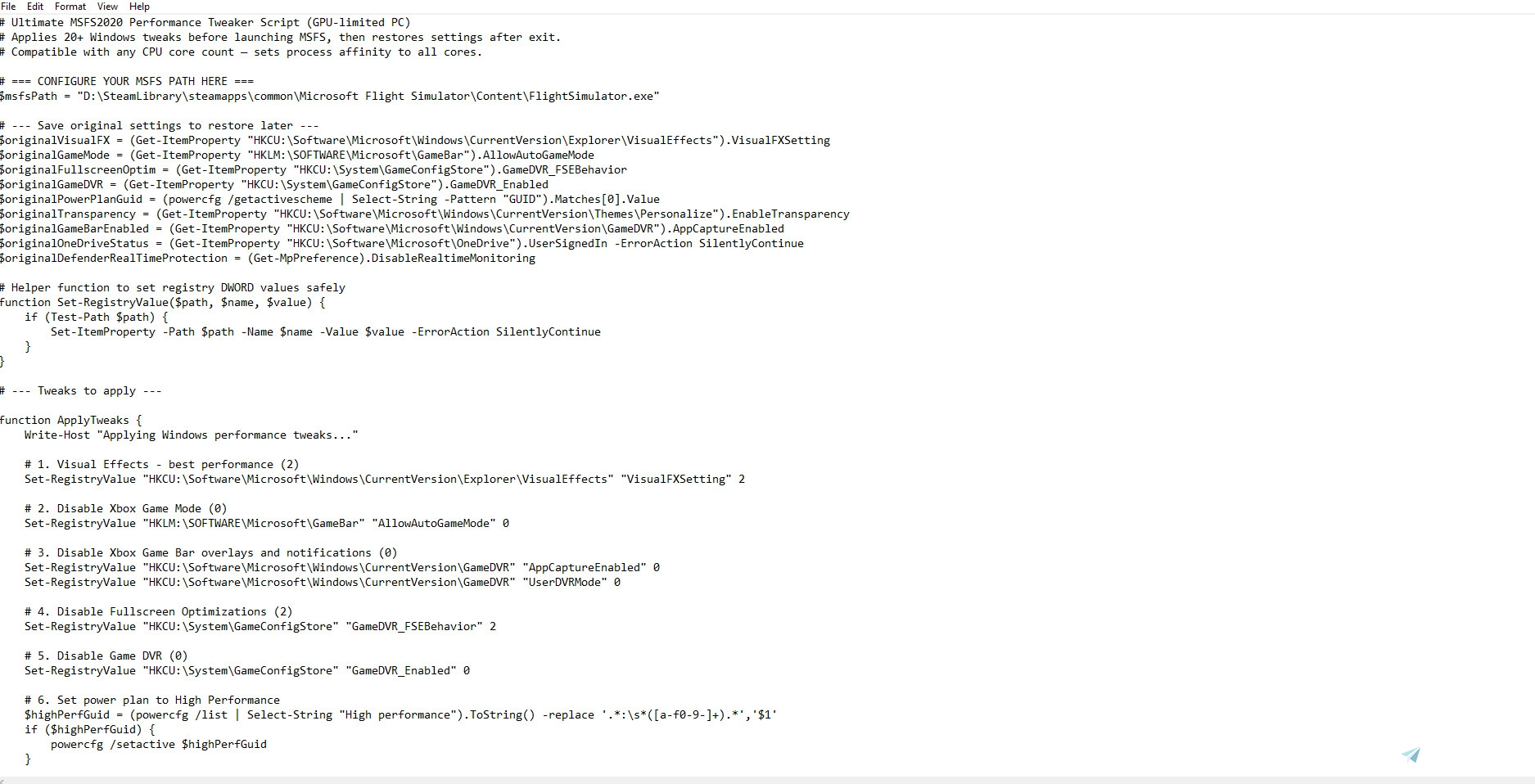
Ultimate MSFS2020 Performance Tweaker Script (For GPU-Limited PCs)
If you’re struggling with low FPS in Microsoft Flight Simulator 2020, 2024 and your GPU is the bottleneck, this script is for you. It tweaks several Windows settings to squeeze out better performance before you launch the sim — and then puts everything back to normal when you close it.
THIS STILL WORKS WITH MAINTHREAD LIMITED PCs JUST NOT AS MUCH OF AN IMPROVEMENT IN FPS AS WITH GPU LIMITED PC
What it does:
Disables Xbox Game Mode and Game Bar overlays
Turns off Fullscreen Optimizations for better frame stability
Sets your power plan to High Performance
Stops background services like Superfetch (SysMain) and Windows Search to free up resources
Disables Windows transparency and visual effects for a snappier UI
Pauses OneDrive syncing and Windows Update during gameplay
Stops unnecessary scheduled tasks and error reporting
Sets MSFS process priority to High and CPU affinity to all cores dynamically
Optimizes paging file settings for stability
And much more — over 20 tweaks in total!
You just UPDATE THE SCRIPT WITH YOUR MSFS PATH, run it, and let it handle the rest. It’s a simple but powerful way to boost your FPS without messing with your system permanently.
Expected FPS boost: Around 10-20%, depending on your system and current setup.
Give it a try if you want a smoother experience without diving into complicated manual tweaks!
INSTALLATION:
1. Place The msfsfps.ps1 Anywhere You Like
2. Open The File With Notepad Or Any Text Editor You Prefer
3. CHANGE THE MSFS PATH Where It Says:
# === CONFIGURE YOUR MSFS PATH HERE ===
$msfsPath = "D:\SteamLibrary\steamapps\common\Microsoft Flight Simulator\Content\FlightSimulator.exe"
4. Save The Script And Run It With Powershell As An ADMINISTRATOR!!!
(5.) The Installation Proccess For The Additional FIle Is In The Download!!!
Comments(42)
Log in to join the discussion
Log In3 months ago
6 months ago
6 months ago
5 months ago
22 days ago
6 months ago
6 months ago
12 months ago
1) How do you run Powershell as an Admin?
2) Does it launch automatically and if it does, how do we know?
Thanks!
11 months ago
2. the script you have to start manually each time you launch the game
about 1 year ago
about 1 year ago
about 1 year ago
about 1 year ago
The DXGI_ERROR_DEVICE_HUNG (0x887a0006) is a graphics-related error that typically indicates the GPU became unresponsive during a high-demand task. This is not caused directly by the script, but the script might expose existing system instabilities by maximizing system performance (like forcing High Performance mode or disabling background GPU optimizations).
Here are some things you can try:
Update your GPU drivers to the latest stable version (avoid beta versions).
Lower your MSFS graphics settings, especially if you're GPU-limited.
Remove or reduce overclocks (GPU/VRAM), even factory OCs.
Revert to a balanced power plan if needed, and test stability.
If using NVIDIA, try setting your GPU to "Prefer maximum performance" in the NVIDIA Control Panel.
You can also revert all changes made by the script using a backup restore or manually reset registry settings.
Let me know if the issue persists after trying these steps,
about 1 year ago
about 1 year ago
about 1 year ago
and tell me if it worked!
MSFS FPS Boost Script
The MSFS FPS Boost Script is designed to enhance the performance of Microsoft Flight Simulator 2020 on GPU-limited PCs by optimizing various Windows settings. This script implements over 20 adjustments, such as disabling overlays and background processes, setting high-performance power plans, and optimizing MSFS process priority. It provides a potential FPS increase of around 10-20% depending on your system setup. The script temporarily modifies settings for the duration of the game, restoring everything back to normal once closed.

User Reviews
5 reviews
Version History
No version history available.
Related
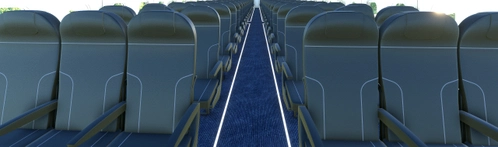
FlyByWire A32NX Cabin Mod *NEW 2025*EasyJet Textures
This add-on introduces the new 2025 EasyJet cabin textures for the FlyByWire A32NX Cabin Mod developed by TheRedFox. It enhances the interior aesthetics of the aircraft by applying EasyJets branding and design elements. Installation requires the original FlyByWire Cabin Mod, along with a simple drag-and-drop process for the new textures.
by Toxinuous
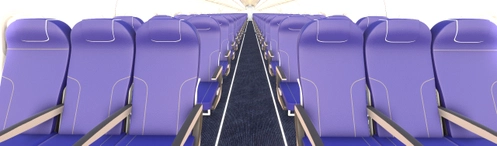
FlyByWire A32NX Cabin Mod Wizz Air Textures
This add-on introduces Wizz Air cabin textures for the FlyByWire A32NX Cabin Mod, created by TheRedFox. Users are required to first install the original cabin mod before adding the Wizz Air textures. The installation process involves placing the texture files into the designated community package folder.
by Toxinuous
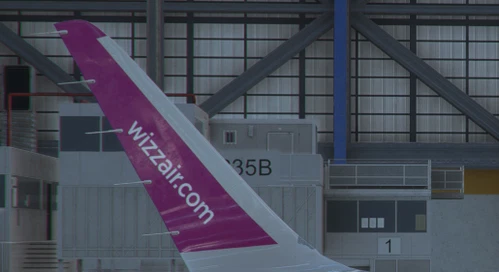
Wizz Air realistic sharklet for LVFR's A320ceo and A321neo
This add-on provides a realistic representation of the sharklet design on Wizz Air liveries for LVFRs A320ceo and A321neo aircraft. It aims to enhance the visual accuracy of the sharklets to align more closely with their real-world counterparts. Compatible with Horizon Simulations mod, it requires installation within specific community folder paths.
by Toxinuous
*REALISTIC*Custom passenger views for LVFR's A320ceo (HS mod friendly)
This add-on provides realistic custom passenger views specifically designed for the LVFR A320ceo aircraft. It is compatible with HS mods and enhances the immersion for virtual travelers. Installation involves placing the files in designated folders within the Microsoft Flight Simulator directory.
by Toxinuous
22 days ago