
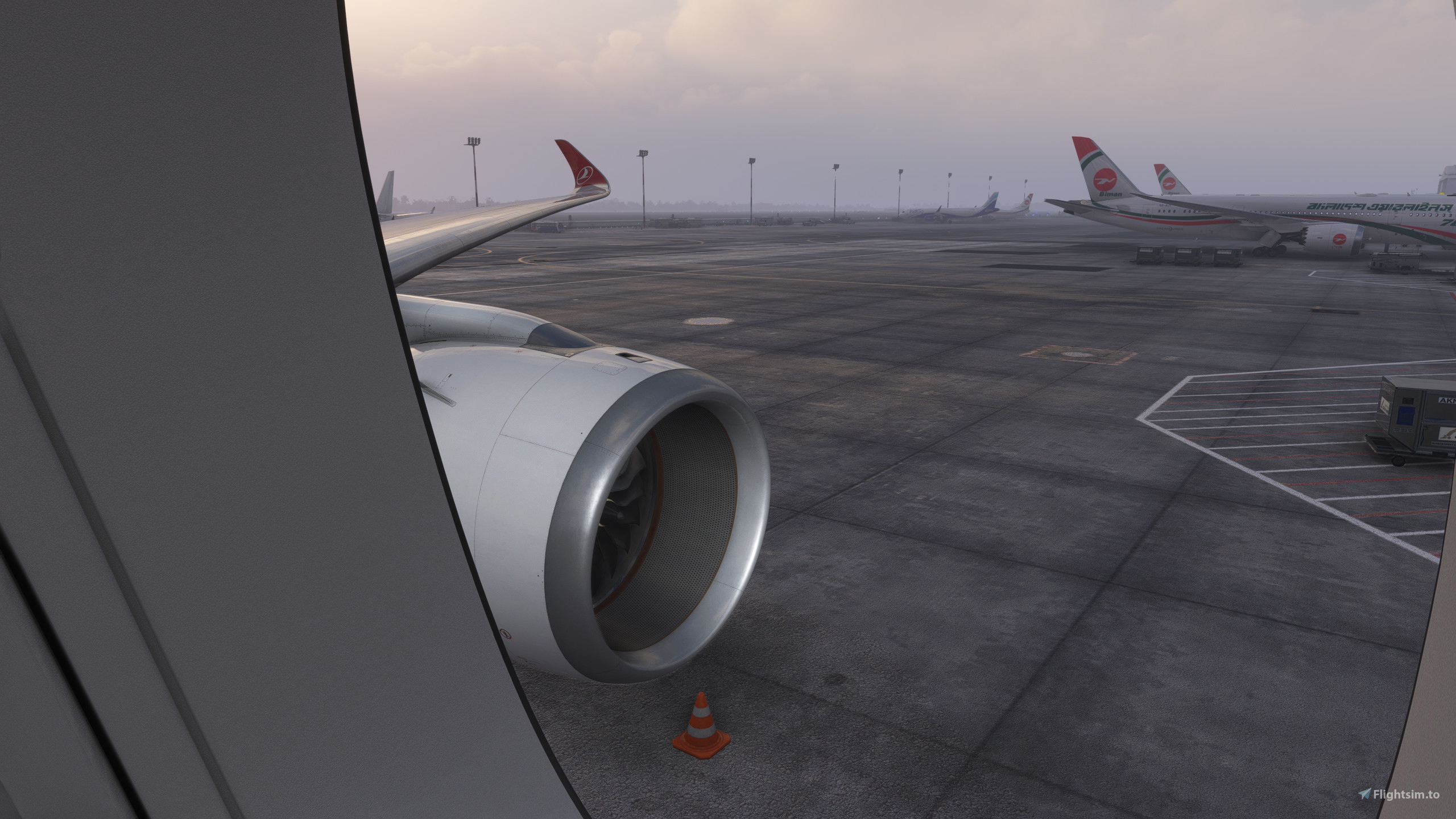
Description
Custom cameras for the iniBuilds A350-900 and A350-900ULR, with passenger cabin views for those who don't care about having any additional cockpit angles, and a HUD view to reset to. The default key command is Alt+[Num] for each view (while in the Cockpit camera mode), and you may press whatever you have assigned to reset your cockpit view to default back to the cockpit.
Camera 1 - Left Engine View
Camera 2 - Right Engine View
Camera 3 - Left Forward Wing View
Camera 4 - Right Forward Wing View
Camera 5 - Left Over Wing View
Camera 6 - Right Over Wing View
Camera 7 - Behind Left Wing View
Camera 8 - Behind Right Wing View
Camera 9 - HUD View (may have to zoom in to your preference, but it should align with having the whole HUD in view).
Camera 0 - All EFI View
Installation:
Extract and place the cameras.CFG file into both the iniBuilds A350-900 and A350-900 ULR folders, which are located at either ---
Steam users: C:\Users\[yourUsername]\AppData\Roaming\Microsoft Flight Simulator\SimObjects\inibuilds-aircraft-a350-900 AND C:\Users\[yourUsername]\AppData\Roaming\Microsoft Flight Simulator\SimObjects\inibuilds-aircraft-a350-900-ULR
Microsoft Store users: C:\Users\[Your Username]\AppData\Local\Packages\Microsoft.FlightSimulator_8wekyb3d8bbwe\LocalCache\SimObjects\
The Run command can also take you directly to the folder if you fill in the appropriately amended path with "%APPDATA%\Microsoft Flight ...".
You may consider backing up the default cameras.CFG file to a safe location elsewhere on your drive as a precaution.
iniBuilds A350-900 & -900ULR Custom Passenger Views
This add-on provides custom passenger cabin views for the iniBuilds A350-900 in Microsoft Flight Simulator. It features a selection of unique camera perspectives focused exclusively on the passenger experience, including various engine and wing views. The default key command for switching between views is Alt+[Num], while users can also reset their cockpit view to the default position. Installation involves placing the cameras.CFG file into the appropriate A350-900 folder.

Version History
- Added two views to reset to from passenger views for convenience: HUD (with the 1.1.1 update) for camera 9; wide cockpit view for camera 0
Related
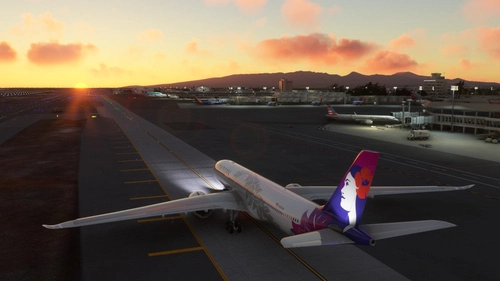
GSX Profile - PHNL Daniel K. Inouye / Honolulu International Airport (by LimaJuliet)
A GSX profile for the PHNL Honolulu International Airport scenery by LimaJuliet. Customized stands, pushbacks, and ground vehicle placements to enhance usability for GSX users. Please note limitations and issues addressed by the creator for ongoing improvements.
by Skybreaker
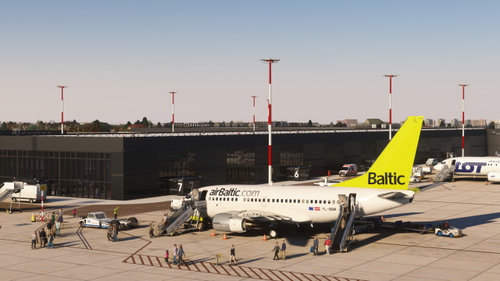
GSX Profile - EPRA Warsaw-Radom Airport (by Drzewiecki Design)
This GSX Profile for EPRA Warsaw-Radom Airport, created by Drzewiecki Design, includes features such as labeled aprons and stands, parking placements by aircraft type, pushback procedures, and designated ground vehicle placements. It also outlines passenger walk paths. Note that this profile is not based on real-world procedures and may have limitations due to conflicting static aircraft and ground support equipment from the scenery. Installation instructions are provided for manual setup or through an alternative drag-and-drop installer.
by Skybreaker
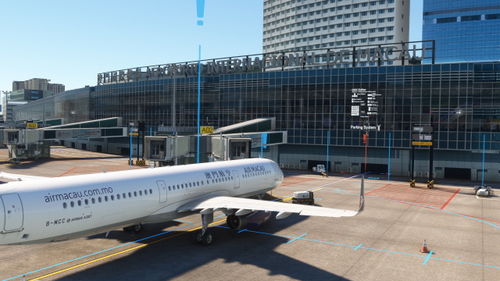
GSX Profile - VMMC Macau International Airport v2.5+ (by SamScene3D)
This GSX Profile for VMMC Macau International Airport by SamScene3D v2.5 provides enhanced ground handling functionality. It includes labeled aprons, gates, and stands, along with designated parking placements for various aircraft types. The add-on features pushbacks, ground vehicle placements, and the addition of VDGS units at terminal gates. Note that some limitations exist, such as missing cargo stands and unaddressed GA stands.
by Skybreaker
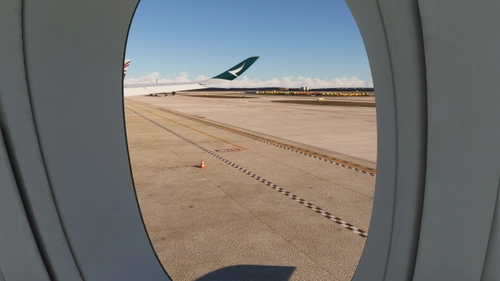
iniBuilds A350-1000 Custom Passenger Views
This add-on provides custom passenger cabin views for the iniBuilds A350-1000 in Microsoft Flight Simulator. Users can access various external views, including left and right engine observations and multiple wing perspectives, exclusively designed for a passenger experience. The camera configuration allows easy toggling using the default key command Alt+[Num] while in cockpit mode. Installation guidelines are included for both Steam and Microsoft Store versions of the simulator.
by Skybreaker
Log in to join the discussion
Log InComments(4)
about 1 year ago
about 1 year ago
over 1 year ago
over 1 year ago