
Description
CURRENT VERSION: 1.5
USAGE (Nvidia):
1. Open the Nvidia control panel and navigate to "Manage 3D Settings"
2. Scroll down till you find "Shader Cache Size"
3. It will most probably be set to "Driver Default". You need to change it to "Disabled"
4. Restart your PC and run the script, now all your cache files will be deleted.
5. Go back to Nvidia control panel and set "Shader Cache Size" to the previous setting.
*You don't need to restart your PC after re-enabling the shader cache.*
The process should be about the same for AMD, please refer to a youtube tutorial on how to disable the shader cache for AMD
NOTE: 1. Please always run the file as an administrator
2. Disable the shader cache inside the NVIDIA control panel by switching the setting to "disabled", remember to turn it on again.
3. Clearing your prefetch folder is NOT recommended by windows since the prefetch folder help applications launch faster, but clearing it every 2 months shouldn't hurt.
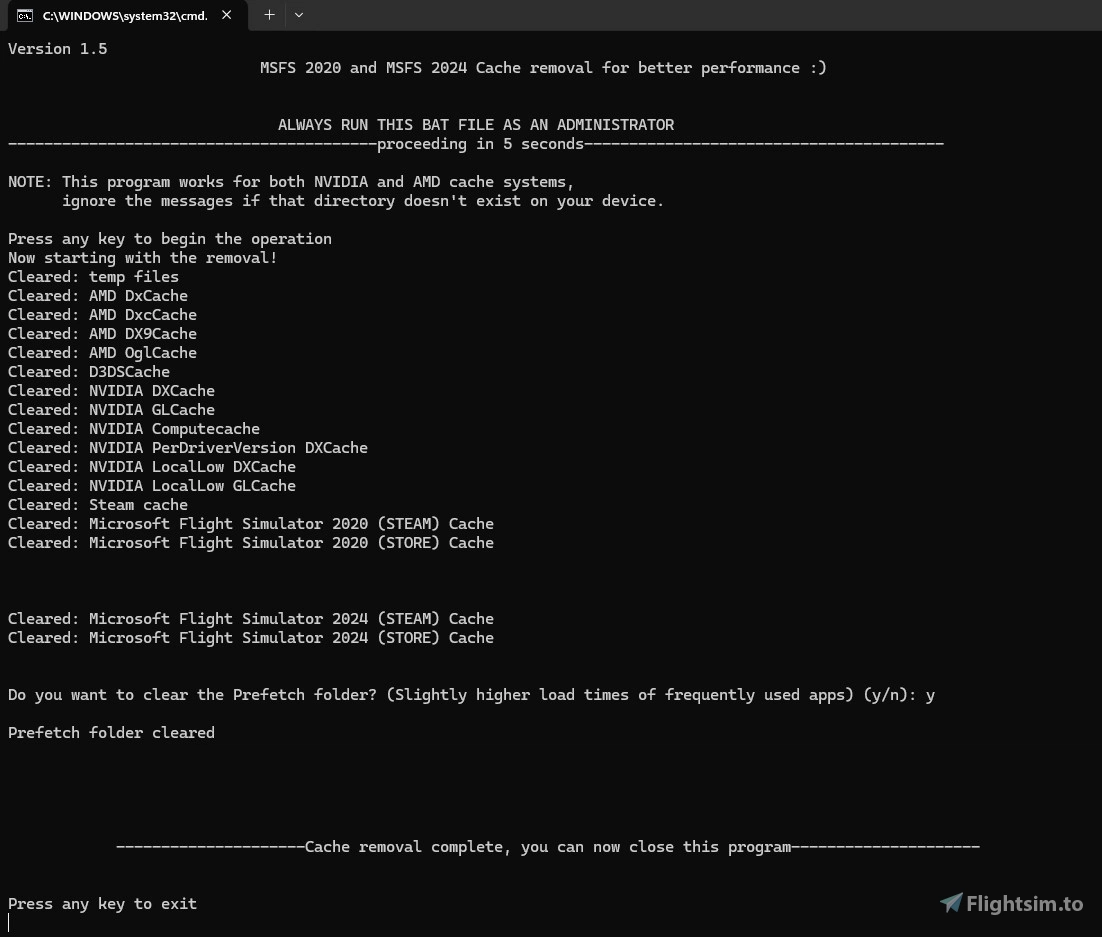
This will clear the following directories:
1. Temp files
2. C:\Windows\prefetch\
3. NVIDIA shader cache directories
4. AMD shader cache directories
5. Microsoft flight simulator 2020 and 2024 cache directories
6. Steam cache directories
Thanks for the suggestions and feedback everyone!
Cache cleanup for MSFS 2020 and 2024 (NVIDIA and AMD systems, Steam and Store versions)
This add-on provides a tool for clearing various cache and temporary files in Microsoft Flight Simulator 2020. It facilitates the cleaning of prefetch, DXcache (for NVIDIA users), and other temporary files to help optimize performance. Users are required to extract a ZIP folder and run a batch file with administrator privileges to execute the cleanup process. Following the provided steps ensures efficient maintenance of simulator performance.

User Reviews
2 reviews
Version History
Major Update: 1. More directories have been added. 2. This script now supports MSFS 2024. 3.The .bat file has been cleaned up for convenience and ease of modification in the future.
Related
![FlyByWire A32NX - Vistara VT-TNP [Operated By Air India]](https://cdn.flightsim.to/images/27/flybywire-a32nx-vistara-vt-tnp-operated-by-air-india-680947-1737188159-rHDwl.jpg?width=500)
FlyByWire A32NX - Vistara VT-TNP [Operated By Air India]
This add-on features a handcrafted 8k livery for the A32NX aircraft, representing Vistara Airlines VT-TNP, currently operated by Air India following a merge. The package includes installation instructions for easy integration into Microsoft Flight Simulator. Users should note some visual discrepancies may occur due to model limitations. Feedback and suggestions for improvements are encouraged.
by Rayaan_288
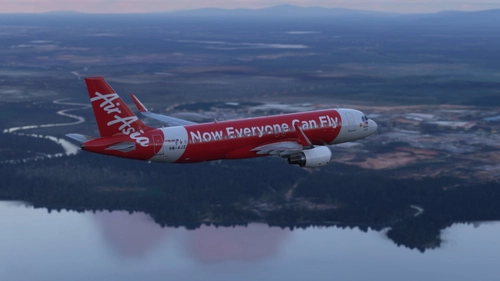
Fenix A320 V2 - Air Asia Malaysia (9M-AJZ)
This add-on provides an Air Asia Malaysia livery for the Fenix Simulations Airbus A320 V2, featuring two texture variants: 4K and 8K. To install, users simply need to unzip the downloaded folder and place it in the community folder of Microsoft Flight Simulator. The new livery will then become available in the simulator under the Fenix A320 CFM (SL) category. Feedback on the add-on is encouraged.
by Rayaan_288
Log in to join the discussion
Log InComments(36)
8 months ago
I especially liked the one uploaded by craigybabyj. I encourage everyone to try it out and support his project, here's the link to it: https://flightsim.to/file/103968/mfs-cleaner-fixer
Thanks everyone!
10 months ago
10 months ago
So even if your MSFS is installed on D:\, the script still clears everything because those cache folders never change location.
12 months ago
12 months ago
1. Open the Nvidia control panel and navigate to "Manage 3D Settings"
2. Scroll down till you find "Shader Cache Size"
3. It will most probably be set to "Driver Default". You need to change it to "Disabled"
4. Restart your PC and run the script, now all your cache files will be deleted.
5. Go back to Nvidia control panel and set "Shader Cache Size" to the previous setting.
*You don't need to restart your PC after re-enabling the shader cache.*
I will be putting these steps into the description of this file for ease of use, thanks for taking the time to ask me this.
I suppose the process of disabling the shader cache is similar for both AMD and NVIDIA systems. However, I can't tell you how to do it for AMD since I'm not familiar.
12 months ago
over 1 year ago
-Isn't it necessary to disable the NVidia shadercache in the control panel first?
-It would be even better if the 2020 and/or 2024 cache could also be cleared at the same time.
over 1 year ago
2. I have thought about it , clearing both at the same time would be very convenient, I will look into the directories of 2024 as well, thanks for the suggestion.
over 1 year ago
over 1 year ago
Edit 1: I just looked at your profile and it wasn't there. If you plan on releasing it soon, I'll be happy to check it out 🙂↕️
Edit 2: Wow your tool looks and performs really nice, really good job on that.
I might consider switching to yours since I'm not actively making or updating anything now lol.
over 1 year ago
over 1 year ago
over 1 year ago
over 1 year ago
over 1 year ago
over 1 year ago
over 1 year ago
Your requests for a similar one for MSFS 2024 has been acknowledged, the reason I haven't put one out yet is because I'm not familiar enough with how MSFS 2024 cache works and where it's stored and also that it's going to be a busy few months for me since I have to focus on my career and education in the aviation industry.
With all that said, I look forward to learning more and creating more stuff in the furture! Thanks again for your support and feedback so far.
over 1 year ago
over 1 year ago