
Description
Latest Update - 10th June, 2025 - CLR button fixed. You can now press CLR or hold CLR to return to the map.
Previous Update - 9th June, 2025 - I have consolidated my scripts into a new file 'manicminer_Scripts.xml' and updated this profile to use these scripts. This avoids you having to overwrite the default Scripts file.
---
I recently got a Stream Deck Plus but couldn't find any easy to use profiles that suited GA flying so, with the creator of Axis and Oh's help, I put this profile together. Please note that this is ONLY FOR THE STREAM DECK PLUS with Rotary Dials. This profile works with any aircraft that use default Asobo assignments for the radios and autopilot.
FEATURES
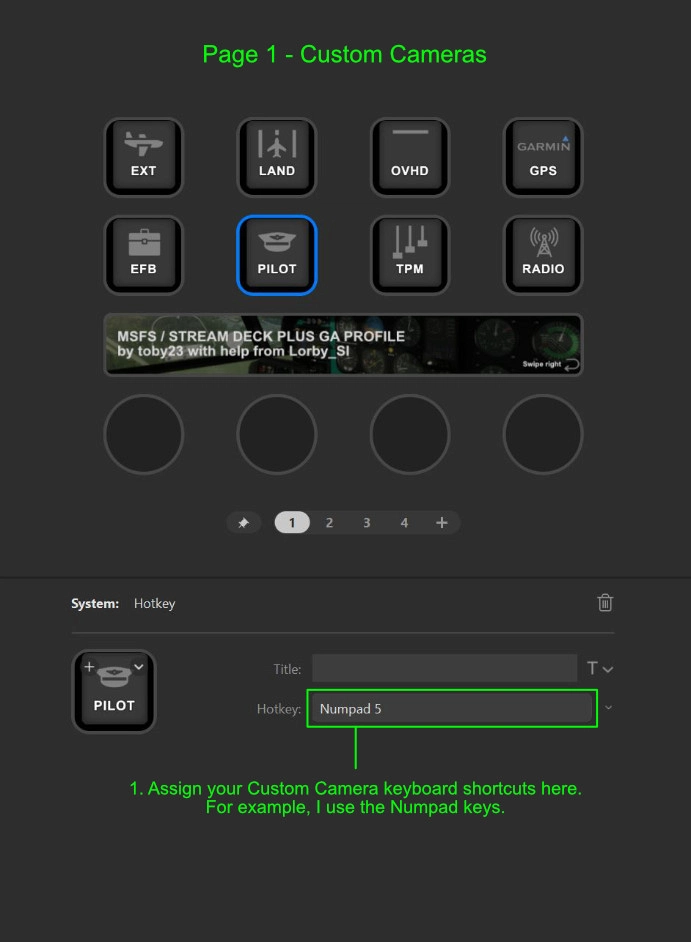
1. I use Custom Cameras bound to the Numpad keys. You can set the camera view buttons to whatever you have bound to your favourite cameras in the Stream Deck software, click on a button and then enter your custom camera shortcut keybind e.g. Numpad 5.
2. The Autopilot page features a 'Click to sync Heading Bug with current direction' on the HDG Rotary Dial.
3. 'Tap to sync HDG Bug with Compass' on the touchscreen above the HDG dial.
4. The faster you spin the HDG Dial, the quicker the Dial moves.
5. 'Tap for 100 or 1000 feet increments' on the touchscreen above the ALT Dial on the Autopilot page.
6. Click the ALT Dial to set Barometer to Local - default keybind is 'b'.
7. The COM/NAV pages show you the IDENT of your tuned NAV beacon e.g. ILS.
8. NAV2 or COM2 are on the next page after NAV1 and COM1.
9. I have included a set of controls for the default Garmin GNS 530. Click the Rotary dials for the cursor, just like in the real unit.
N.B. The ALT dial does not work with the KAP140 Autopilot unit, which does not have a dedicated ALT rotary dial, like its larger glass panel cousins...
HOW TO INSTALL (Updated 9th June, 2025)
1. To install, download the Zip archive and extract it to your Desktop, then double click on the MSFS - GA Easy GNS530.streamDeckProfile file.
This will open the Stream Deck software and ask 'Are you sure you want to install the profile?', click 'Install'.
You can now select the profile in your Stream Deck software.
2. a) Open Axis and Ohs and click 'Scripting' > 'Import Scripts'.
b) Select the included 'manicminer_Scripts.xml' file and click 'Import'.
c) Click the arrow to expand the box and select all three Scripts and click 'Import'.
Be sure to run Axis and Oh's once your flight has loaded to activate the AAO plugin, as well as the Stream Deck software.
The panel will only load fully once your flight has loaded in MSFS and Axis and Ohs is connected to the simulator.
Swipe left and right on the edges of the touch screen to scroll between pages.
REQUIREMENTS
1. You need to install the 'Digital 7' font for the Autopilot displays. This font is available free from DaFont here.(https://www.dafont.com/digital-7.font)
2. You need to have Axis and Oh's and the Elgato Stream Deck Plugin both installed and available from here. (https://www.axisandohs.com/downloads.html)
I hope this brings you some enjoyment and thank you to Lorbi_SI for your help learning how to use the software and coding.
Toby
May 2024
Easy to use Stream Deck Plus profile for GA flying with GNS530
Enhance your GA flying experience with this Stream Deck Plus profile designed specifically for General Aviation and the GNS530. Featuring custom camera controls, Autopilot functionalities, Garmin GNS 530 controls, and more, this profile offers a seamless integration with your flight simulation setup. Install the profile easily and enjoy a more immersive and efficient flying experience in Microsoft Flight Simulator.
User Reviews
2 reviews
Version History
Latest Update - 10th June, 2025 - CLR button fixed. You can now press CLR or hold CLR to return to the map.
Related
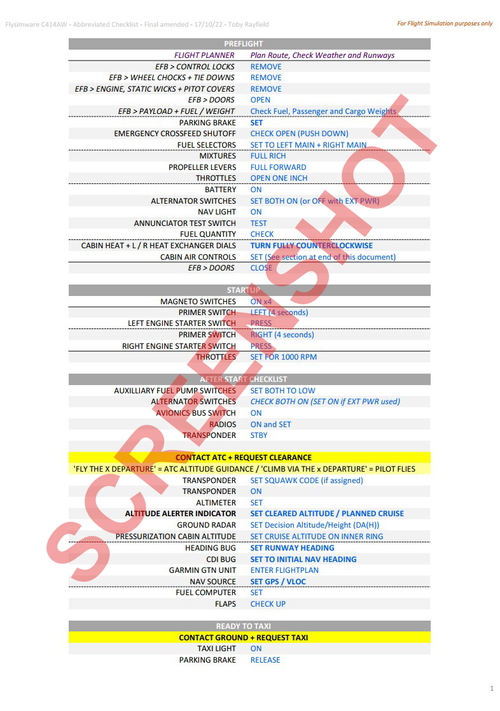
Flysimware Cessna C414AW Abbreviated Checklist / Final AMENDED Version + ATC guidance
Enhance your pre-flight preparations with the Flysimware Cessna C414AW Abbreviated Checklist add-on. This amended version includes detailed instructions on heating and ventilation systems, performance information, and ATC guidance for a smooth flight experience. Stay organized and fly safely with this comprehensive checklist for VFR and IFR flights.
by Toby Rayfield
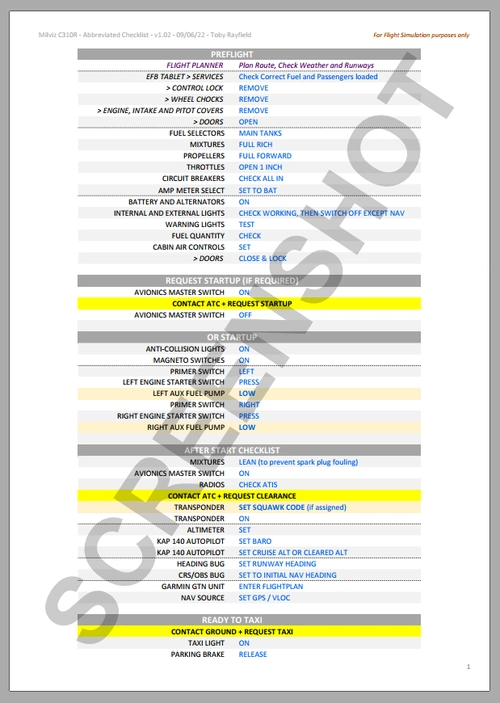
UPDATED 10/06 - Milviz C310R Abbreviated Checklist / UK, EU & USA / VFR & IFR with or without ATC
EDIT 10/06 - Updated for use in UK, Europe and USA, including checks for possible failures and cross-checked for accuracy with a real life pilot. I made this Checklist for my flights in the Milviz C310R, maybe you'll enjoy using it for yours too. I use ATC, NeoFly and the TDS GTNXi 750, which are mentioned in the checklists.. Valid for VFR and IFR flights with or without ATC. ATC spoken sections are highlighted in yellow. External apps are in magenta and italicised. Enjoy and fly safe!
by toby23

EGNX Cooling Tower Exclusions
This add-on addresses visual discrepancies at the Ratcliffe-on-Soar and Willington power stations near EGNX East Midlands airport by removing duplicate cooling towers and chimneys. It also disables smoke emissions from Willington, reflecting its status as a decommissioned site since the 1990s. Compatibility is maintained with models from Pyreegue and ORBX, ensuring a more accurate representation of the area. Required add-ons include Pyreegue EGNX Airport, ORBX Great Britain South, and MSFS 2024 SU2.
by manicminer
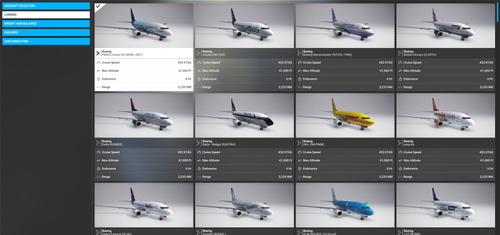
Livery icons for perfectionists v1.0 – Series PMDG 737-600
This add-on provides texture replacements for the livery icons displayed on the MSFS selection screen for the PMDG 737-600. It includes many popular liveries available online and utilizes consistent settings for clear organization. Installation instructions are included for replacing the original thumbnail files.
by manicminer
Log in to join the discussion
Log InComments(26)
2 months ago
about 1 year ago
Did you solve the OBS button on the GNS 430/530? it seems to be the only one missing....
over 1 year ago
over 1 year ago
over 1 year ago
EDIT: It does work now! Although its not a big deal, it doesnt seem like the button on the actual GPS gets pressed in the UI. the CLR function works, but its not physically pressing the button in the plane. No big deal at all... just thought you should know. Thanks
over 1 year ago
over 1 year ago
over 1 year ago
over 1 year ago
over 1 year ago
over 1 year ago
almost 2 years ago
Fervent utilisateur de votre addon, je pose la question d’actualité, pensez vous l’adapter à MSFS2024 ?
C’est évidemment beaucoup de boulot, mais il faut bien dire que cette facilité est devenue addictive….
Si vous le faites évoluer, cela méritera un peu plus qu’un café :)
Bon vols à vous et encore merci pour le travail déjà accompli sous 2020.
B.
over 1 year ago
almost 2 years ago
Please explain the installation process in a little more detail.
Thank you so much
over 1 year ago
about 2 years ago
Page 2 looks different for me, mine has the TRK in the first left window and HDG is below the TRK- not above.
Those are not working as the they should:
The Autopilot page features a 'Click to sync Heading Bug with current direction' on the HDG Rotary Dial.
3. 'Tap to sync HDG Bug with Compass' on the touchscreen above the HDG dial.
4. The faster you spin the HDG Dial, the quicker the Dial moves.
Any idea?
over 1 year ago
about 2 years ago
about 2 years ago
about 2 years ago