
Description
To use the cameras once installed they are bound to: NUM9, NUM8, NUM7, etc...
Custom camera 0 - close up over the electronic flight bag
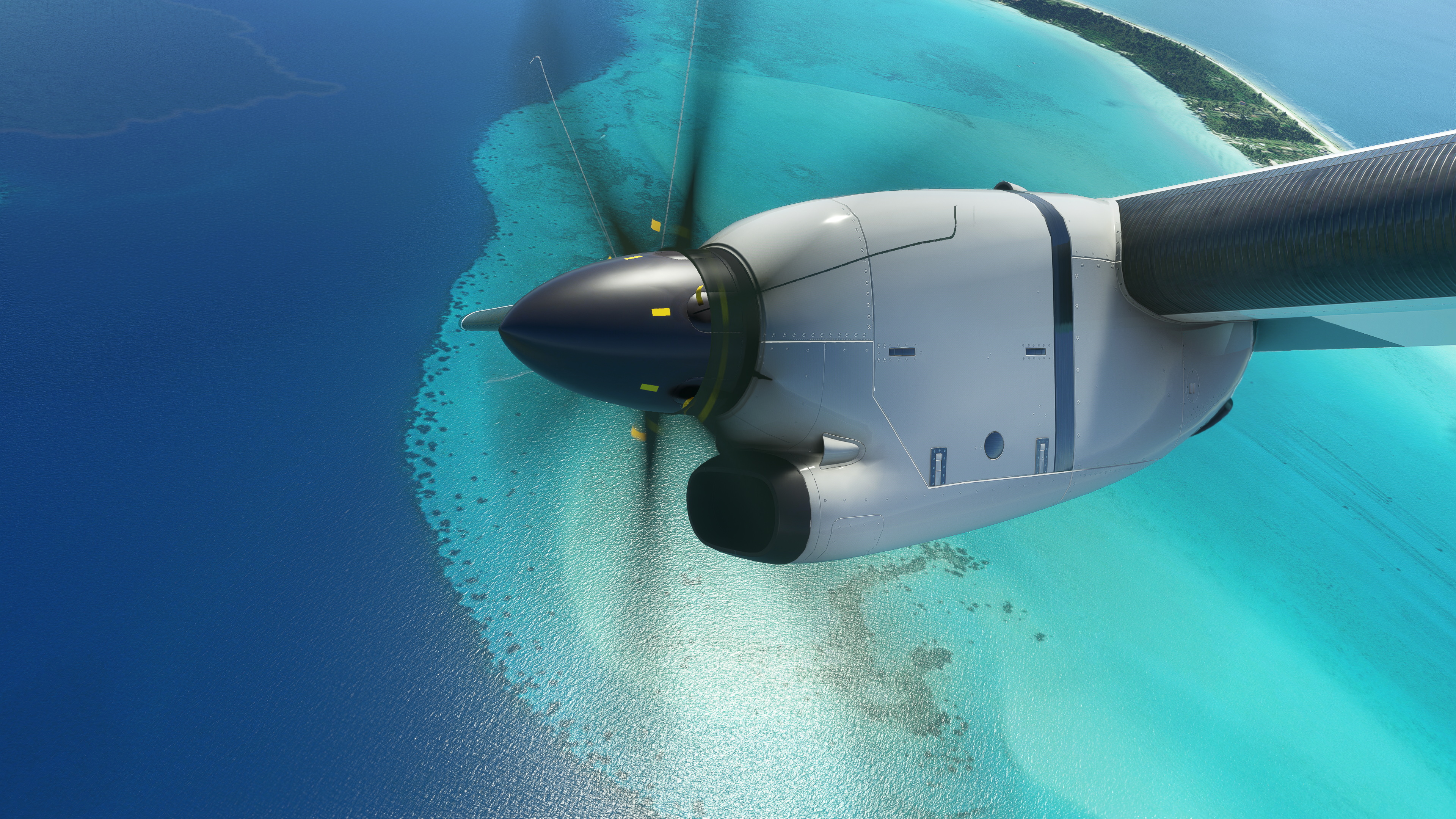
Custom camera 1 - rear left wing view
Custom camera 2 - pedestal view
Custom camera 3 - rear right wing view
Custom camera 4 - front left wing view
Custom camera 5 - main panel view
Custom camera 6 - front right wing view
Custom camera 7 - straight view above instrument panel
Custom camera 8 - main panel view
Custom camera 9 - overhead panel view
How to install:
Camera views are not installed via the Community folder, so if you put them in there nothing will happen.
Instead they are installed in the Airplanes folder in appdata.
The Airplanes folder is automatically generated if you create your first custom camera, if it is there make sure to backup the folder, so you can restore your cameras, if you don't like mine.
Otherwise just UNZIP the downloaded folder and paste the Airplanes folder inside SimObjects.
I included a picture how it should look!
Steam Users
For Steam users navigate to:
C:\Users\[yourUsername]\AppData/Roaming/Microsoft Flight Simulator/SimObjects/Airplanes/Microsoft_ATR_72_600/Cameras.cfg
Or press WIN+R and paste:
%appdata%\Microsoft Flight Simulator\SimObjects/Airplanes/Microsoft_ATR_72_600/Cameras.cfg
Microsoft Store Users
For Microsoft Store users navigate to:
C:\Users\[yourUsername]\AppData\Local\Packages\Microsoft.FlightSimulator_8wekyb3d8bbwe\LocalCache\SimObjects\Airplanes\Microsoft_ATR_72_600/
cameras.cfg
Or press WIN+R and paste:
%localappdata%\Packages\Microsoft.FlightSimulator_8wekyb3d8bbwe\LocalCache\SimObjects\Airplanes\Microsoft_ATR_72_600/
cameras.cfg
In case you want to support me, you can paypal me
Comments(2)
Log in to join the discussion
Log Inover 1 year ago
MICROSOFT ATR 72-600 CUSTOM VIEWS by LATAMSIMPILOT
Asobo ATR 72-600 Custom Cameras | Asobo ATR 72-600 Is Now Released For Everyone Views Buttons Num 1: Rear Left Wing View Num 2: Pedestal View Num 3: Rear Right Wing View Num 4: Front Right Wing View Num 5: Main Panel View Num 6: Front Right Wing View Num 7: Captain Front View Num 8: Captain's Main Panel View Num 9: Captains's Overhead Panel View
More Information
Version History
No version history available.
Related
FENIX A320 V 2 BLOCK 2 CUSTOM VIEWS FOR IAE AND CFM VARIANTS by LATAMSIMPILOT
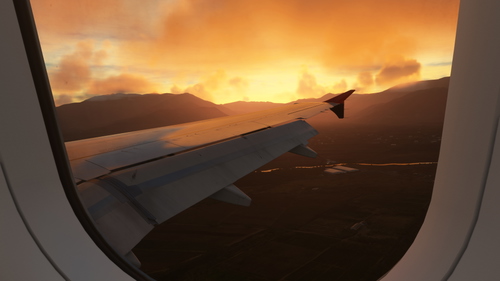
FENIX A320 Custom Cameras | A320 Custom Views For FENIX Is Now Released For Everyone Views Buttons Num 1: Rear Left Wing View Num 2: Pedestal View Num 3: Rear Right Wing View Num 4: Front Right Wing View Num 5: Main Panel View Num 6: Front Right Wing View Num 7: Captain Front View Num 8: Captain's Overhead View Num 9: Captains's Right Angle View
by latamsimpilot
FBW A32NX CUSTOM VIEWS by LATAMSIMPILOT
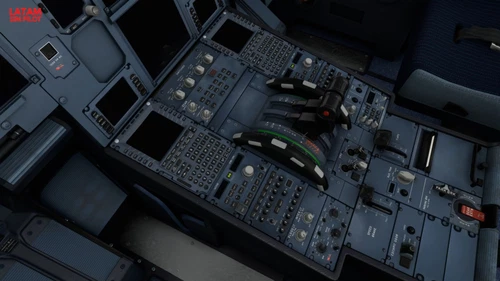
FlyByWire Custom Cameras | A32NX Custom Views For FlyByWire Is Now Released For Everyone Views Buttons Num 1: Rear Left Wing View Num 2: Pedestal View Num 3: Rear Right Wing View Num 4: Front Right Wing View Num 5: Main Panel View Num 6: Front Right Wing View Num 7: Captain Front View Num 8: Captain's Overhead View Num 9: Captains's Right Angle View
by latamsimpilot
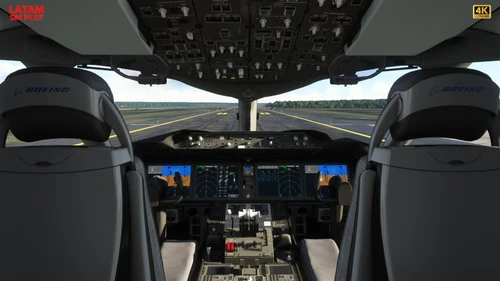
KURO B787-8 | B787-8 DREAMLINER CUSTOM VIEWS by LATAMSIMPILOT
Customize your B787-8 Dreamliner experience with KURO B787-8 by LATAMSIMPILOT. This add-on offers a variety of custom camera views, including cockpit, wing, and panel perspectives. Follow the installation instructions to enhance your flight simulator visuals and explore new angles within the aircraft. Join the community and share your feedback with the developer for more custom views options.
by latamsimpilot
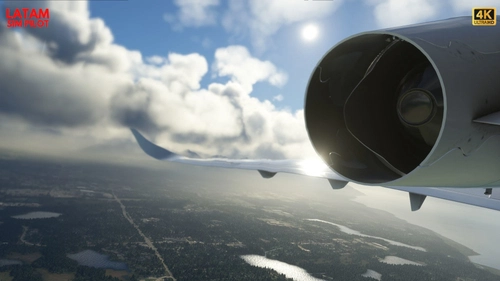
CESSNA CITATION LONGITUDE CUSTOM VIEWS by LATAMSIMPILOT
Enhance your Cessna Citation Longitude experience with custom camera views by LatamSimPilot. Explore various angles including wing and engine views, pedestal view, and captain seat perspectives. Follow installation guidelines for an immersive flight simulation experience. Contact the developer for more information and support.
by latamsimpilot
over 1 year ago