
Description
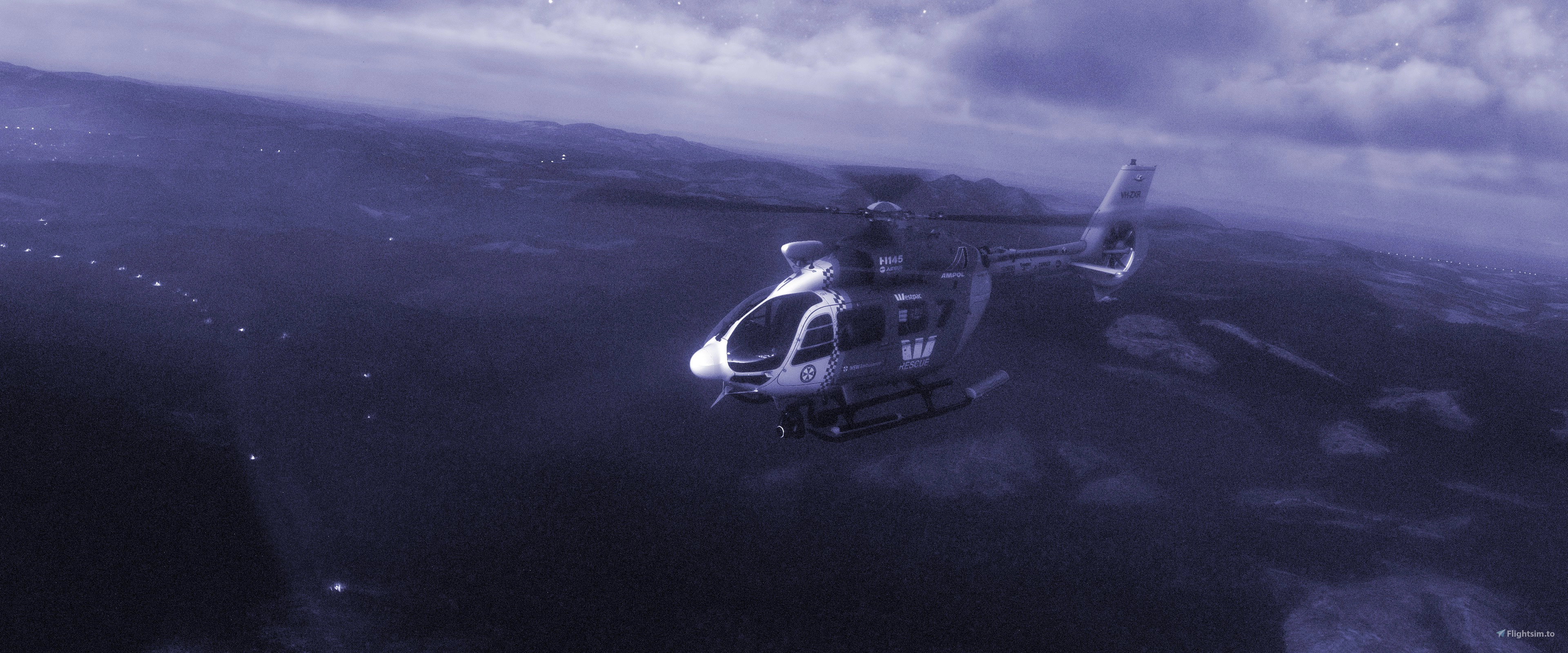
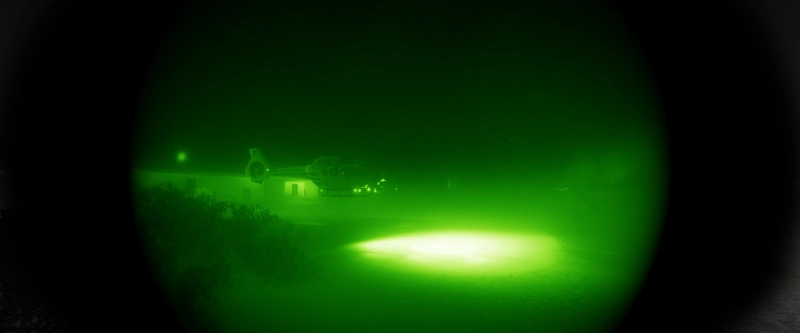
Night Vision Goggles for Search and Rescue (SAR) missions, night incursions into enemy territory, emergency supplies across a contested border, transporting a traffic collision victim to higher levels of care, or illegal delivery of drugs over the border. These night vision goggles for Microsoft Flight Simulator will help you navigate the darkness and succeed in your mission.
This addon gives you three presets:
- Night Vision Goggles - traditional green
- Night Vision Goggles - White Phosphor
- FLIR
INSTRUCTIONS:
This addon uses ReShade. Instructions are in the read me file included with the download.
WORKS WITH:
- MSFS Steam Edition
- MSFS 2024 Steam Edition
PRO TIPS:
- If you don't want ReShade to activate during boot up of the game, go to your root folder, open dxgi.ini (or ReShade.ini) with notepad and change NoReloadOnInit from 0 to a 1 like this:
[GENERAL]
NoReloadOnInit=1 -
After setting this, you can open the ReShade Overlay, select the preset you want to use and then click OK. Additional instructions in the ReadMe.pdf
-
You can modify the presets to suit your personal preferences.
- As the game loads, ReShade will display at the top left of your screen which button calls up the Overlay. For me, it's PgDn to open the overlay, but for others, it defaults to the Home key. Once the game loads, hit that key to open the Overlay, and if you go to the settings tab, you can change it to whatever key you want.
Please Note: Some people with MSFS Windows Store Edition have had good luck installing ReShade by following these directions:
Please visit www.feintgames.com for more info and other mods I'm working on.
Creating this took many weeks of research, coding and testing. If you downloaded this and enjoyed it, please support me so I can continue working on it. Any donation helps me know you want more like this.
Support Independent Developers
Frequently Asked Questions
Night Vision Goggles and FLIR
Night Vision Goggles and FLIR add-on for Microsoft Flight Simulator offers three presets for navigating in darkness: traditional green NVG, White Phosphor NVG, and FLIR. Utilizing ReShade, the add-on includes instructions for installation and usage. Please note compatibility is confirmed for Steam versions only, but a workaround for Windows Store versions is available. Visit www.feintgames.com for updates and support.
User Reviews
19 reviews
Log in to join the discussion
Log InComments(98)