
Description
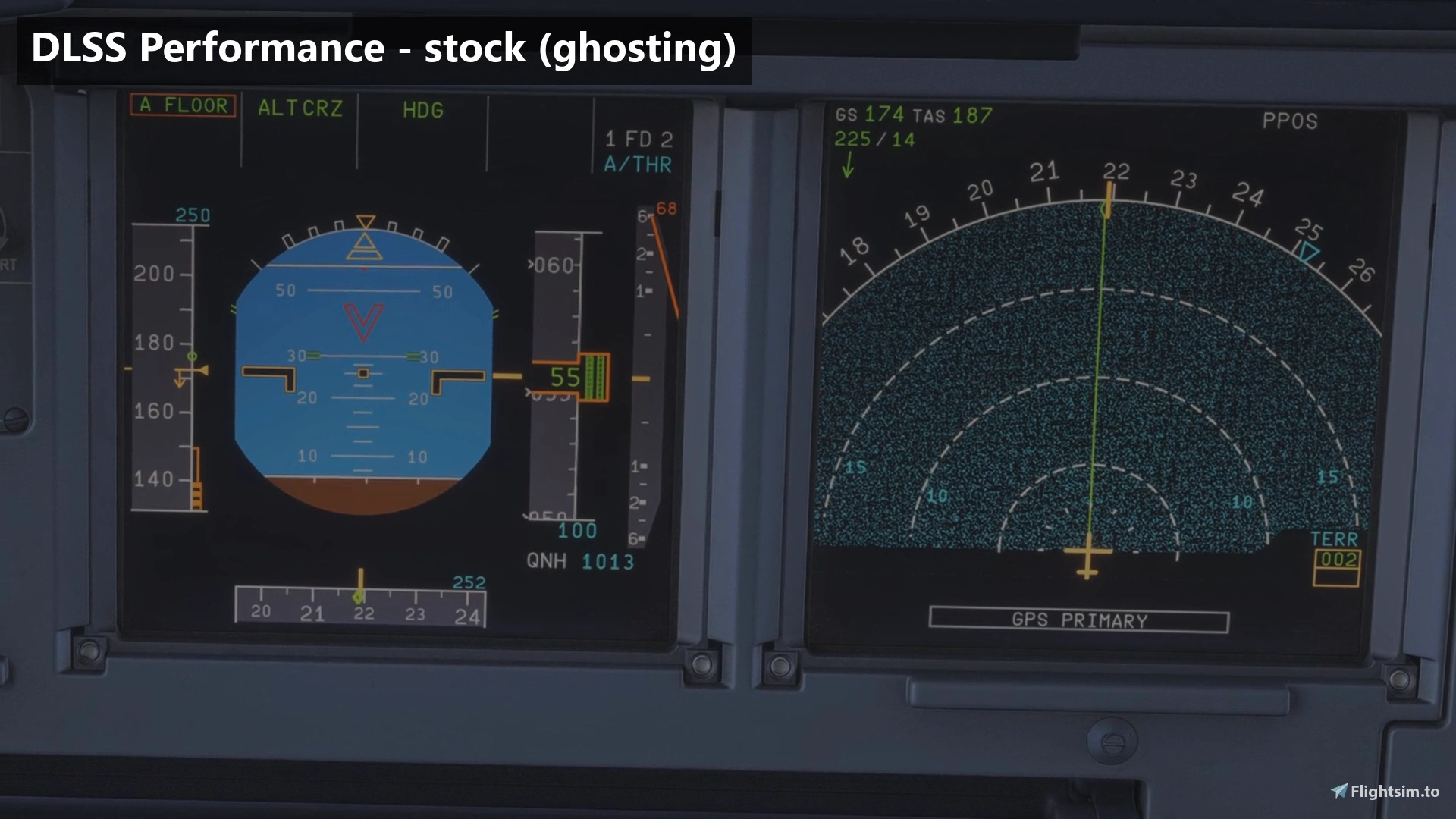
Removes DLSS and FSR ghosting and smearing from glass cockpit screens in MSFS 2024. Speed and altitude tapes, the ND, ECAM pages and moving maps stay sharp, even in Performance mode.
No DLSS preset (J, K, M) fixes this: the upscaler blends old frames into new ones, and the screen content changes every frame. The fix draws the sim's own clean screen image again right after DLSS or FSR. Brightness is matched for every display (night lighting and knobs work), and dirt, sun glare and shadows on the glass are kept.
Two versions, same fix — pick ONE
- ReShade add-on (
glass-cockpit-dlss-fix.addon64): for when you use ReShade anyway. Status and settings in a tab of the ReShade menu (Home). - Standalone (
dxgi.dll): no ReShade needed, one file next to the sim. Status and settings in its own small window (Ctrl+Shift+F6). Big thanks to Jason Tsorlinis (jtsorlinis) for building it!
Don't install both (if you do, the standalone stays off). Your settings carry over between them.
Works with
- Most glass cockpits: Fenix, FSLabs, iniBuilds (A220, A330, A340, A350, A380), PMDG 737/777, iFly 737 MAX, FSS E-Jets, FlightFX, default aircraft and more. The full list of tested aircraft is on the GitHub page.
- Any quality mode, any resolution, Frame Generation and Multi Frame Generation.
- NVIDIA (DLSS or FSR), AMD and Intel (FSR).
- VR (tested on Quest 3 and Pimax with the ReShade add-on), Steam and Microsoft Store / Game Pass.
- Small performance cost (typically under a millisecond per frame).
Requirements
- DLSS Super Resolution (NVIDIA RTX) or FSR (any GPU) selected in the sim.
- ReShade add-on only: ReShade 6.7 or newer with full add-on support (reshade.me).
Install: ReShade add-on
- Install ReShade with full add-on support for MSFS 2024 (DirectX 12). No effects needed, you can skip them. Microsoft Store / Game Pass: if picking
FlightSimulator2024.exegives a permission error, pickgamelaunchhelper.exeinstead. - Copy
glass-cockpit-dlss-fix.addon64from the "ReShade add-on" folder into the folder withFlightSimulator2024.exe, next to ReShade's DLL (usuallydxgi.dll):Steam:
...\steamapps\common\Microsoft Flight Simulator 2024\- Microsoft Store / Game Pass:
...\Microsoft Flight Simulator 2024\Content\
- Start a flight, press Home and open the "Glass Cockpit DLSS Fix" tab. It should say "Working".
Already using OptiShade by Gravy? It bundles the official add-on, so don't install it again.
Install: Standalone
- Copy
dxgi.dllfrom the "Standalone" folder into the folder withFlightSimulator2024.exe. - Start a flight and press Ctrl+Shift+F6. The settings window should say "Working".
Another mod already uses dxgi.dll? If Windows asks to replace an existing file, DON'T. Rename the fix instead, it works the same under these names:
- ReShade or OptiScaler (
dxgi.dll) installed → install the fix asversion.dll - DLSS Enabler (
version.dll) installed → install the fix aswinmm.dll - dashdogy's RTX40MFG-Unlock (
winmm.dll) installed → install the fix asversion.dll(its menu then works too)
Install it only once, under one name.
Updating: replace the file with the new one (under the same name). Your settings stay.
Settings and hotkeys
- Line smoothing: for jagged lines on the screens.
- Ctrl+Shift+F9: fix on/off. Ctrl+Shift+F11: tints every fixed screen green.
- Experimental fixes: options for problems on some aircraft (see FAQ).
- Bug reports: Capture screens, log folder, copy report and diagnostics.
Known issues: a sim update that changes the cockpit display shader stops the fix until it's updated (the sim then looks like stock DLSS/FSR). The standalone is not yet tested in VR. Compatibility notes for other mods (OptiScaler, DLSS Enabler, MFG unlocks, DLSS 5 add-ons) are on the GitHub page.
FAQ
Which version should I use? Either one, they have the same fix inside. If you already use ReShade (for presets or effects), take the add-on. If you don't, take the standalone: one file, no ReShade needed.
Do I need ReShade? Only for the add-on.
Does it work with my ReShade presets?
Yes, presets and effects work as usual. With the standalone, keep ReShade as dxgi.dll and install the fix as version.dll.
I can't find the tab in the ReShade menu. The add-on isn't loaded.
- No Add-ons tab in the ReShade menu? Reinstall ReShade with the full add-on support version.
- Check that the file sits next to ReShade's DLL.
- Check that
glass-cockpit-dlss-fix.logappears there after starting the sim.
The standalone's window doesn't open.
- Make sure the file is named
dxgi.dll,version.dllorwinmm.dlland sits next toFlightSimulator2024.exe. - Check that
glass-cockpit-dlss-fix.logappears there after starting the sim. - If Ctrl+Shift+F6 clashes with another mod, change the shortcut in the window or under
[hotkeys]inglass-cockpit-dlss-fix.ini.
How do I check it's working? Add-on: press Home and open the Glass Cockpit DLSS Fix tab. Standalone: press Ctrl+Shift+F6. Both should say "Working". Or press Ctrl+Shift+F11 in the cockpit: every fixed screen turns green.
Screen edges flicker or shimmer on my aircraft.
Open Experimental fixes and set Edge trim to 50 (up to 150 for aircraft with stronger edge problems).
Digits or symbols sparkle in sun glare. Tick Calm glass at symbols under Experimental fixes, or lower Glass layer (Advanced) to 50–70%.
A screen is drawn over something in front of it (sidestick, hand, yoke). Make sure Occlusion check is ticked under Experimental fixes (on by default).
Some screens of my aircraft aren't fixed. Look at those screens and press Screen probe under Bug reports. Then open a bug report on GitHub with both log files and the aircraft name.
The screens flicker in brightness. On a G-Sync / FreeSync monitor, that's VRR flicker from a changing frame rate. Turn on V-Sync or cap your FPS a few below your refresh rate.
Screens flicker in daylight and I use REX Atmos.
Set Atmos' Overall Light back to its default (16). At 0 it caused flickering for another user.
Does it fix prop, rotor or airframe ghosting? No, only the cockpit screens.
Does it work with MSFS 2020? No, only MSFS 2024.
Before reporting a problem: please try the settings in the "Before you report a problem" section on the GitHub page. Most aircraft-specific problems can be solved there.
Free and open source (GPL-3.0 from 1.0.0; 0.8.3 and earlier were MIT). Glass Cockpit DLSS Fix by IFreemz, standalone version by Jason Tsorlinis. Source code, full compatibility list and bug reports: github.com/IFreemz/msfs2024-glass-cockpit-dlss-fix Official downloads: this flightsim.to page and the GitHub releases only. Not affiliated with Microsoft, Asobo, NVIDIA, AMD or any aircraft developer.
Official Glass Cockpit DLSS/FSR Fix by IFreemz - no more ghosting on PFD/ND (ReShade or Standalone)
Removes DLSS and FSR ghosting and smearing from glass cockpit screens in MSFS 2024. Speed tapes, NDs and ECAM pages stay sharp, even in DLSS/FSR Performance, on a monitor and in VR. It redraws the sim’s own clean screen image right after the upscaler, keeps lighting, glare and dirt on the glass, and costs no measurable FPS. Tested on the Fenix A320, iniBuilds A220, A330, A340, A350 and A380, PMDG 737 and 777, and default aircraft. Works on NVIDIA and AMD. Standalone is only drag and drop. Reshade addon needs ReShade 6.7 or newer with full add-on support.

User Reviews
72 reviews
Version History
Both versions are updated: replace the file you use with the new one. Fixes - NeuralHub (DLSS on AMD): no more crash at about 68% loading. NeuralHub and the fix both hook AMD's FSR, and depending on timing the two hooks ended up calling each other until the sim crashed. The fix now attaches behind NeuralHub's hook and leaves it in place. Both versions. Standalone only - Works on Windows 11 26H1. On 26H1, DirectX hands the sim's drawing straight to the graphics driver, so the standalone never saw the cockpit screens and stayed at "Waiting for a glass cockpit". It now follows the drawing there. The add-on wasn't affected.
Log in to join the discussion
Log InComments(230)
about 3 hours ago
The tearing was so bad now it looks Fantastic
about 21 hours ago
1 day ago
1 day ago
ReShade add-on (glass-cockpit-dlss-fix.addon64): you need ReShade with full add-on support, which is a separate download from the normal one. Put the file in the same folder as ReShade’s DLL. Then check the Add-ons tab in the ReShade menu to see if it’s listed.
Standalone (dxgi.dll): it doesn’t get a ReShade tab, and Ctrl+Shift+F6 opens its settings window. OptiScaler or ReShade usually already uses the name dxgi.dll, so don’t overwrite that file. Rename the fix to version.dll instead.
Then load a flight with DLSS or FSR selected and press Ctrl+Shift+F11 in the cockpit. The screens it fixes turn green.
If it still doesn’t work, please open an issue on GitHub (https://github.com/IFreemz/msfs2024-glass-cockpit-dlss-fix/issues) and say which version you used and which files are in that folder. If glass-cockpit-dlss-fix.log and glass-cockpit-dlss-fix.old.log are next to the fix, attach them too. If there’s no log at all, that’s useful to know as well, because it means the fix never loaded.
2 days ago
Thank you! You have made possible what Asobo/Microsoft were unable to do.
3 days ago
3 days ago
3 days ago
3 days ago
4 days ago
3 days ago
5 days ago
I'm using standalone version with OptiShade.
3 days ago
5 days ago
3 days ago
5 days ago
3 days ago