
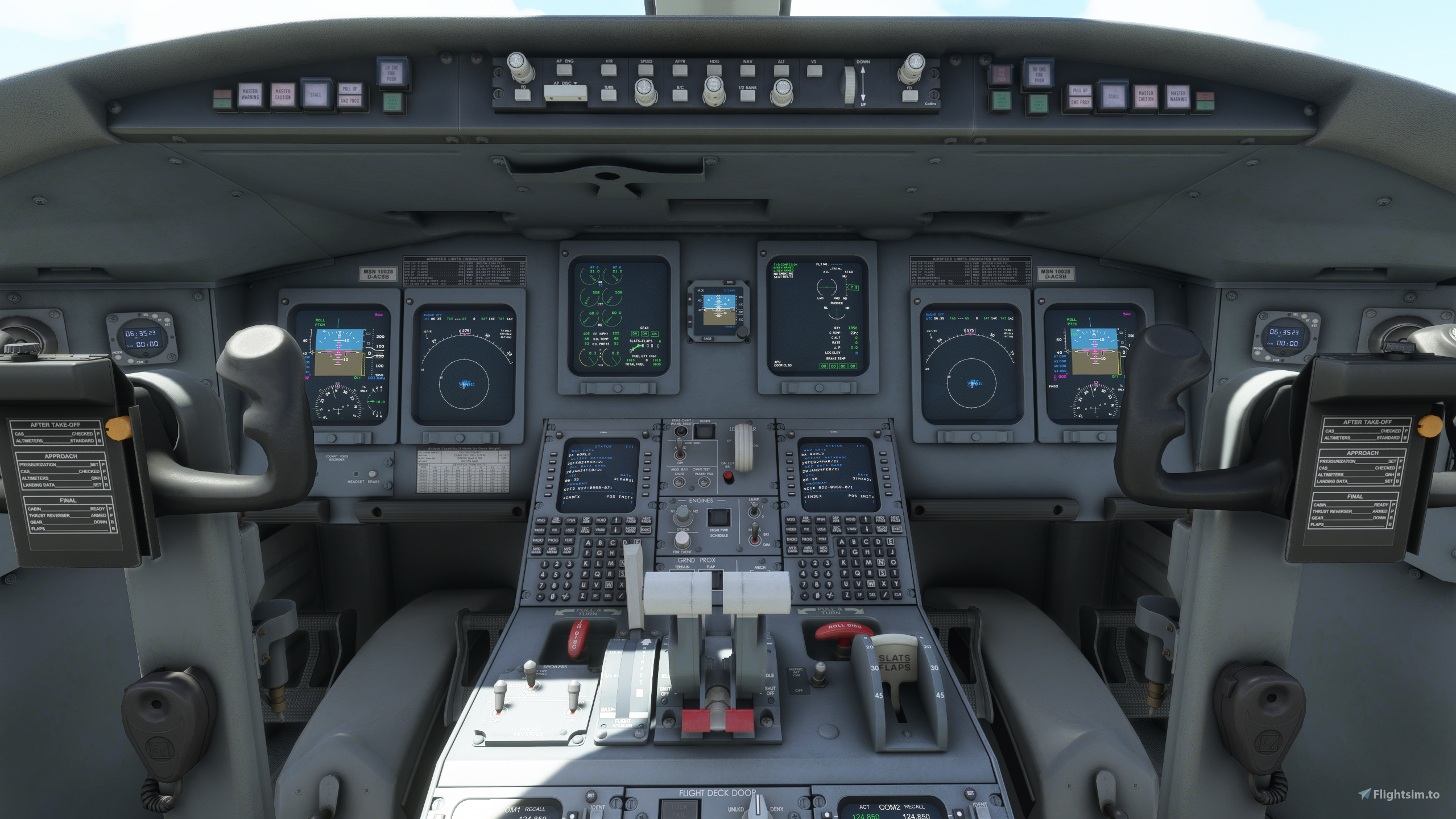
Description
Axis and Oh's Templates for Aerosoft CRJ 550/700
Hi! Here are a few Axis and Oh's templates for Aerosoft CRJ to use with the Honeycomb Alpha Yoke and Bravo Throttle Quadrant.
The following templates are provided:
- ASCRJ_YOKE_HCALPHA
- ASCRJ_TQ_HCBRAVO
- ASCRJ_FCP_HCBRAVO
Additional RPN scripts are also provided to customize your hardware setup.
Importing and applying templatesTo import and use the templates, please follow these steps:
1. Launch MSFS and load into an aircraft parking stand with the Aerosoft CRJ550/700.
2. Launch Axis and Oh's and wait for it to connect to the sim. The aircraft name will be displayed at the top, once it is connected.
3. Click on Templates > Import Template. Select a `ASCRJ_*.tmpl` file from this repository. Select Import.
4. Once the import is finished, click on Templates > Apply a template to this aircraft. Select the imported `ASCRJ_*` template from the list and click Apply.
5. If asked whether to replace or merge the config, select as you need. (Choose replace for a clean configuration.)
6. Set up a new profile in MSFS for the hardware with the bindings as mentioned below for each template.
7. Power up the aircraft and test the various switches on the hardware.
- Cockpit animations and sounds associated with hardware controls
- Multiple interaction modals for controls - press, long press, press and hold, etc.
- Autopilot Flight Control Panel support
- Custom throttle lever bindings enabling SHUT OFF/IDLE movements
- Custom reverser bindings to automatically stow and disengage reversers when the handles are released (without the need to wiggle the levers)
You need to use the commercial 2-engine setup for the levers on the TQ, using the middle two slots. Before starting the aircraft, move the throttle levers down to the detent button position. This corresponds to the throttle SHUT OFF position. When you need to introduce fuel to the engine, simply push forward the levers out from the detent position to the axis low position. This corresponds to clicking the red guards and moving the throttle to the IDLE position to introduce fuel. You will see the red locks disengaging automatically and the throttles moving to the IDLE position. To cut fuel and turn off the engines, move the throttle levers back to the detent position. You will see the red guards lifting automatically and throttles moving to the SHUT OFF position.
To engage the thrust reversers, pull the reverser handles back. This corresponds to setting the maximum reverse thrust. To disengage reverse thrust, just release the reverser handles. This will set the engines to IDLE, like in the real aircraft.
Disclaimers1. You need to have a licenced copy of Axis and Oh's to use these templates. You can try out a free demo of Axis and Oh's to check if the templates work with your hardware. NOTE: I am not associated or affiliated with Axis and Oh's or its developers.
2. The scripts are developed based on the model behavior definitions and internal LVars of the aircrafts. If the arcraft developers change the model behavior logic and/or LVars, the scripts may break. Please file an issue in the github repository for any incorrect behavior of the scripts.
3. No axis bindings are provided as part of the template. You need to set up your axis bindings according to Aerosoft's recommendation for the CRJ in the MSFS controls settings. Please read the included readme on how to set up the hardware.
GitHub - asmitde/axisandohs_templates: Scripts and templates for Axis and Oh's [MSFS]
NOTE: MCP knob animations do not work anymore since the custom animation code was removed from the aircraft. Unfortunately, I haven't been able to hook into the Asobo animation code. The knobs should still be functional. The pitch trim button on the Honeycomb Yoke may not always work if using the template. This is due to some change in AAO, where a combo button does not activate when pressed at the same time, they need to be pressed one after the other for it to register.
Axis and Oh's Templates for Aerosoft CRJ
A collection of Axis and Ohs templates for Aerosoft CRJ 550/700 designed to enhance your flight simulation experience, specifically tailored for use with Honeycomb Alpha Yoke and Bravo Throttle Quadrant. These templates offer cockpit animations, multiple interaction modalities, autopilot support, and custom throttle lever and reverser bindings. Note that a licensed copy of Axis and Ohs is required to utilize these templates effectively. Visit the GitHub repository for more information and updates.
User Reviews
6 reviews
Version History
* Included gear lever assignment in ASCRJ_TQ_HCBRAVO.tmpl template - this fixes the 'Gear Lever Disagree' bug. Please remove the gear assignment from MSFS settings. * Added Left/Right Side Panel button scripts (not included in template).
Log in to join the discussion
Log InComments(32)
about 4 years ago
If ever you do one for the 900 I'll be a buyer!
over 4 years ago
Great job! If you own it, any chance to create a Alpha/Bravo template for the Fenix A320?
over 4 years ago
mine did work fine... now it doesn't..........Which template works for me ... none of them do...
Why cant u allocate assignments in MSFS 2020...
over 4 years ago
Sorry, it is not working for you. If AAO is not registering any inputs, it might be the case that the GUID for the alpha/bravo has changed in your system (this happened to me once). You can try manually reassigning one of the button assignments and see if that works. The new GUID for the device should be listed in the device dropdown. You can then open up the template file in any text editor and replace all occurrences of the old GUID with the new one, and then reapply the template in AAO.
over 4 years ago
This use to work for me, but now I am unable to get it to work no matter what I try.. None of the buttons work at all, and I have followed the instructions exactly. Unsure what to do?
over 4 years ago
Hi! Can you tell me what is not working? Please note that some of the animations on the MCP no longer work since Aerosoft removed their own anim code and started using Asobo anim code. Other than that, it should be functional. Can you also verify that when you interact with the hardware, AAO is registering those inputs?
over 3 years ago
same , I recently just downloaded and things were working, I was stoked@ then just came to a hault on my check flight.
over 4 years ago
Indispensable pour associer les Honeycomb avec les CRJ. Merci
almost 5 years ago
I use Axis and Ohs to opearate the CRJ panels, including FCP knobs for selecting course, speed, heading, etc.
Following RPN script used to work correctly for heading selection (example) - it was changing the selected HDG but also it was triggering the knob turning animation (visual feedback):
(L:ASCRJ_FCP_HDG_SEL,·Number)·10·-·dnor·(>L:ASCRJ_FCP_HDG_SEL,·Number)·(L:ASCRJ_FCP_HDG_CHANGE,·Number)·--·(>L:ASCRJ_FCP_HDG_CHANGE,·Number)
Now the script still changes the value, but no longer triggers the knob turning animation.
The only script which still triggers the amination is for V/S selection:
(L:ASCRJ_FCP_WHEEL,·Number)·10·-·dnor·(>L:ASCRJ_FCP_WHEEL,·Number)·(L:ASCRJ_FCP_WHEEL_CHANGE,·Number)·--·(>L:ASCRJ_FCP_WHEEL_CHANGE,·Number)
The script structure is the same, so I have no clue why it works for V/S and doesn't work with HDG and all the other knobs.
The issue was probably introduced with the recent CRJ update.
What am I doing wrong?
over 4 years ago
same here.
about 5 years ago
Thanks for this, it works great!!
In the months since you created this, you haven't figured out how to have the rotaries accelerate automatically like in the jet or using mouse, have you?
about 5 years ago
Not automatically, no. However, there is a button mapping that increases the acceleration factor when using the rotaries.
about 5 years ago
Ah yeah that's what I'm having to use currently. Will take a bit of getting used to. It's a shame as other planes seem to apply accelaration on the Bravo rotary, but doesn't seem possible with the LVARs.
Seeing how you setup the scripting has made it easy for me (using AAO for the first time) to fill out all of the other buttons and move a couple around, so thanks again!
about 5 years ago
Hello,
Am I doing something wrong... when I imported the Yolk script into AAO everything was backwards. So all the buttons were opposite to what it should be.
about 5 years ago
Hi! What do you mean by buttons are opposite? Which buttons?
about 5 years ago
The panel switches on the Alpha were in the opposite order (so the button down was on, and the button up was off. I reprogrammed it in AAO myself though)
about 5 years ago
Yes, I mapped it that way since it matches the physical position of the switches on the overhead light panel (up:OFF, down:ON). But feel free to remap them to your liking :)
about 5 years ago
Ah ok that explains that then. Thanks.
over 5 years ago
can u do a video tutorial