
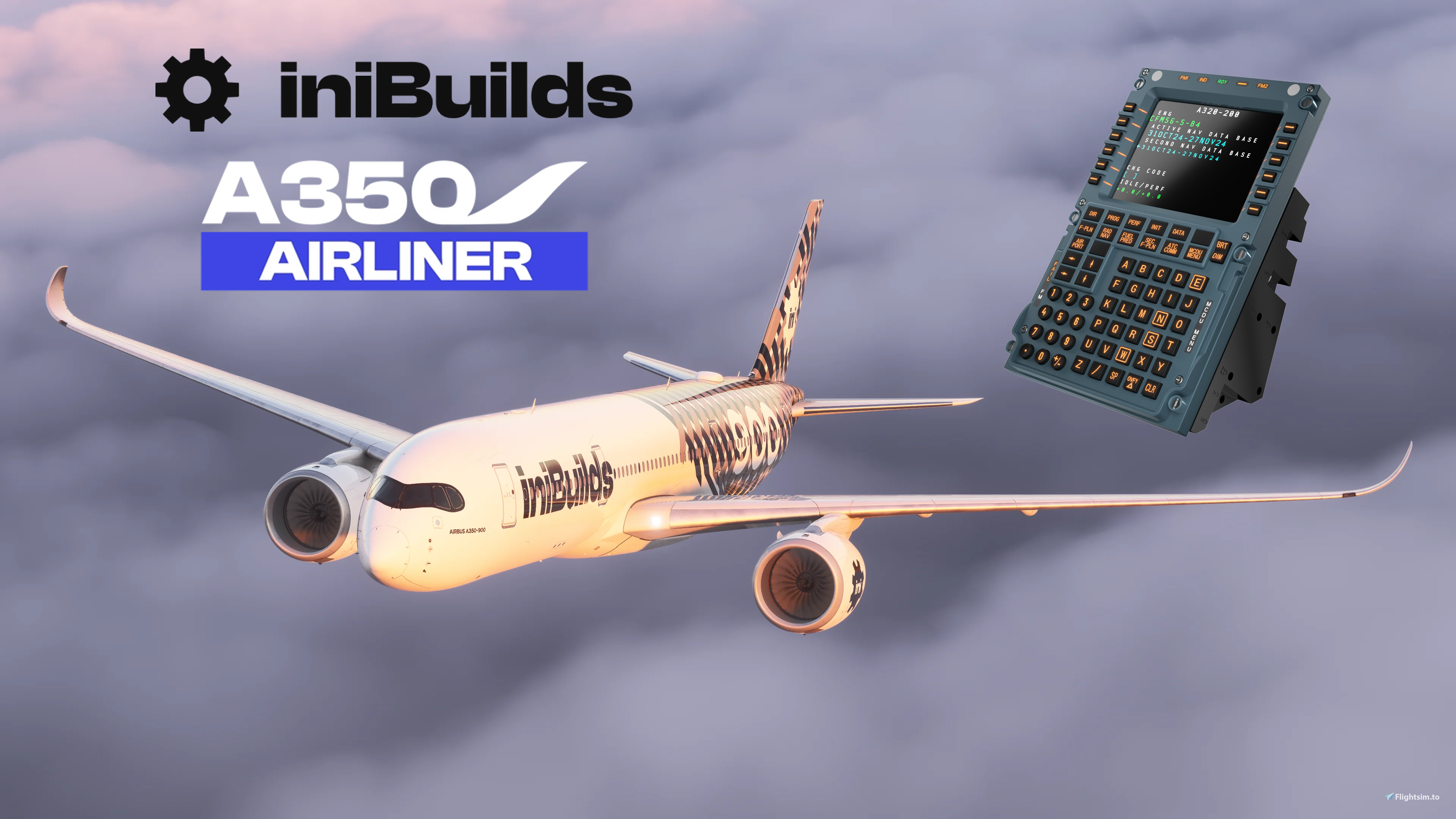
Description
WINCTRL MCDU A350 MobiFlight Profile
Requirements
- MobiFlight Connector v11.1.0.8 (Beta) or later
This profile was created and fully tested with MobiFlight Connector v11.1.0.8 (Beta).
- Earlier versions may not support all functions correctly.
Installation
- Download and install MobiFlight Connector v11.1.0.8 (Beta) or newer.
- Download the included
.mfprojprofile. - Open MobiFlight Connector.
- Select File → Open...
- Choose the downloaded
.mfprojfile. - Open Controller Bindings and select:
WINCTRL 32 MCDU CAPTAIN
Features
This profile is designed specifically for the iniBuilds A350 and includes:
- No SimApp Pro required
- Fully synchronized lighting system
Backlighting
- LEDs and annunciators
- Hardware lighting follows the aircraft state in real time
- Supports many MCDU controls
- The PROG,DATA,AIRPORT,OVFY is not supported.
Button Mapping
For a detailed button mapping and control assignment, please refer to the included images.
Notes
- This profile was developed and verified using MobiFlight Connector v11.1.0.8 (Beta).
- Using older versions may result in missing functions or incorrect behavior.
- For a complete overview of the button mappings and supported functions, see the included reference images.
- If you encounter installation or display issues, the problem may be related to the MobiFlight installation path on your system, as the location of the MobiFlight AppData folder can vary depending on the installation.
Inibuilds Airbus A350-900/1000 | WINCTRL(Winwing) MCDU | Mobiflight Profile
This Mobiflight profile enables WINCTRL MCDU hardware compatibility with the iniBuilds Airbus A350-900 and A350-1000 in Microsoft Flight Simulator. It provides synchronized backlighting, LEDs, and annunciators that reflect the aircraft's real-time state. The profile supports most MCDU controls but excludes PROG, DATA, AIRPORT, and OVFY functions. MobiFlight Connector v11.1.0.8 (Beta) or newer is required for full functionality.


User Reviews
3 reviews
Version History
No version history available.
Related
Boeing 737 MAX 8 (Asobo) &Boeing 747 Series (Asobo&Working) | Winwing FCU+EFIS | Mobiflight Profile
This add-on provides a comprehensive MobiFlight profile for the Boeing 737 MAX 8 and Boeing 747 Series in Microsoft Flight Simulator, specifically designed for Winwing FCU and EFIS hardware. Key features include full functionality for FCU and EFIS controls, allowing for dynamic adjustments and synchronized backlighting. The profile includes custom mappings for various knobs and buttons to enhance realism and operational efficiency. Installation is straightforward and does not require SimApp Pro.
by chocolatesocold
Inibuilds Airbus A350-900/1000 | WINCTRL(Winwing) FCU+EFIS L&R | Mobiflight Profile
This Mobiflight profile enables full integration of WINWING FCU and EFIS panels with the iniBuilds Airbus A350-900 and A350-1000 for Microsoft Flight Simulator. It provides real-time synchronized lighting, display, and control functions for both FCU and EFIS components. Operation is supported via Mobiflight Connector v11.1.0.8 (Beta) or newer, without the need for SimApp Pro. Detailed button mappings and control assignments are included with the download.
by chocolatesocold
Inibuilds Airbus A350-900/1000 | WINCTRL(Winwing) Throttle Metal & PAC Metal | Mobiflight Profile
This Mobiflight profile enables synchronized output functions such as lighting and vibration simulation for the Winwing URSA MINOR 32 Throttle Metal and PAC Metal hardware with the iniBuilds Airbus A350-900 and A350-1000 in Microsoft Flight Simulator. It requires Mobiflight Connector v11.1.0.8 (Beta) or later for full functionality. This profile provides real-time hardware feedback but does not include button input mappings. Compatibility is verified for setups using both throttle and PAC units together.
by chocolatesocold
Inibuilds Airbus A350-900/1000 | WINCTRL(Winwing) AGP | Mobiflight Profile
This Mobiflight profile enables integration of the WINCTRL 32 AGP Metal hardware with the iniBuilds Airbus A350-900 and A350-1000 in Microsoft Flight Simulator. It supports real-time hardware lighting synchronization, AGP display synchronization, and extensive aircraft control mappings. SimApp Pro is not required, but MobiFlight Connector v11.1.0.8 (Beta) or later is necessary for full functionality. Some features such as the UTC GPS/INT/SET switch are not supported.
by chocolatesocold
Log in to join the discussion
Log InComments20
I actually mapped the ENTER function to the blank button above the MCDU MENU button. I simply forgot to include it in the button mapping image.
I'll update the reference image right away. Thanks for catching that!
Please do not run install.bat directly from inside WinRAR.
Extract the entire Fixed MCDU Labels package to a normal folder first.
Make sure install.bat and install.ps1 are both present in the extracted folder.
Run install.bat from the extracted folder.
Then restart MobiFlight (Stop → Play) and load the iniBuilds A350 again.
Since you have already downloaded both files and run install.bat, we can rule out the basic installation step.
The MOBIFLIGHT logo on the physical MCDU shows that the display itself is working, and since the buttons are also working, the issue seems to be with the Fixed MCDU Labels files not being detected or loaded correctly.
It may be related to the MobiFlight installation path on your system, as the location of the MobiFlight AppData folder can be different depending on the installation.
You can give the README from the mod to your own AI assistant and ask it to check the installation steps, folder structure, and MobiFlight installation path with you. It may be able to identify the issue specific to your system.
If you still can't get it working, feel free to let me know.
Please make sure you have also downloaded "Fixed MCDU label display" and run install.bat. This installs the Python script required to send the fixed labels to the WinWing MCDU.
After running install.bat, restart MobiFlight (Stop → Play) and load the iniBuilds A350 again.
If you've already installed it, let me know and I'll help you troubleshoot further.
When you click Download, there are two files available:
1. Main Download (MCDU Profile)
2. Fixed MCDU Labels (Opt.)
Please download the Fixed MCDU Labels (Opt.) package as well. Extract it and run install.bat. Then restart MobiFlight (Stop → Play) and load the iniBuilds A350 again.
Could you please check whether you opened Controller Bindings and selected WINCTRL 32 MCDU CAPTAIN?
If not, the MCDU buttons will not be assigned and won't respond.
"button": {
"onPress": {
"Command": "1 (>L:INI_MCDU1_ENTER)",
"PresetId": "",
"Type": "MSFS2020CustomInputAction"
},
"onRelease": null,
"onLongRelease": null,
"onHold": null,
"LongReleaseDelay": 350,
"HoldDelay": 350,
"RepeatDelay": 0
},
RPN code: 1 (>L:INI_MCDU1_ENTER)