
Description
Welcome to GateFinder!
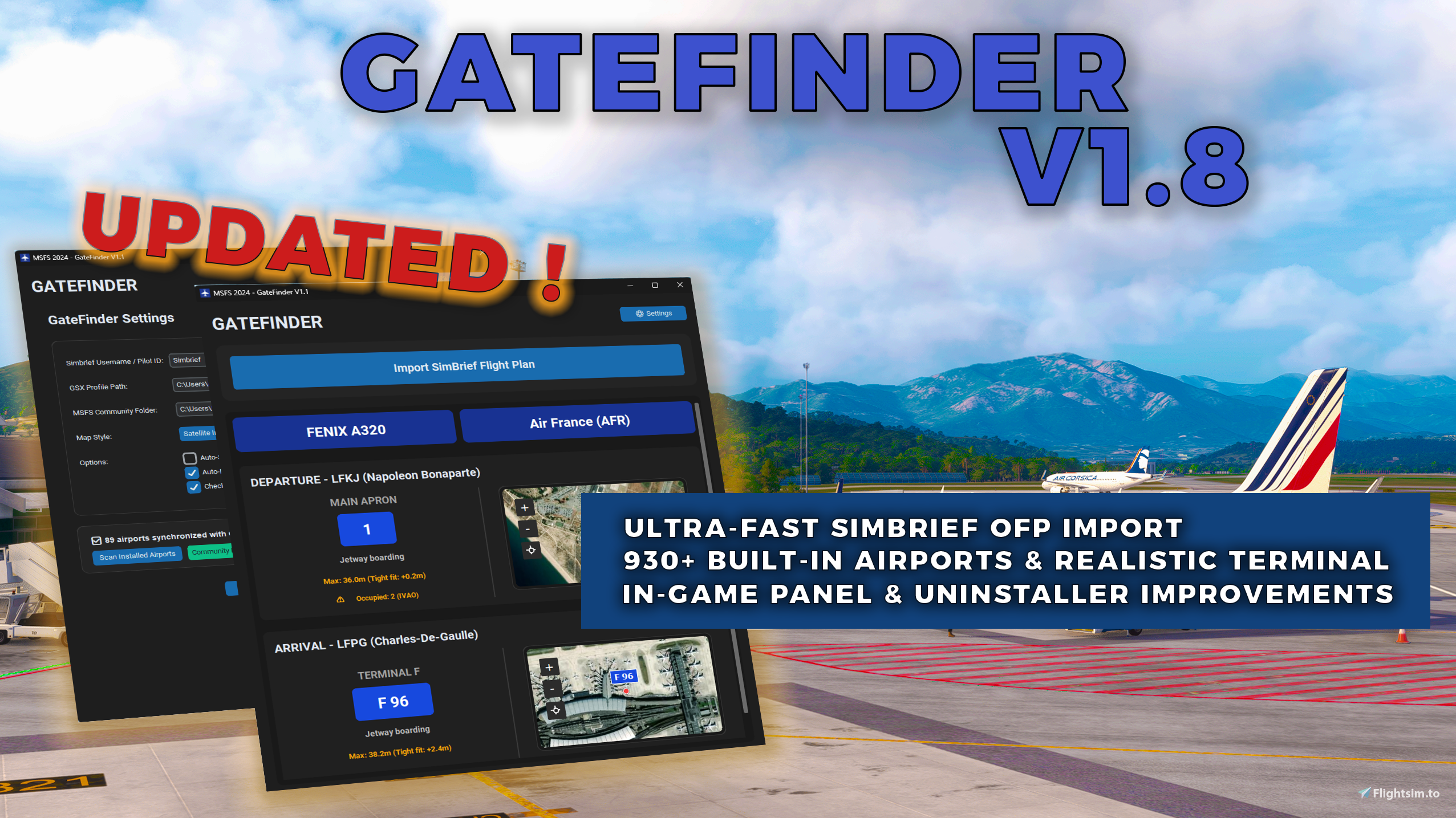
GateFinder is an intelligent, automated gate assignment tool designed for Microsoft Flight Simulator 2020 & 2024. It matches your aircraft and airline with realistic, terminal-accurate parking stands, checks gate size limits, avoids live VATSIM/IVAO traffic collisions, and displays your assigned gate on an interactive map—both in a sleek desktop app and directly inside your cockpit via the MSFS In-Game Toolbar Panel!
🌟 Key Features
- 📁 Dual Community Folder & Multi-Drive Manager (MSFS 2024 SU4+)
Full native support for MSFS 2020 & 2024 dual folders (
Community&Community2024), MSFS Addon Linker, and secondary drive paths.
- 🛩️ GSX Profile & Built-in Scenery BGL Scanner
Automatically scans local FSDreamTeam GSX profiles and default/custom MSFS scenery files to retrieve exact gate sizes, jetway availability, and airline rules.
- 📦 Virtual Airline (VA) & Freight Operations
Full support for cargo airlines and freight aircraft, complete with a dedicated Force Cargo Mode to guarantee assignment to dedicated cargo aprons and non-jetway stands.
- 🌐 Live Online Traffic Avoidance (VATSIM & IVAO)
Automatically checks live VATSIM and IVAO network data to bypass gates already occupied by online pilots. You’ll never spawn on top of another aircraft again!
- 🛰️ Interactive Mini-Map (In-Game Panel & Desktop)
View your assigned gate position on an interactive map right inside your cockpit toolbar panel or desktop app. Supports zoom, recentering, and 4 map styles (including Satellite Imagery).
- ⚡ OpenStreetMap (OSM) Fast Online Fallback
Don't have GSX profiles or custom sceneries? GateFinder queries live OpenStreetMap data using high-speed coordinate lookups and multi-endpoint mirrors to assign compatible gates anywhere in the world.
- 🔒 Smart Turnaround & AI Traffic Clearance
Automatically locks your arrival gate on turnaround flights and clears conflicting static AI traffic at your assigned stand.
- 🤝 1-Click Community Database Contribution
Easily share unlisted GSX profiles with the community. GateFinder generates a single
GateFinder_Contribution.jsonfile in your app folder that you can drag & drop onto our GitHub repository to help expand the database for everyone!
🛠️ Quick Start Guide
- Extract the
GateFinder_V1.7folder anywhere on your PC. - Launch
GateFinder.exe. - Click Settings (gear icon in the top right):
Enter your SimBrief Username or Pilot ID and click Test Connection.
- Verify your Primary Community Folder path and click Install Panel to add the cockpit panel to MSFS.
- (Optional) Click Scan Installed Airports to index your local sceneries.
- Click Save & Close.
- Click Import SimBrief Flight Plan and enjoy seamless, realistic gate assignments!
💬 Community & Feedback
GateFinder is powered by community feedback and shared airport rules. If you run into any issues, have feature requests, or want to contribute missing airports, join the conversation in the comments section below or visit our GitHub Repository!
Frequently Asked Questions
GateFinder
Have you ever landed at a massive airport after a long flight and wondered: "Which gate should I taxi to?" or "Where does my airline actually park here?" GateFinder eliminates the guesswork. It automatically imports your current SimBrief flight plan and assigns you the most realistic departure and arrival gates, perfectly matched to your aircraft type, airline, and real-world operations.


User Reviews
7 reviews
Version History
Version 1.8 — Performance Boost, 930+ Built-in Airports, & Clean Uninstaller ⚡ PERFORMANCE & SIMBRIEF IMPORT • Ultra-Fast SimBrief OFP Import (< 1 second): Completely reworked the import pipeline with parallelized Departure/Arrival processing and concurrent VATSIM/IVAO live traffic checks. • Asynchronous GUI Fetching: Importing a flight plan no longer freezes the application window while waiting for network responses. • Fixed 30s+ Overpass API Timeouts: Eliminated unnecessary OSM lookups on GSX MARS/sub-stands by reading fallback stop-position coordinates directly from local GSX profiles. ✈️ 930+ BUILT-IN AIRPORTS & REALISTIC TERMINAL / A380 ASSIGNMENT • Built-in Offline Database (931 World Airports): GateFinder now includes a native offline database of 931 commercial airports worldwide (with exact gate coordinates, wingspan limits, and jetway data). Major streamed MSFS 2024 / default airports (such as KJFK) now work instantaneously even without a custom local GSX .ini profile or when OpenStreetMap servers are offline. • Realistic A380 (iniBuilds / FBW) & Heavy Widebody Gate Logic: Enhanced Code F (80m) and Code E (A350 / B777 / B787 / B747) wingspan matching and added real-world terminal mappings for major hubs including New York JFK (KJFK Terminals 1, 4, 5, 7, 8) and Dubai (OMDB Terminal 1 Concourse D, Terminal 2, Terminal 3). • Smart Jetway Priority: Passenger flights now automatically prioritize gates equipped with a physical jetway over remote stands. • Improved Scenery Scanner: Clicking "Scan Installed Airports" now immediately reloads all local profiles and filters out non-airport configuration files and ground-vehicle dummy spots. 🛠️ IN-GAME PANEL & UNINSTALLER IMPROVEMENTS • Fixed In-Game Panel Toolbar Tooltip: Restored the missing "GateFinder" label when hovering over the icon in the MSFS toolbar (EN & FR localization). • New Clean Uninstaller: Added a dedicated "Uninstall GateFinder" button in Settings (plus a standalone Uninstall_GateFinder.bat script) that automatically removes the In-Game Panel from all detected MSFS 2020 & MSFS 2024 Community folders (Store, Steam, and custom paths) and cleans up exe.xml auto-start entries.
Related

SceneryX - The Ultimate Scenery Manager
SceneryX is a standalone desktop application for managing Microsoft Flight Simulator 2020 and 2024 scenery libraries. It provides an interactive global map to visualize owned airports, tracks investments across payware add-ons, and compares real-time prices from over 15 stores. Features include detailed metadata scanning, GSX Pro profile integration, and multi-format export options. The tool operates locally without modifying simulator files and supports multiple languages.
by wildbill75

Preflight Anarchy
Preflight Anarchy is a cockpit scramble utility designed exclusively for the Fenix A320 family in Microsoft Flight Simulator 2020 and 2024. It randomizes various cockpit switches and systems when the aircraft is loaded in a cold and dark state, simulating the experience of inheriting a non-standard aircraft configuration. Users can control the intensity and categories of randomization and trigger scrambling automatically or manually. The tool runs in the background with autostart and system tray integration for a seamless experience.
by wildbill75
Log in to join the discussion
Log InComments(62)
6 days ago
⚡ PERFORMANCE & SIMBRIEF IMPORT
• Ultra-Fast SimBrief OFP Import (< 1 second): Completely reworked the import pipeline with parallelized Departure/Arrival processing and concurrent VATSIM/IVAO live traffic checks.
• Asynchronous GUI Fetching: Importing a flight plan no longer freezes the application window while waiting for network responses.
• Fixed 30s+ Overpass API Timeouts: Eliminated unnecessary OSM lookups on GSX MARS/sub-stands by reading fallback stop-position coordinates directly from local GSX profiles.
✈️ 930+ BUILT-IN AIRPORTS & REALISTIC TERMINAL / A380 ASSIGNMENT
• Built-in Offline Database (931 World Airports): GateFinder now includes a native offline database of 931 commercial airports worldwide (with exact gate coordinates, wingspan limits, and jetway data). Major streamed MSFS 2024 / default airports (such as KJFK) now work instantaneously even without a custom local GSX .ini profile or when OpenStreetMap servers are offline.
• Realistic A380 (iniBuilds / FBW) & Heavy Widebody Gate Logic: Enhanced Code F (80m) and Code E (A350 / B777 / B787 / B747) wingspan matching and added real-world terminal mappings for major hubs including New York JFK (KJFK Terminals 1, 4, 5, 7, 8) and Dubai (OMDB Terminal 1 Concourse D, Terminal 2, Terminal 3).
• Smart Jetway Priority: Passenger flights now automatically prioritize gates equipped with a physical jetway over remote stands.
• Improved Scenery Scanner: Clicking "Scan Installed Airports" now immediately reloads all local profiles and filters out non-airport configuration files and ground-vehicle dummy spots.
🛠️ IN-GAME PANEL & UNINSTALLER IMPROVEMENTS
• Fixed In-Game Panel Toolbar Tooltip: Restored the missing "GateFinder" label when hovering over the icon in the MSFS toolbar (EN & FR localization).
• New Clean Uninstaller: Added a dedicated "Uninstall GateFinder" button in Settings (plus a standalone Uninstall_GateFinder.bat script) that automatically removes the In-Game Panel from all detected MSFS 2020 & MSFS 2024 Community folders (Store, Steam, and custom paths) and cleans up exe.xml auto-start entries.
6 days ago
⚡ PERFORMANCE & SIMBRIEF IMPORT
• Ultra-Fast SimBrief OFP Import (< 1 second): Completely reworked the import pipeline with parallelized Departure/Arrival processing and concurrent VATSIM/IVAO live traffic checks.
• Asynchronous GUI Fetching: Importing a flight plan no longer freezes the application window while waiting for network responses.
• Fixed 30s+ Overpass API Timeouts: Eliminated unnecessary OSM lookups on GSX MARS/sub-stands by reading fallback stop-position coordinates directly from local GSX profiles.
✈️ 930+ BUILT-IN AIRPORTS & REALISTIC TERMINAL / A380 ASSIGNMENT
• Built-in Offline Database (931 World Airports): GateFinder now includes a native offline database of 931 commercial airports worldwide (with exact gate coordinates, wingspan limits, and jetway data). Major streamed MSFS 2024 / default airports (such as KJFK) now work instantaneously even without a custom local GSX .ini profile or when OpenStreetMap servers are offline.
• Realistic A380 (iniBuilds / FBW) & Heavy Widebody Gate Logic: Enhanced Code F (80m) and Code E (A350 / B777 / B787 / B747) wingspan matching and added real-world terminal mappings for major hubs including New York JFK (KJFK Terminals 1, 4, 5, 7, 8) and Dubai (OMDB Terminal 1 Concourse D, Terminal 2, Terminal 3).
• Smart Jetway Priority: Passenger flights now automatically prioritize gates equipped with a physical jetway over remote stands.
• Improved Scenery Scanner: Clicking "Scan Installed Airports" now immediately reloads all local profiles and filters out non-airport configuration files and ground-vehicle dummy spots.
🛠️ IN-GAME PANEL & UNINSTALLER IMPROVEMENTS
• Fixed In-Game Panel Toolbar Tooltip: Restored the missing "GateFinder" label when hovering over the icon in the MSFS toolbar (EN & FR localization).
• New Clean Uninstaller: Added a dedicated "Uninstall GateFinder" button in Settings (plus a standalone Uninstall_GateFinder.bat script) that automatically removes the In-Game Panel from all detected MSFS 2020 & MSFS 2024 Community folders (Store, Steam, and custom paths) and cleans up exe.xml auto-start entries.
9 days ago
What can I do?
9 days ago
7 days ago
7 days ago
Here are a few quick checks to completely remove it:
1. Make sure to delete the package from your actual MSFS Community folder:
Deleting the GateFinder desktop app does not automatically remove the in-game toolbar package if it was copied manually or if you have multiple simulators installed.
Look for the folder named "wildbill75-gatefinder" inside your "Community" folder and delete it:
MSFS 2020 (MS Store):`%localappdata%\Packages\Microsoft.FlightSimulator_8wekyb3d8bbwe\LocalCache\Packages\Community\
MSFS 2020 (Steam): "`%appdata%\Microsoft Flight Simulator\Packages\Community\
MSFS 2024 (MS Store):`%localappdata%\Packages\Microsoft.Limitless_8wekyb3d8bbwe\LocalCache\Packages\Community\
MSFS 2024 (Steam): `%appdata%\Microsoft Flight Simulator 2024\Packages\Community\
(Or your custom drive folder if you installed MSFS on another drive).
2. If you use MSFS Addon Linker:
Make sure you have unchecked/unlinked `wildbill75-gatefinder` in Addon Linker, otherwise the link will keep pointing to it.
3. Restart the simulator & Reset Toolbar:
Fully restart MSFS (closing to the main menu is not enough).
Once in flight, if a "ghost" icon still appears on the top toolbar: open the toolbar, click the Settings (gear icon) at the far right, and click "Reset to default".
Let me know if you still have trouble finding it!
about 1 hour ago
about 1 month ago
about 1 month ago
about 1 month ago
about 1 month ago
Hello fellow aviators!
With the long-awaited release of the iniBuilds Airbus A380, parking such a titan without clipping a terminal building or being sent to an undersized regional gate requires surgical precision.
GateFinder V1.7 introduces dedicated super-heavy logic designed from the ground up for the Queen of the Double-Decker :
🔹 Authentic Code F Clearance : Full support for the A380’s massive 79.75m wingspan — no more undersized stands or wing strikes. 🔹 Real-World A380 Stands : Prioritized allocation for dual/triple jetway gates and genuine A380 parking spots across your local GSX profiles and global data. 🔹 Airport Capability Check : Diverting or landing at a field without Superjumbo facilities? GateFinder clearly informs you: "No A380 gate for this airport". 🔹 Seamless Cockpit Integration : 1-click SimBrief import, real-time VATSIM/IVAO occupancy bypass, and direct in-game Toolbar Panel support inside MSFS 2020 & MSFS 2024.
📦 Grab your copy of V1.7 today and enjoy true-to-life heavy operations! 🛫
about 2 months ago
Makes it very easy to find company gates.
Would be nice to add more from the contributions.
So we can have a bigger network.
2 months ago
2 months ago
GateFinder is mainly designed to automatically find realistic, airline-specific gates for pilots who don't have a specific gate assigned yet.
While GSX code doesn't allow external apps to force gate selection automatically, GateFinder finds the perfect gate for your aircraft so you can easily pick it in GSX. If you fly on VATSIM/IVAO or use ATC addons (like BeyondATC or SayIntentions), you can use GateFinder to check for free gates or request the assigned gate from ATC!
2 months ago
Hi everyone! 👋
First of all, a huge thank you to the entire community for all your fantastic feedback, bug reports, and feature suggestions since the release of V1.5. Your input has been invaluable in making GateFinder better with every update!
I'm excited to announce that GateFinder V1.6 is now available! I have worked hard to address every single issue and suggestion raised by you over the past few weeks.
🌟 Key Highlights in V1.6:
📁 Dual Community Folder Support (MSFS 2024 / SU4+): Added full support for separate Community and Community2024 folders, as well as Addon Linker custom drives.
💻 Laptop Screen & UI Scaling Fix: The Settings menu now dynamically resizes to your monitor (768p, 900p, 1080p, 4K) with a smooth scrollable container and pinned bottom buttons—no more off-screen buttons on laptops!
📦 Virtual Airline & Freight Operations: Added expanded cargo carrier keyword detection and a dedicated Force Cargo Mode toggle for virtual cargo pilots.
🛩️ GSX Split Gate Label Fix: Fixed stand positions (e.g., Stand L 12, Gate R 15) generating fictitious Terminal L or Terminal R names.
🌐 Upgraded Online Fallback & Scenery Scanner: Faster OpenStreetMap lookups with mirror fallbacks, plus clear guidance for pilots running without GSX profiles (Scan Installed Airports button).
📤 Streamlined Community Contributions: Missing GSX airport contributions now save directly in your main GateFinder folder and automatically track shared profiles.
💬 Please Give V1.6 a Try!
Please test this new version on your setup and let me know how it works for you! If you run into any issues or have ideas for new features, don't hesitate to leave a comment below.
Thank you once again for your support and happy flying! ✈️🌍
2 months ago
2 months ago
2 months ago
2 months ago