About this addon
Phenom 300E Autopilot Profile
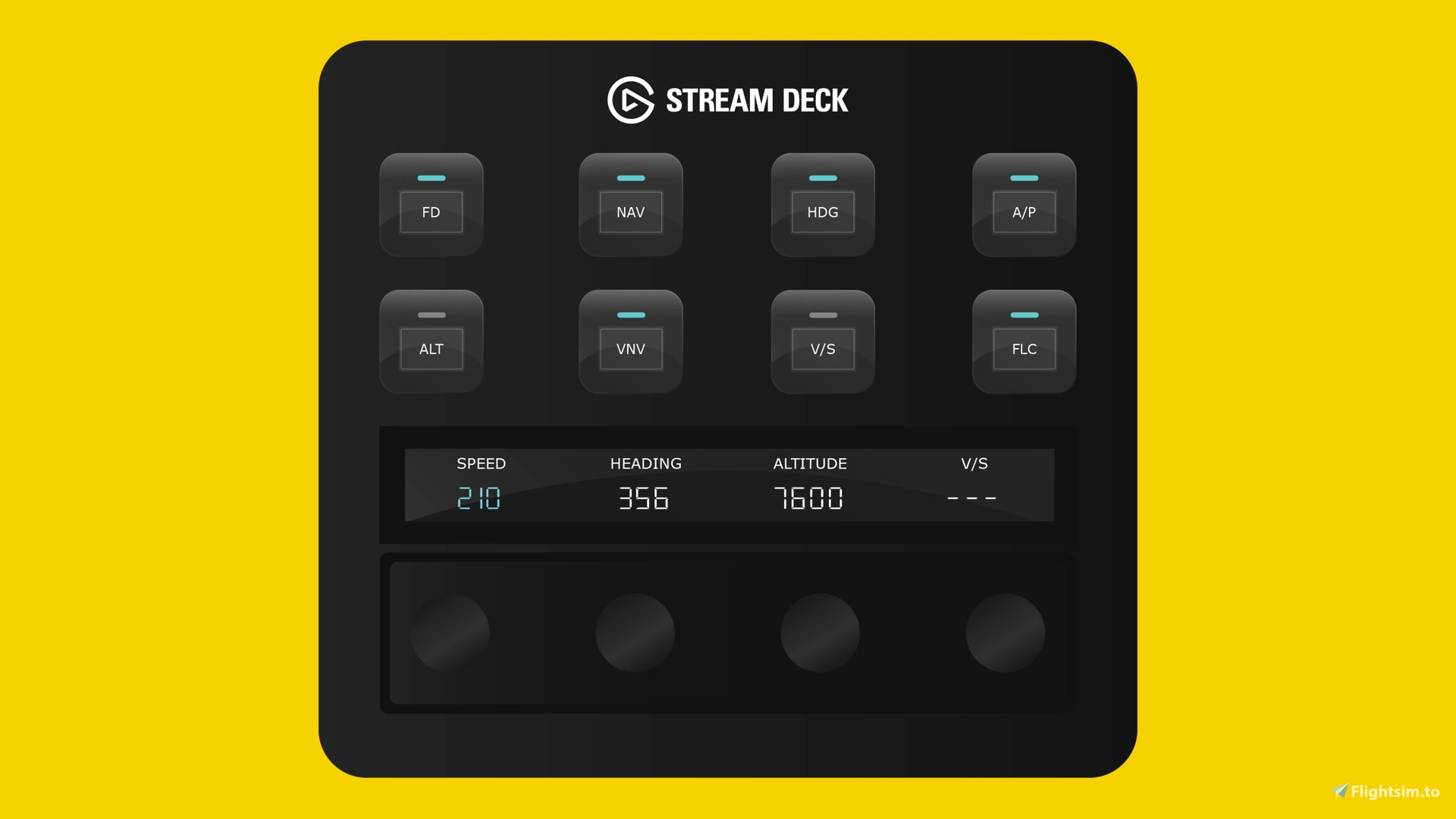
With the Flight Panels Autopilot Profile for the FSReborn Phenom 300E, you can control autopilot, communications, navigation, EFIS, transponder, internal lighting and more, all from the Stream Deck +’s physical buttons, LCD touchscreen and rotary dials.
Watch speed, heading, vertical speed, altitude and frequencies update in real time as you turn the dials, adding a new level of realism to your flight simulation experience. For a comprehensive list of features and functionality (which may vary between aircraft), please see below.
Flight Control Panel 1 (FCP)
Button Controls: Flight Director (FD), NAV Mode (NAV), Heading Mode (GDH), Autopilot (A/P), Altitude Hold Mode (ALT), Vertical Navigation (VNV), Vertical Speed (V/S), FLC Mode (FLC). Rotary Dials & LCD Screen: Real-time values for speed, heading, altitude, and vertical speed. Rotate the rotary dials left or right to increase or decrease values.
Speed: Press the rotary dial to toggle SPEED FMS/MAN mode, tap the screen to toggle IAS/MACH; Heading: Press the rotary dial to sync current heading, tap the screen to toggle Heading mode; Altitude: Press the rotary dial to toggle Altitude hold mode or tap the screen to toggle FLC Mode; Vertical Speed (V/S): Press the rotary dial or tap the screen to toggle VS mode.
Flight Control Panel 2 (FCP)
Button Controls: Flight Director (FD), NAV Mode (NAV), Heading Mode (GDH), Autopilot (A/P), Altitude Hold Mode (ALT), Vertical Navigation (VNV), Vertical Speed (V/S), FLC Mode (FLC). Rotary Dials & LCD Screen: Real-time values for speed, course, altitude, and vertical speed. Rotate the rotary dials left or right to increase or decrease values.
Speed: Press the rotary dial to toggle SPEED FMS/MAN mode, tap the screen to toggle IAS/MACH; Course: Press the rotary dial to re-centre CDI, tap the screen to change Active NAV; Altitude: Press the rotary dial to toggle Altitude hold mode or tap the screen to toggle FLC Mode; Vertical Speed (V/S): Press the rotary dial or tap the screen to toggle VS mode.
Flight Control Panel 3 (FCP) / Communications
Button Controls: Flight Director (FD), NAV Mode (NAV), Heading Mode (GDH), Autopilot (A/P), Altitude Hold Mode (ALT), Vertical Navigation (VNV), Vertical Speed (V/S), FLC Mode (FLC). Rotary Dials & LCD Screen: Real-time frequency values for COM1/COM2 (Active and Standby). Rotate rotary dials 1 and 2 to change the standby frequency for COM1 and dials 3 & 4 for COM2. Tap the screen or press a rotary dial to swap between Standby and Active
Transponder
Button Controls: Autopilot (A/P), Approach Mode (APR), Yaw Damper (YD), Current Speed Control (CSC), Couple (CPL), Speed Mode, Speed Unit. Rotary Dials: Rotate the rotary dials to increase or decrease each of the transponder digits. Tap the screen or press a rotary dial to synchronise the cockpit display.
Navigation
Button Controls: Autopilot (A/P), Approach Mode (APR), Yaw Damper (YD), Current Speed Control (CSC), Couple (CPL), Speed Mode, Speed Unit. Rotary Dials & LCD Screen: Real-time frequency values for NAV1/NAV2 (Active and Standby). Rotate rotary dials 1 and 2 to change the standby frequency for NAV1 and dials 3 & 4 for NAV2. Tap the screen or press a standby rotary dial to swap between Standby and Active
EFIS
Button Controls: Autopilot (A/P), Approach Mode (APR), Yaw Damper (YD), Current Speed Control (CSC), Couple (CPL), Speed Mode, Speed Unit. Rotary Dials: Real-time values for Baro, Minimums, and Map Zoom. Rotate the rotary dials left or right to increase or decrease values. Baro: Press the rotary dial or tap the screen to toggle STD mode. Minimums: Press the rotary dial or tap the screen to toggle Minimums mode.
Lighting
Button Controls: Landing, Nav, Strobe, Inspection Lights, and Emergency Lights. Rotary Dials: Rotate the rotary dials to increase or decrease light intensity.
About Flight Panels
Our mission is to become an integral part of any Microsoft Flight Simulator setup, through the creation of professional, highly detailed, modern and consistency designed Stream Deck profiles, which maximise the immersive experience of Microsoft Flight Simulator. Our focus on user design, user experience and product research, backed by regular product updates and dedicated industry leading support - is there to provide our community with the confidence that a key part of their Flight Simulator setup will be regularly updated and supported.
Frequently Asked Questions
Q: Do you provide regular product updates?
We regularly update our Stream Deck Profiles to include new features, functionality and bug fixes and we're delighted to provide these free of cost, for the duration of the products lifespan. Announcements are also published on our Discord server and Release Notes are available on our product updates blog.
Q: What if I need support?
We provide free industry leading support by email (support[at]flightpanels.io), Discord and Live Chat (available on the bottom right hand corner of each webpage). On average, we respond to support requests in less than 15 minutes!
Q: How are your products installed?
Installation is performed through the Flight Panels All-In-One Installer, which automatically installs and configures third party applications (FSUIPC7, PilotsDeck, .NET Runtimes etc.) to make installation a breeze.
Q: How is the product licensed?
This product is for personal and home use. For commercial use and/or where used to generate revenue (directly or indirectly) a commercial license is required. Please contact support[at]flightpanels.io for further information.
Q: How can I keep up to date with the latest news?
Blog: https://flightpanels.io/blog/news
Product Updates: https://flightpanels.io/blog/product-updates
Support Portal: https://support.flightpanels.io
Instagram: https://instagram.com/flightpanels
Threads: https://threads.net/flightpanels
Discord: https://flightpanels.io/discord
User Reviews

Treacle
VerifiedAug 18, 2026
The product is misleading, there is not a simple tutorial included, there is no mention of Phenom 300E or MSFS in the App.
Phenom 300E Stream Deck + Autopilot Panel
This add-on provides a comprehensive Stream Deck Plus autopilot and control profile for the FSReborn Phenom 300E in Microsoft Flight Simulator. It enables management of autopilot, EFIS, navigation, communication, transponder, and lighting functions using physical buttons, tactile rotary dials, and touchscreen controls. Real-time readouts for speed, heading, altitude, and frequencies are displayed and adjustable directly from the Stream Deck Plus. Designed for ease of use and regular updates, the profile aims to optimize cockpit workflow and accuracy.

Instant digital delivery • Secure payment
Requirements
Additional Requirements
- Stream Deck +
- Microsoft Flight Simulator 2024 (Steam or Microsoft Store)
- The aircraft referenced in the product description
More by this publisher
AeroLens Pro - FlyByWire A32NX - Stream Deck Profile
Miscellaneous
€ 21,22
Stream Deck Series: HPG H145 Helicopter
Miscellaneous
€ 27,93
FSS E-Jets ERJ 170-195 Stream Deck + Autopilot Panel
Miscellaneous
€ 21,22

AeroLens Lite - Stream Deck Profile
Miscellaneous
€ 21,22
Stream Deck Series: Cessna 414 AW Chancellor
Miscellaneous
€ 27,93
Details
- Category
- Miscellaneous
- Release Date
- Jul 28, 2026
- Last Updated
- Aug 3, 2026
- Reviews
- 1
- Compatibility
- MSFS2024