
Description
MSFS Mobile Companion App
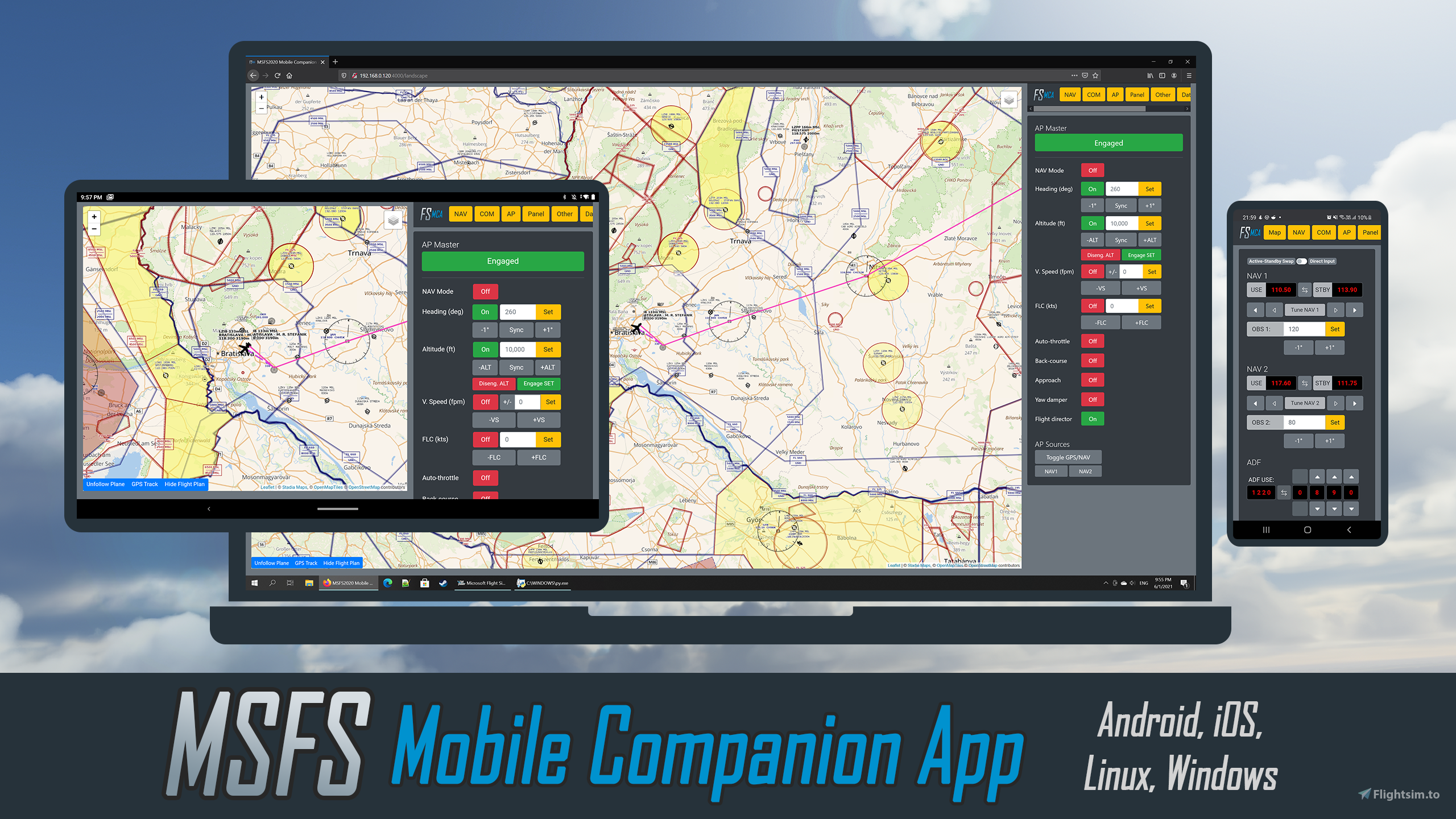
MSFS Mobile Companion App is a tool that allows you to control essential aircraft instruments such as NAV/COM frequencies, autopilot, or lights using almost any mobile device, notebook or PC. The MSFS Mobile Companion App is free to use.
Don't install the app on your mobile device. Download and run it on your PC. This creates a local web server to which you connect from your mobile device via an IP address.
MSFS Mobile Companion App features:
- Moving Map (Open Street Maps).
- Load flight plan into the map.
- NAV 1/2 frequency and OBS 1/2 selection.
- ADF frequency and ADF card selection.
- COM 1/2 and transponder selection.
- Autopilot with altitude, vertical speed, and airspeed settings.
- GPS controls.
- Gyro drift and altimeter pressure settings.
- Light controls.
- Pitot heat and deicing controls.
- Gear, flaps and spoilers.
- Trim (elevator, rudder and aileron).
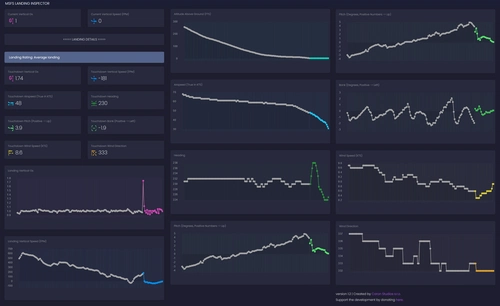
- Landing ratings (vertical speed at touchdown).
- Simulation rate controls.
Supported Aircraft Controls Profiles:
- Default GNS430/530 and G1000 (to be used with default MSFS planes and other third-party planes without dedicated controls profiles)
- A320 by Asobo
- A32NX v0.6.3 stable and development by FlyByWire
- CRJ-550/700 by Aerosoft
- DC-6 by PMDG
- FG-1D Corsair by MilViz
- Ju-52 Classic and Retrofit by Asobo
- Long-EZ by IndiaFoxtEcho
- MB-339 by IndiaFoxtEcho
- PA-28R Arrow III (GPS100, GNS530, GNS Dual) by Just Flight
Update November/4/2021 Version 1.9.1 Changelog:
- Added controls profile for the Ju-52 Classic and Retrofit by Asobo
- Improved UI for all NAV controls
- Removed pop-up for panel switches
- Added approximate G-forces at touchdown in the Data tab
How do I run MSFS Mobile Companion App?
- Copy the mobiflight-event-module folder into the Community folder of Microsoft Flight Simulator. The MobiFlight WASM Module allows the app to access additional cockpit switches. You will find the Community folder under:
- MS Store users: C:\Users\YOURUSERNAME\AppData\Local\Packages\Microsoft.FlightSimulator_8wekyb3d8bbwe\LocalCache\Packages
- Steam users: C:\Users\YOURUSERNAME\AppData\Roaming\Microsoft Flight Simulator\Packages\
- Open the settings.txt file, that you’ve unzipped together with the MSFS_MCA_v1-9.exe and this guide, and change the last line to reflect your Microsoft Flight Simulator installation folder. This step is only necessary if you wish to use the Load Flight Plan functionality. Hint:
- MS Store users: C:\Users\YOURUSERNAME\AppData\Local\Packages\Microsoft.FlightSimulator_8wekyb3d8bbwe\
- Steam users: C:\Users\YOURUSERNAME\AppData\Roaming\Microsoft Flight Simulator\
- Make sure your PC and your mobile device are connected to the same local network and that your home network is set to *Private* in your Network Profile settings.
- Start a flight in Microsoft Flight Simulator.
- Run MSFS_MCA_v1-9.exe that you've unzipped previously.
- A Microsoft Defender security window may open when launching MSFS_MCA_v1-9.exe for the first time. Allow the "unrecognized app" to run. Additionally, a Windows Security Alert Window may open when you launch MSFS_MCA_v1-9.exe for the first time. Allow private network access for MSFS_MCA_v1-9.exe in the Windows Security Alert Window.
- A command line window will open that will give you instructions on the IP-address where you can access the MSFS Mobile Companion App. Don't close the command line window.
- Open the IP-address in your mobile device's web browser. The IP address will most likely be something like *192.168.0.XXX:4000*.
Notice: You can launch MSFS Mobile Companion App directly from your PC's browser. In that case, just type in localhost:4000 in your browser's url bar.
Known issues:
- Tuning NAV frequencies on the CRJ will only work if the two radio tuning units (RTU) are in their default state e.g., no sub-menu selected, NAV1 selected on the left RTU and NAV2 selected on the right RTU.
- Changes to COM frequencies in the A320 will not be shown in the cockpit but will work nevertheless. To force an update of the frequency in the cockpit switch from VHF1 to VHF2 and then back to VHF1 (this is for COM1 frequencies).
- When using the Load Flight Plan button without having a waypoint programmed in your plane’s GPS, you might see a dashed violet line pointing towards 0,0 GPS coordinates or to your last GPS waypoint from your previous flight.
- NAV frequencies can get out of sync, especially when rapidly pressing frequency adjustment buttons. Use the "Force Sync Frequencies" button to synchronize frequencies with the sim.
- NAV frequencies may not automatically synchronize when starting a second flight. Use the "Force Sync Frequencies" button to synchronize frequencies with the sim.
- You may see landings with a vertical speed between 0 and 5 fpm in the app. This is caused by the sim recording the plane loading on the ground at the start of a flight as a landing.
- The app may not work on a fresh Windows 10 installation. You may see a "Could not find MSFS running. Please launch MSFS first and then restart the MSFS 2020 Mobile Companion App." message even if MSFS is running. To fix this, please download and install the Microsoft Visual C++ 2015 Redistributable.
Credits
MSFS Mobile Companion App is based on the Python SimConnect project. The app uses MobiFlight’s WASM Event Module and the MSFS Python SimConnect MobiFlight Extension by Koseng to access additional switches and buttons which aren’t accessible via standard SimConnect. KML load feature by luka97. I would like to thank Just Flight, Aerosoft, IndiaFoxtEcho, MilViz, and PMDG for providing a copy of their aircraft.
You can follow the development of MSFS Mobile Companion App on GitHub.
Donation
If you like this tool and would like to support the development, please consider donating via PayPal by clicking here.
MSFS Mobile Companion App
Control essential aircraft instruments with the MSFS Mobile Companion App, a free tool compatible with various MSFS aircraft. Features include moving map, autopilot settings, light controls, and more. Easily access the app from your mobile device via a local web server set up on your PC. Stay updated with the latest version offering improvements and new controls profiles.


Supporters

User Reviews
112 reviews
Version History
- Added controls profile for the Ju-52 Classic and Retrofit by Asobo - Improved UI for all NAV controls - Removed pop-up for panel switches - Added approximate G-forces at touchdown in the Data tab
Log in to join the discussion
Log InComments(540)
4 months ago
over 1 year ago
Mostly, I'd like it to remember Landscape view, and load the default G1000....if it can load up on the PFD page, that's a bonus.
over 1 year ago
Also, I am quite young, so I'm not too familiar with what the description means.
over 1 year ago
I have just released an evolution of this brilliant app, updating the SDK for MSFS 2024 and implementing other new features:
https://flightsim.to/file/90024/msfs-glass
Feel free to check it out on Github: https://github.com/fzsombor/MSFS-Glass
over 1 year ago
Since the project is simply additions made to SimConnect Python, I have a project of completely rewriting it from the ground up to keep this extremely good addon up to date and with more features!
I'm soon going to create a discord server for us to get together in this revival project!
7 months ago
over 1 year ago
over 1 year ago
over 1 year ago
It will no connect on mobile or android tablet, they are both on the same network. I have tried disabling any VPN and firewalls. Please help.
almost 2 years ago
almost 2 years ago
almost 2 years ago
almost 2 years ago
almost 2 years ago
almost 2 years ago
about 2 years ago
about 2 years ago
circuit.25 = Type:CIRCUIT_AUTOPILOT #Connections:bus.2 #Power:10, 15, 20.0 #Name:Autopilot ; Autopilot 15W
Obviously, other planes will need a different setup in keeping with their circuitry.
End Edit
So I tried to use it for a while with a plane I've used it with before, the Piaggio P149. There seems to be a disconnect regarding the Autopilot. I thought the "Engage" button used to turn green when it was turned on. The main "Engage Autopilot" no longer does anything. And I couldn't get any of the other commands to work either. Now, this may be my problem. But I think it's not working the same as it used to. The rest of the pages seem to work, however. It definitely still connects to the sim.
Is my problem related to the GPS/Nav issue that you have to switch to the GPS then switch to NAV? Unfortunately, if this is the case, that's a problem, since the P149 does not have a GPS. I suppose I could make a PMS GTN750 popup window, but I'd rather avoid that.
over 2 years ago
about 2 years ago
over 2 years ago