
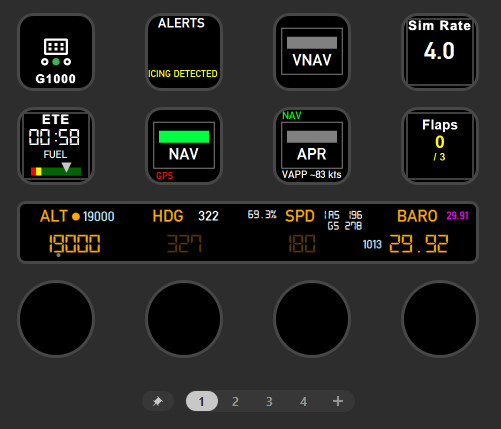
Description
Warning (Sep 17, 2025): Some users have reported performance issues when running this profile, which seem to be linked to the first page. There is a lot happening on that first page, so if you notice performance issues, (a) it's my profile's fault, not an issue with PilotsDeck, and (b) try moving some buttons off the first page and test if that helps. If I figure out a specific culprit I'll post an updated version.
Overview:
This is a StreamDeck profile for the StreamDeck + (the one with the knobs) created using Fragtality’s excellent “PilotsDeck” plugin. The knobs are a huge focus of the functionality, they really elevate the potential of the stream deck over just having buttons--but if all you have is a classic stream deck with just buttons, there are still a handful of buttons here that you might find useful. Most testing and development has been in MSFS 2024 with career planes like the Cessnas 172 and 208 and the Pilatus PC-12, but this profile uses mostly generic variables/commands that aren’t specific to any plane, so it should have decent functionality across a wide range of planes. There are also some specific acomodations for the Vision Jet SF50 and the 737 Max 8. But it won't perfectly with every plane.
The objective of this profile is to pack as much information and control on a single page as possible, working within the limits of what kind of variables/commands are available for generic planes. But over time I've accumulated more functions than can fit on one page, and fellow PilotsDecker @thespinner has contributed 3 entire additional pages of G1000 functions. So you can pick and chose what's most useful for you as a single page profile, or you can swipe / add page shortcuts to take advantage of some of the extra pages.
Things You Must Install for this to Work:
- PilotsDeck by Fragtality. But note you do not need to install vjoy or FPUIC, which are optional add-ons when installing PilotsDeck. (Version 1.3 of this plugin is the first one that doesn't use FPUIC at all -- earlier versions used it in a couple of places, so consider upgrading if you're still on one of those)
- Fonts* (these are the same as the ones used in Fragtality’s A320 profile, which I've used as a bit of a style template)
- Digital-7 (regular and mono)
- Alte din 1451 mittelschrift (regular and bold)
* Maybe you don't need to install the fonts, but the sizing of the text will probably be funky if you don't. I think these are very nice fonts. You can find them as free downloads just by searching for them.
Functions Explained:
- ETE Button. Time to final destination in hours and minutes. Based on the programmed flight plan, and influenced by your current speed, so it isn't really accurate until you've settled into the cruise. Underneath the ETE there is a fuel gauge.
- Sim Rate Button. Shows the current simulation rate in large font. Intended to be used in combination with a diffferent device (joystick, keyboard, etc.) that has keybindings mapped for "increase sim rate" and "decrease sim rate" (recommended), or "plus" and "minus" (workable but not recommended -- see more about this under "Page 2" below).
- Flaps Button. Shows the current flap setting (as an index number, and also in degrees) and the total number of flap increments. Also displays the speed limit for the current flap settting (when flaps are extended), and the colour of this indicator will turn red if you are within 12 kts of the speed limit. Pressing this button does nothing. A pink border will appear on the button if flaps are extended more than 4000 feet off the ground. This is intended to help flag situations where you have forgetten to fully retract your flaps after take-off. The degree measurement is the actual angle of the flaps, rather than just a conversion of the index number.
- Wind Gauge. New in v. 1.3 -- shows the the indicator around the perimeter of the gauge shows the direction from which wind is coming, relative to the heading of the plane, so you can easily see at a glance whether its a headwind, crosswind, etc. The numbers in the middle show the current wind direction (true, rather than magnetic--same as METARs), wind speed, and ambient temperature.
- Alerts Button. An alert will be flagged here in 6 different scenarios. Pressing this button does nothing.
- (1) "FUEL QTY" - Multiplying the current fuel burn rate by the estimated time en route (ETE) suggests a risk of running out of fuel. Will not trigger until you're off the ground, as the ETE is nonsense at ground speeds.
- (2) "DAMAGE" - Can detect "general engine" damage (as a percent) and "flap damage by speed" (yes/no). If there are both kinds of damage, then only the engine damage alert will appear, because it's the more severe concern.
- (3) "TERRAIN" - altitude above ground is less than 2000 feet, the plane is descending at more than 400 feet per minute, and there isn't a recognized runway approach.
- (4) "ICING". Can detect an accumulation of ice on either the pitot or the "structure". "ICING DETECTED" will be in yellow if the accumulation is less than 40%, and red if it's more than that. If no icing is detected, it may instead show "ICING RISK", if the ambient temperature is between -20 and +2 degrees celsius, and either the plane is flying through a cloud, or it is currently raining or snowing. There can be a very small accumulation of ice even without visible moisture, when it's cold.
- (5) "FLAPS" - Flaps are extended, and the current indicated airspeed is within 12 knots of the flaps speed limit.
- (6) "FREQ CHANGE" - during IFR flight, the COM1 frequency does not match the frequency of the "next ATC agent".
- NAV Button. Does the same thing as the NAV button in the cockpit, and the colored indicator matches whether it is active. Some accessory indicators around the edges:
- An “IFR” indicator will appear in the upper left if ATC has cleared you for an IFR flightplan.
- In IFR flight, a magneta indicator at the top of the button identifies the next waypoint expected by ATC.
- If the currently tuned COM1 frequency does not match the radio frequency of your assigned ATC agent, then the next waypoint indicator will be replaced with the frequency you should be tuned to.
- A “GPS” indicator in the lower left will be green if GPS is driving the navigation, and red if a radio frequency is driving it instead (the G1000 toggles off GPS nav somewhat randomly, and this can help alert you to that happening).
- A “LOC” indicator in the lower right will light up in red if a localizer is tuned and near on one of the radio frequencies. It will change colour to green if the LOC is driving the navigation (instead of GPS).
- APR Button. Does the same thing as the APR button in the cockpit, and the colored indicator matches whether it is active. Accessory indicators:
- A “NAV” indicator in the upper left will be red if no approach is programmed into the flight plan, and green if it is.
- A teal “GS” indicator in the upper middle will light up when active on an approach with a glideslope. The main indicator light on the approach button will change from green to teal if you are actively following the glideslope.
- If ATC assigns you a runway for landing, then that runway will be shown in magenta in the upper right. It will change colour to green if ATC clears you for landing on that runway. This doesn't work well with untowered airports.
- The bottom of this button loads with a rough calculation of the correct approach speed for the aircraft. It is calculated as 1.3 times the stall speed in a landing configuration (gear out, flaps max), i.e. "VSO". This is just a rough shorthand, and is affected by weight. If information about an active approach is available, then the VAPP will be displaced by that.
- The approach “type”, e.g. RNAV, ILS, LOC, will be indicated in the lower left, if known (works best with G1000, less so with other kinds of avionics).
- When on the approach, an indicator in the lower right will light up to indicate your position in the approach. “on TRANS” (transition), “on FINAL”, or “MISSED” (again, this works best with G1000 avionics).
- ALT Knob. Rotate the knob to change the target holding altitude. Push to toggle altitude hold mode. Tap the touch surface to alternate between 100s and 1000s for knob adjustments (current setting is indicated by a small gray dot under either the 100s digit or the 1000s digit).
- The large type in the middle usually indicates the current target holding altitude. However, under 250 feet off the ground, it switches to an AGL readout (above ground level). This is meant to be useful on an approach to help time the flare, on planes without radio altimeters.
- The holding altitude will appear faded unless an altitude mode is active (FLC, VS, hold, or VNAV).
- An orange dot in the upper middle will appear to indicate when altitude hold mode is active.
- If hold-mode is active and the current altitude matches the target altitude (roughly), then it will be coloured orange. If it does not match the target altitude, then it will be coloured teal, to signify the mismatch (a similar colour scheme is also used for the heading and speed displays).
- A mini read-out of indicated altitude is shown in the upper right
- In IFR Flight, the altitude currently assigned by ATC will appear in magenta, at the bottom of the button.
- HDG Knob. Rotate the knob to change the target holding heading. Push to toggle heading hold mode. Tap the touch surface to sync to current heading.
- The large type in the middle indicates the target hold heading. It will appear faded unless heading hold mode is active.
- An orange dot in the upper middle indicates when heading hold mode is active.
- When heading hold mode is active, the number will appear in orange if it matches the actual heading, and will appear in teal if it is off by more than 2 degrees.
- SPD Knob. Rotation controls either the FLC/Autothrottle target speed (they’re linked), or vertical speed in VS mode. Push to toggle FLC mode. Tap the screen to toggle VS mode.
- During flight the large type shows either the FLC speed (by default) or the VS speed (if VS mode is active). The text will be faded when neither of these modes is active. If you’re in a plane with an autothrottle, changing the FLC speed also controls the autothrottle target speed. A different “AT” label will appear in the SF50 Vision Jet and the Pilatus PC12, where I've identified variables for detecting this, but even in other planes, you can still adjust the autothrottle speed by adjusting the faded FLC speed, and it should work.
- On the ground this instead shows the current ground velocity. This is useful to monitor speed for taxiing, which is particularly useful in career mode where a ~20 kt speed limit is enforced.
- Permanent readouts of indicated air speed and ground speed are in the upper right, in small text.
- Throttle percentage is indicated in the upper left. It changes colour to yellow between 87 and 93%, and changes colour to red above 93%. This is just a rough approximation of the caution and danger ranges, engine temperature is actually the more important thing to watch, but it varies from plane to plane.
- A red “PBRK” indicator will appear on the left when the parking brake is enaged.
- BARO Knob. Rotate to change the barometric pressure used for indicated altitude. Push to set to standard. Note this is not the same as toggling to standard, it just sets the value to standard. Tap to alternate between kPa/mmHg as the primary display. Note that the units of the rotation will depend the mode of the cockpit, which isn’t toggled along with the display.
- There’s a mini readout of the alternate unit measurement on the left.
- In the upper right in magenta, there is a readout of the “correct” pressure setting. A bit of a cheat since you shouldn’t know this without ATC telling you or hearing it on ATIS, but convenient in career mode.
- Page 2. I don’t actually use this myself, but it’s something you can play around with if you want. Every button here corresponds to a setting that, once selected, is adjusted with “PLUS” and “MINUS”. The knobs are mapped to +/-, but MSFS has a native keybind for plus/minus (by default, literally the +/- buttons on the keyboard) that will respond based on whichever button you select, here. There are also keybind equivalents to most of these buttons. For the radio frequencies and XPDR, tap the button multiple times in rapid succession to alternate which part of the number is being edited. There are much better ways to edit radio settings (check out page 6), I’m only including it for completeness.
- Pages 3 and 4. An assortment of buttons that I couldn't make space for on page 1, but that I figured other people might want to swap in, according to their preference. This collection of buttons may also have some use for people who have a second Stream Deck, or who have a standard or XL (with 15+ buttons), instead of a + (with 8). You'll find dedicated sim rate "up" and "down" buttons, an autopilot button and VNAV button (in the same style as the NAV, VNAV and APR buttons from Page 1), a button showing the trim offsets of the rudder, ailerons and elevator, and a few metrics relating to the weight of the plane (zero fuel weight, fuel weight, payload, and center of gravity, as a percentage), which might be helpful to have handy if you're trying to program a flight computer on a more advanced plane, like the 737 Max. If you want the "BOW" for a plane like the PC-12 (which pre-populates it with the wrong number), just subtract the payload from the ZFW.
-
Pages 5, 6 and 7 - All contributed entirely by @thespinner, a fellow PilotsDeck user. His approach to the profile is a bit different, he has multiple pages and shortcuts to jump between them, versus my approach which is meant to pack only the most useful stuff on a single page. But we both think it's useful to include as much as possible in a single profile, and then give everyone the flexibility to customize to their own preferences. There are blank slots on each of these pages where can add shortcuts for jumping around between pages.
-
Page 5 - Features MFD functions from the G1000.These work the same as clicking/spinning the buttons in the plane, with a few exceptions: pushing in the FMS knob acts as ENTER; tapping the touch screen alternates between the dial controlling the large or small knob (for CRS BARO and FMS); tap the touch screen for PAN to alternate between horizontal and vertical movement.
-
Page 6 - Maps the knobs to radio controls for COM1, COM2, NAV1 and NAV2 (tap to toggle MHz/ kHz, push to swap standby/active), and also supports setting the transponder (each digit its own button, push to increment up).
-
Page 7 - Various light controls (buttons for exterior lights, knobs for interior light dimmers).
-
G1000 / generic profile for PilotsDeck and StreamDeck +
This add-on provides a comprehensive StreamDeck profile for the StreamDeck +, leveraging Fragtalitys PilotsDeck plugin to enhance control over various functions in Microsoft Flight Simulator 2024. Primarily designed for use with aircraft like the Cessna 208 and Pilatus PC-12, the profile utilizes generic commands suitable for various planes, excluding those with unique avionics. It features an array of information and controls tailored to personal preferences, allowing for streamlined navigation and aircraft management through intuitive buttons and knobs.


User Reviews
10 reviews
Version History
-General -Removed FSUIPC dependency--now fully works without it installed or running. -ALT knob -Added compatibility for the Asobo 737 Max 8 (the heading, speed and baro knobs seem to work okay with the generic controls, but the altitude knob needed a special accommodation). -Pages 3 and 4 This assemblage of miscellaneous buttons has two notable changes. First, I created a new wind and temp gauge, which I moved up to page 1, and that pushes the VNAV button back to page 4. Move buttons around to your preference, to what you find most useful on page 1. Second, @thespinner has contributed an upgraded version of the landing gear button, which now shows when the gear is in transit, and also has an overspeed warning. Pushing the button will also toggle the gear up and down (assuming your plane capable of that). -Pages 5, 6 and 7 - Fully contributed by fellow PilotsDecker, @thespinner. Various additional functions built for the G1000, as set out in the updated description.
Log in to join the discussion
Log InComments(29)
8 months ago
8 months ago
9 months ago
9 months ago
8 months ago
12 months ago
12 months ago
about 1 year ago
about 1 year ago
Volume Increase (knob right): 1 (>B:COM_PANEL_RECEIVER_1_1_Inc)
Volume Decrease (knob left): 1 (>B:COM_PANEL_RECEIVER_1_1_Dec)
[^both commands above are command type "calculator/RPN code"]
Output value of current volume setting: C:(L:1:XMLVAR_COM_PANEL_RECEIVER_1_1_Value) 0 max 100 min
I suggest mapping the above to a knob, using PilotsDeck's "composite action".
Generally speaking, if you're trying to figure out an input/output , Hubhop by Mobiflight (hubhop.mobiflight.com/presets/) will have the answer 99 times out 100. It's a deep repository of exactly that (it's meant to be used with the Mobiflight Connector, for mapping hardware inputs to those functions, but PilotsDeck is capable of executing all the same code to map it to Streamdeck inputs). They have 219 functions mapped specifically for the default 737 Max... But the VHF knobs are not among them.
Next option is to try a "generic" control in the Hubhop presets, as these often work for default planes. Indeed there is a generic control for the COM1 volume knob, except... it does not work in the 737 Max. So this is one of those 1/100 scenarios where Hubhop is no help.
If you have to figure out a variable for the first time all on your own, Mobiflight has a guide on how to do it using MSFS's dev mode, and the key trick is pressing ctrl+G while you're hovering over the knob: https://docs.mobiflight.com/guides/input-events-2024/ . This loads an inspection, from which you can copy the relevant values to the clipboard.
about 1 year ago
about 1 year ago
over 1 year ago
over 1 year ago
over 1 year ago
One small thing I noticed: Changing the altitude by thousands (when the small dot indicator is correct under the thousands) doesnt work for me in the standard Asobo 737 Max. It changes also just hundreds, but kind of "not so smooth". For all other airplanes I tested, it just works like a charm!
Thank you so much for sharing this with us!
over 1 year ago
over 1 year ago
Only thing i've modified is a few of the text sizes IAS, ETE to make the text fit, but other than that it’s perfect. EDIT should have read the readme custom fonts fixed it!
Failing to work out how to program a few extra buttons (Pitot Heat , CDI etc.) but Its early day and I'll learn.
Big thanks!
over 1 year ago
1 Nav button producing yellow triangle when pushed
2 Baro Knob only switches between the 2 different baro parameters. When adjusting and pushing down, it gives a red warning on the little display.
Maybe it is related to the sim because they used to function well?
over 1 year ago
over 1 year ago